Table of Contents
TL;DR
If you’ve ever wished your phone could behave like a proper walkie‑talkie—press a button, talk instantly, hands-free, no dialing—good news: it absolutely can. The trick is choosing the right push‑to‑talk (PTT) approach and then configuring “radio-like” behavior so it actually feels like a shoulder-mic workflow.
What “walkie‑talkie mode” on a phone really is
When people say “make my phone a walkie‑talkie,” they usually mean one of two things:
- PTT over Wi‑Fi / cellular data (PoC-style behavior): You press a button in an app and your voice is sent over the internet (Wi‑Fi or mobile data) to a contact or a group/channel—fast, simple, and often global in coverage if your network is good.
- Actual two‑way radio communication: This is device-to-device over radio frequencies (VHF/UHF), which can work without Wi‑Fi or cell service and is famous for instant push‑to‑talk.
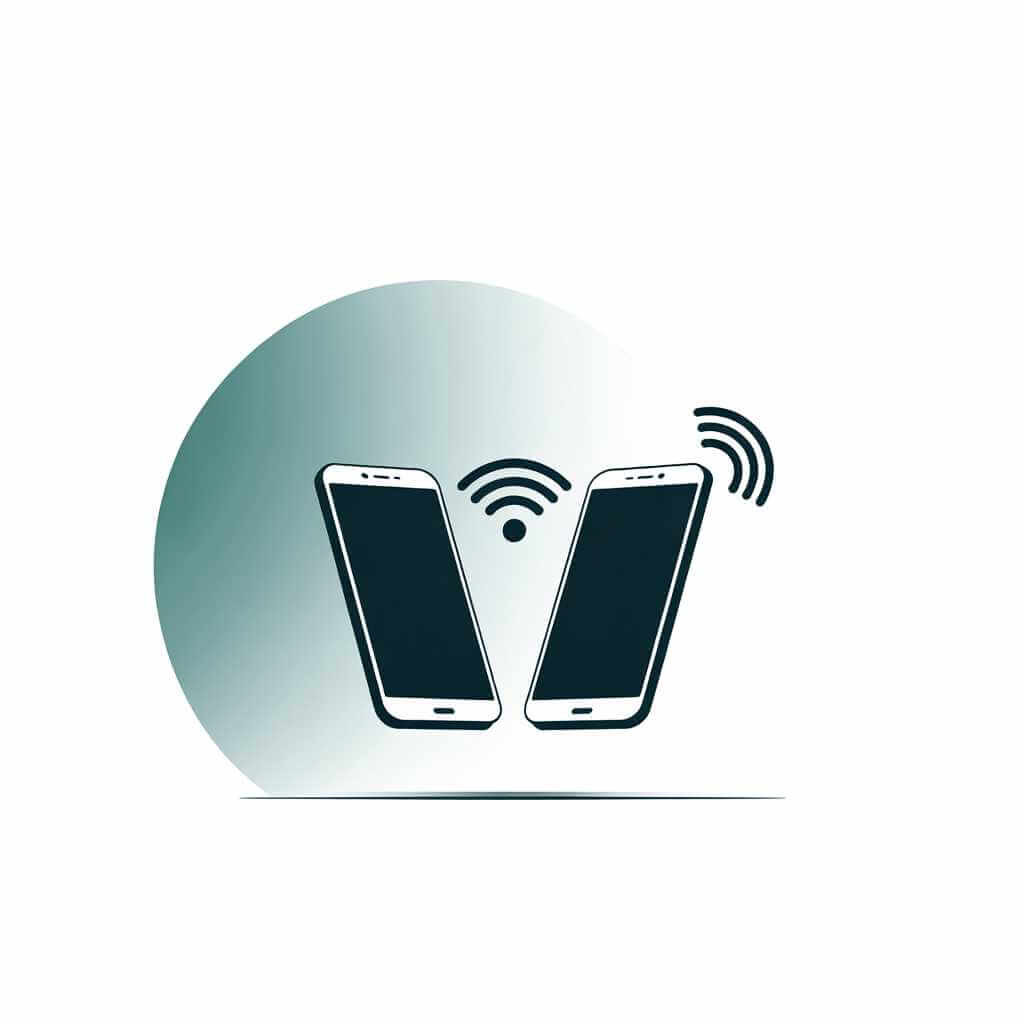
For a smartphone tutorial that works for anyone with a smartphone, the practical path is the first one: a push‑to‑talk app that runs on your existing phone and internet connection.
Pick the right PTT app (what to look for)
There are lots of “walkie-talkie” apps, but not all of them feel like a radio. You want features that support fast, one-touch talking, group comms, and accessories.
The checklist that matters
Look for:
- Channels/groups: So you can set up “Family,” “Road Trip,” “Event Crew,” or “Warehouse Ops” and talk like a team radio net.
- Hardware button support: Ideally, the app lets you map PTT to a physical button or an external accessory button (so your screen can stay off or locked more often).
- Bluetooth headset support: If you want the shoulder-mic vibe, Bluetooth audio is the fastest way to get hands-free.
- Works on Wi‑Fi and mobile data: So you can keep talking indoors on Wi‑Fi and then transition to cellular outside.
My “radio-like” setup (what I did, and why it worked)
I’ve configured phone-based PTT a few different ways, and the biggest difference between “this is a toy” and “this is actually useful” comes down to one thing: friction. If you have to unlock your phone, find the app, and press an on-screen button every time, you’ll stop using it.
Here’s the setup that finally made my phone feel like a real radio.
Step 1: Create a channel structure (keep it simple)
Before touching any accessory settings, I set up a tiny channel plan:
- A main channel (everyone joins; this is the “dispatch” line).
- A secondary channel (optional; used for side conversations so the main channel stays clean).
Apps like Zello are built around channels for this exact “radio net” style of communication.
My tip: name channels like you’d name radio talk groups—short and obvious. “Ops,” “Family,” “Car-to-Car,” “Event Team.”
Step 2: Make push‑to‑talk truly one‑touch
This is the point where it starts to feel like a walkie-talkie.
If your app supports it, enable hardware PTT mapping so you can transmit using a button instead of tapping the screen. If you want to go further, you can find apps that also documents mapping PTT to external headset/mic buttons on iOS/Android, including mapping behavior for a contact or channel.
Practical note: not every phone model exposes the same button events, and not every Bluetooth accessory works perfectly—so treat this as “test and verify,” not “set and forget.”
Step 3: Add a headset to mimic a shoulder-mic workflow
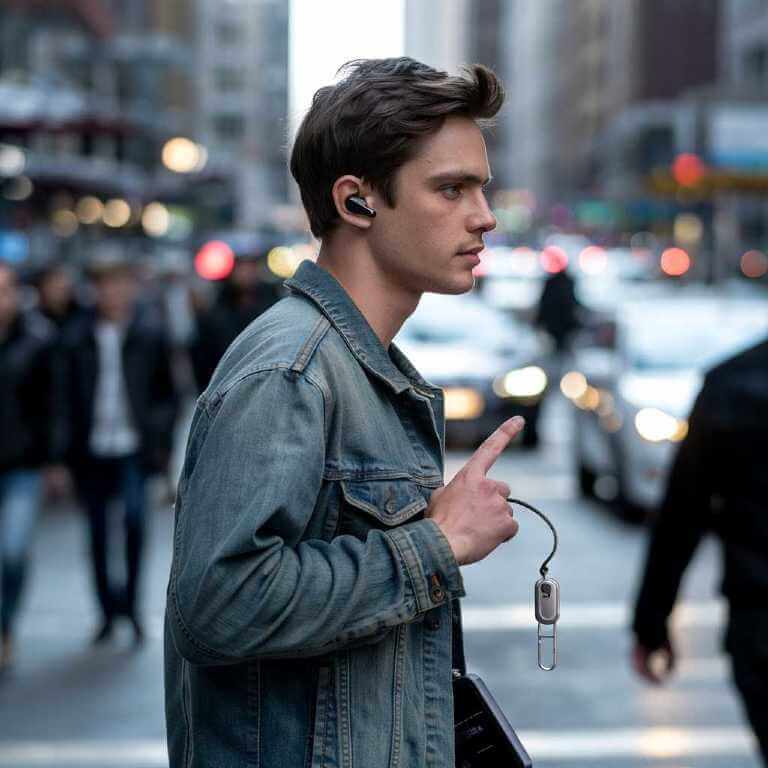
My favorite “radio-like” improvement was switching to a headset for hands-free operation:
- Audio is always ready.
- I can keep the phone in a pocket or on a desk.
- In noisy places, a decent mic placement matters more than you’d think.
Some PTT apps support Bluetooth headsets (some apps lists Bluetooth headset support on selected phones), which is exactly what you want for that shoulder-mic feel.
Step 4: Decide between “Hold to talk” vs “Toggle”
Traditional radios are “hold to talk.” Some apps/accessories allow “toggle” (press once to start transmitting, press again to stop). Toggle can be convenient, but it’s also how people accidentally hot-mic an entire channel—so I personally default to hold-to-talk when it’s available.
Phone PTT vs real two‑way radios (a quick, honest reality check)
A smartphone acting like a walkie‑talkie is incredibly convenient—but it’s not the same technology as a real radio.
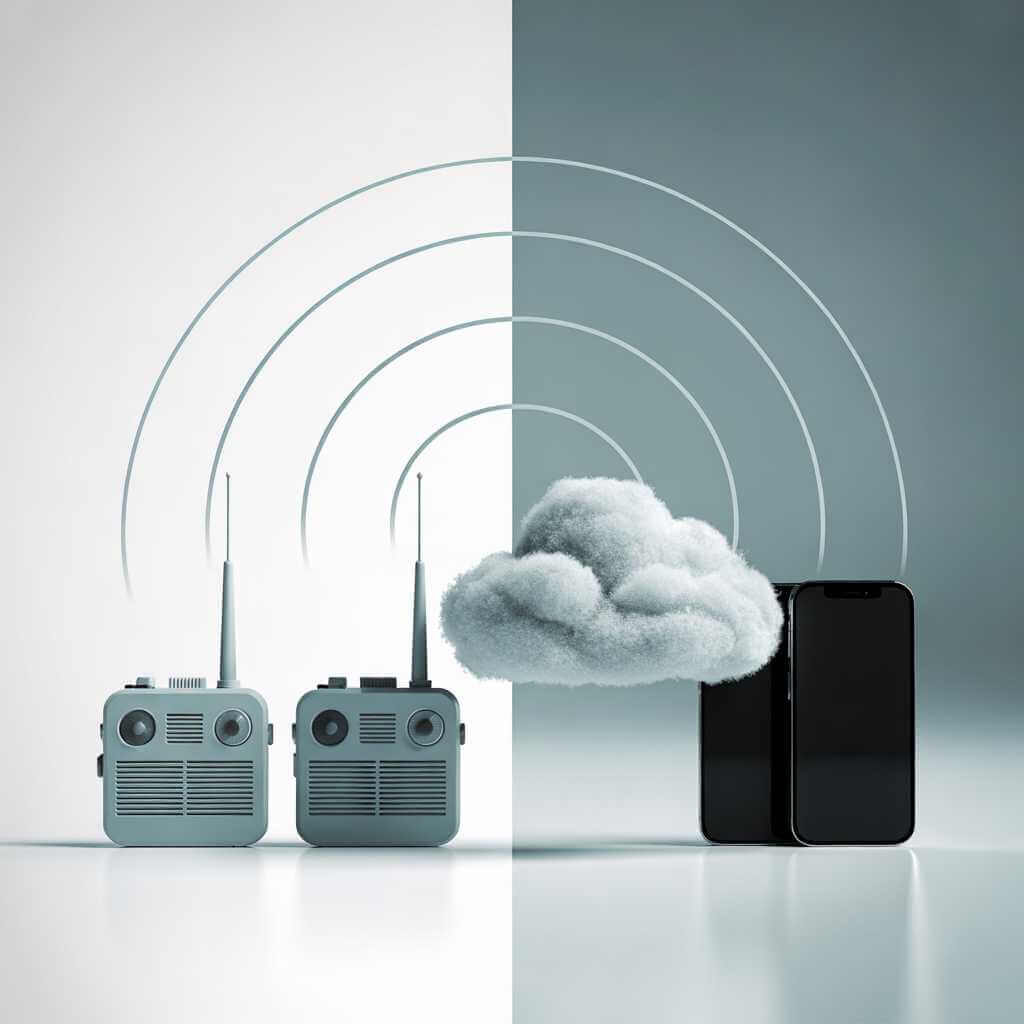
The key difference: network dependency.
PTT apps typically rely on Wi‑Fi or cellular networks to carry voice, which can give you wide-area coverage but also means performance depends on connectivity. Traditional two‑way radios operate on their own frequencies, so they can keep working even when public networks are congested or unavailable.
When two-way radios still win
Two-way radios are hard to beat when you need:
- Off-grid communication (no Wi‑Fi/cell).
- Consistent local performance with instant PTT feel.
- A dedicated tool that’s not fighting notifications, calls, and battery-hungry apps.
That said, for many everyday scenarios—families, events, small teams, road trips—a phone PTT setup is the fastest thing to deploy because everyone already has the hardware.
A practical comparison table (so you can choose fast)
| Option | What it uses | Range/coverage | Works without internet? | Best for |
|---|---|---|---|---|
| Smartphone PTT app | Wi‑Fi + cellular data (internet) | Often “as far as your network” (can be wide-area) | No (it’s network-dependent) | Families, events, distributed teams, quick setup |
| Traditional two‑way radios | Radio frequencies (VHF/UHF) | Typically local unless you add infrastructure like repeaters | Yes (no Wi‑Fi/cell needed) | Off-grid, job sites, emergency readiness, rugged local comms |
| PTT over Cellular (PoC) devices/services | Cellular networks + sometimes Wi‑Fi fallback | Wide-area coverage via carriers | No (still depends on networks) | Businesses that want managed PTT features, fleet control |
Make it feel instant: settings that reduce lag and missed messages
Even with a great app, your phone can sabotage the experience. Here’s how to make it feel more like a radio.
Keep the app “alive”
On both Android and iPhone, background restrictions can delay notifications and break “instant” behavior. In plain English: tell the OS the app is important.
Do this:
- Allow notifications (sound + lock screen).
- Allow background activity (or remove battery optimization for the app).
- Enable microphone permissions permanently (not “ask every time”).
Use Wi‑Fi strategically
In many buildings, Wi‑Fi is more stable than cellular indoors. PTT over Wi‑Fi is a real thing, and it’s commonly deployed alongside PTT over cellular so you can use Wi‑Fi when it’s strong and cellular when you move out of range.
Audio tuning: the small changes that matter
If you want that “I can hear you clearly” radio vibe:
- Use a headset with a mic closer to your mouth.
- Turn on any “voice enhancement” or noise suppression your phone provides (but test it; sometimes it clips).
- Keep media volume and call volume consistent so you’re not surprised mid-conversation.
Channel etiquette: how to sound like you know what you’re doing
This is the part most guides skip, but it’s exactly what makes PTT useful with groups.
Basic “radio discipline” for smartphone channels:
- Start with who you’re calling: “Alex—quick update.”
- Keep messages short (one idea per transmission).
- End clearly: “Done,” “Over,” or “That’s it.” (Pick one style so everyone learns it.)
- Don’t transmit while walking through loud environments if your mic is overwhelmed—move or cover the mic.
A simple rule that prevents chaos
If you’re running a group channel, use one rule: only urgent traffic interrupts. Everything else waits its turn.
Troubleshooting guide (the fixes that solve 90% of problems)
“My PTT button doesn’t work”
- Try a different button mapping mode (some phones don’t expose the same hardware events).
- If you’re using an external button, confirm the app supports mapping external PTT controls; apps provides a guide for mapping external PTT buttons/headsets on iOS/Android, with notes about compatibility.
- Test with a wired headset first; Bluetooth adds one more variable.
“It’s not instant / it feels delayed”
- Switch to Wi‑Fi if cellular is weak (or vice versa).
- Disable aggressive battery optimization for the app.
- Reduce competing audio apps (music streaming + Bluetooth can introduce delay on some setups).
“People can’t hear me clearly”
- Move the mic closer (headset helps a lot).
- Check microphone permissions.
- If you’re in wind/noise, reposition the mic and speak slightly slower—PTT codecs can struggle with chaotic background sound.
A quick note on interoperability (don’t get surprised)
Not all PTT apps talk to each other, even if they sound similar. For example, some apps note it uses a proprietary low-latency protocol and isn’t interoperable with certain other services.
So if you’re setting this up for a group, pick one app and standardize it.
FAQ: Turn your phone into a walkie‑talkie (PTT)
Q1: Can I really turn my phone into a walkie‑talkie?
Yes—using a push‑to‑talk (PTT) app, your phone can send instant voice messages to a person or group/channel over Wi‑Fi or mobile data, which is the core “walkie‑talkie” experience most people want.
Q2: Do phone walkie‑talkie apps work without internet?
Most phone-based PTT apps rely on Wi‑Fi or cellular data, so they generally won’t work in airplane mode or when you have no connectivity.
Q3: What’s the difference between phone PTT and a real two‑way radio?
Phone PTT typically routes audio through networks (Wi‑Fi/LTE), while traditional two‑way radios can do direct device‑to‑device communication on their own frequencies, independent of public networks.
Q4: Will it work over Wi‑Fi in a big building?
It can—PTT over Wi‑Fi is specifically designed to use existing Wi‑Fi coverage to deliver “radio-like” push‑to‑talk calling, but it depends heavily on having strong, consistent Wi‑Fi coverage (dead zones matter).
Q5: What’s the easiest app to start with?
A simple starting point is Zello, since it’s built around PTT behavior and supports channels/groups (useful for “team radio” style communication).
Q6: How do I make it feel more like a real radio (one‑touch talk)?
Use an external PTT button or headset button mapping if your app supports it, for example, lets you map an external PTT button and can map it to a contact or a channel so you can transmit without tapping the screen.
Q7: Can I use a Bluetooth headset for hands‑free PTT?
Often yes—some PTT apps support Bluetooth headset use, which is one of the best ways to mimic a shoulder‑mic workflow.
Q8: Why is there sometimes a delay when I press PTT?
Network-dependent PTT can be affected by Wi‑Fi/cellular quality and congestion, and performance may vary compared with direct radio systems.
Q9: Can I talk to multiple people at once like a real radio channel?
Yes, if your app supports channels/groups—this is one of the key reasons PTT apps can replace “everyone call everyone” chaos with a single shared talk group.
Q10: Do different walkie‑talkie apps work with each other?
Usually not—many services use their own systems and aren’t interoperable, so it’s best to pick one app for your whole group and standardize on it.
Q11: What’s better for emergencies: phone PTT or two‑way radios?
Two‑way radios can be preferred in critical situations because they can operate independently of public networks, while phone PTT depends on network availability.
Q12: Any quick etiquette tips so I don’t annoy my channel?
Keep transmissions short, pause half a second before speaking after pressing PTT (so you don’t clip your first word), and don’t interrupt unless it’s urgent—basic “radio discipline” makes group channels far more usable.
Conclusion: your next step (10-minute setup)
o turn your phone into a walkie talkie in a way that actually sticks, focus on a low-friction setup: choose a real PTT app with channel support, enable hardware/external push-to-talk if available, and run a headset so you can transmit hands-free like a shoulder mic. Apps like Zello explicitly support channels, hardware PTT mapping options, and headset/button workflows, which is why this approach works so well in practice.
If you want, tell me whether you’re mostly on Android or iPhone and whether this is for family use, events, or a small business team—then I’ll tailor the exact settings checklist (including recommended channel structure and accessory approach) to your scenario.