Table of Contents
TL;DR (reduce input lag on Android)
- To reduce input lag on Android, prioritize stable FPS and low frame-time spikes over “max settings.”
- Use Game Dashboard (if supported) for Do Not Disturb, FPS monitoring, and performance optimization settings.
- If performance collapses after 10–20 minutes, you’re probably hitting thermal throttling—reduce load (shadows/effects), cap FPS, and improve cooling.
- Measure changes with an FPS counter and repeatable tests so you’re not chasing placebo.
Introduction
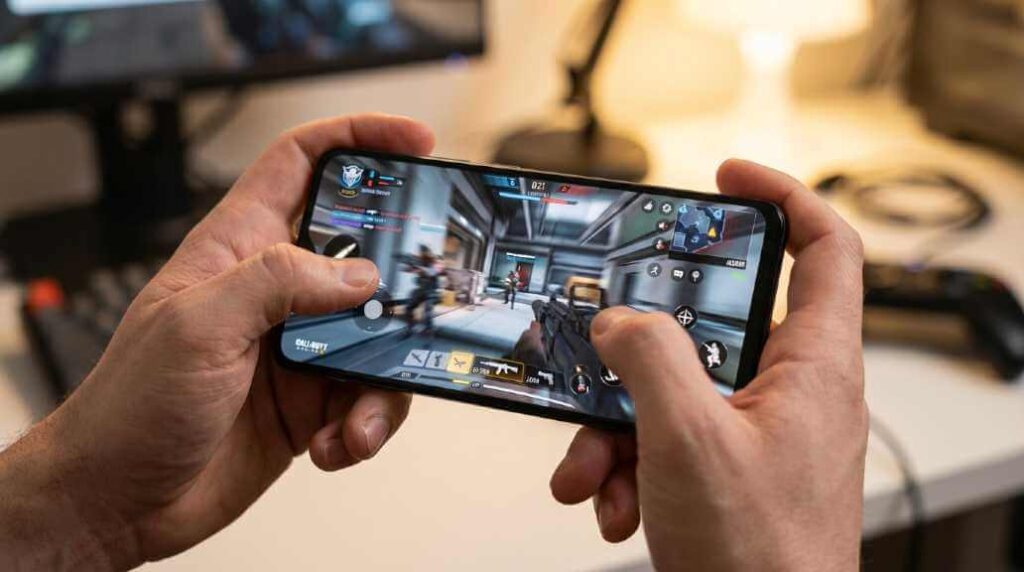
If you’ve ever lost a close-range duel because your shot felt “late,” you already know the truth: in FPS games, smooth frame pacing and low latency matter as much as raw aim. This guide is built for players who want to reduce input lag on Android, avoid thermal throttling, and keep performance consistent—whether you’re grinding ranked or just chasing that old-school vibe.
Personal note you can relate to: I grew up on Counter-Strike 1.6—LAN cafés, sweaty palms, and the kind of clutch moments that made you slam the desk and laugh five seconds later.
These days, I still play that CS 1.6-style experience on my smartphone, and the reason it feels great isn’t “magic hardware”—it’s dialing in settings to reduce input lag on Android and keeping the phone cool enough to avoid throttling.
Reduce input lag on Android: What “lag” actually is (and why it’s not just ping)
When people say “lag,” they usually mean one of three things: network latency (ping), frame drops/stutter (FPS instability), or input latency (time from finger/controller to action on screen). If your ping is fine but your gun still feels delayed, you’re likely dealing with rendering delays, touch sampling issues, background load, or thermal throttling—not the server.
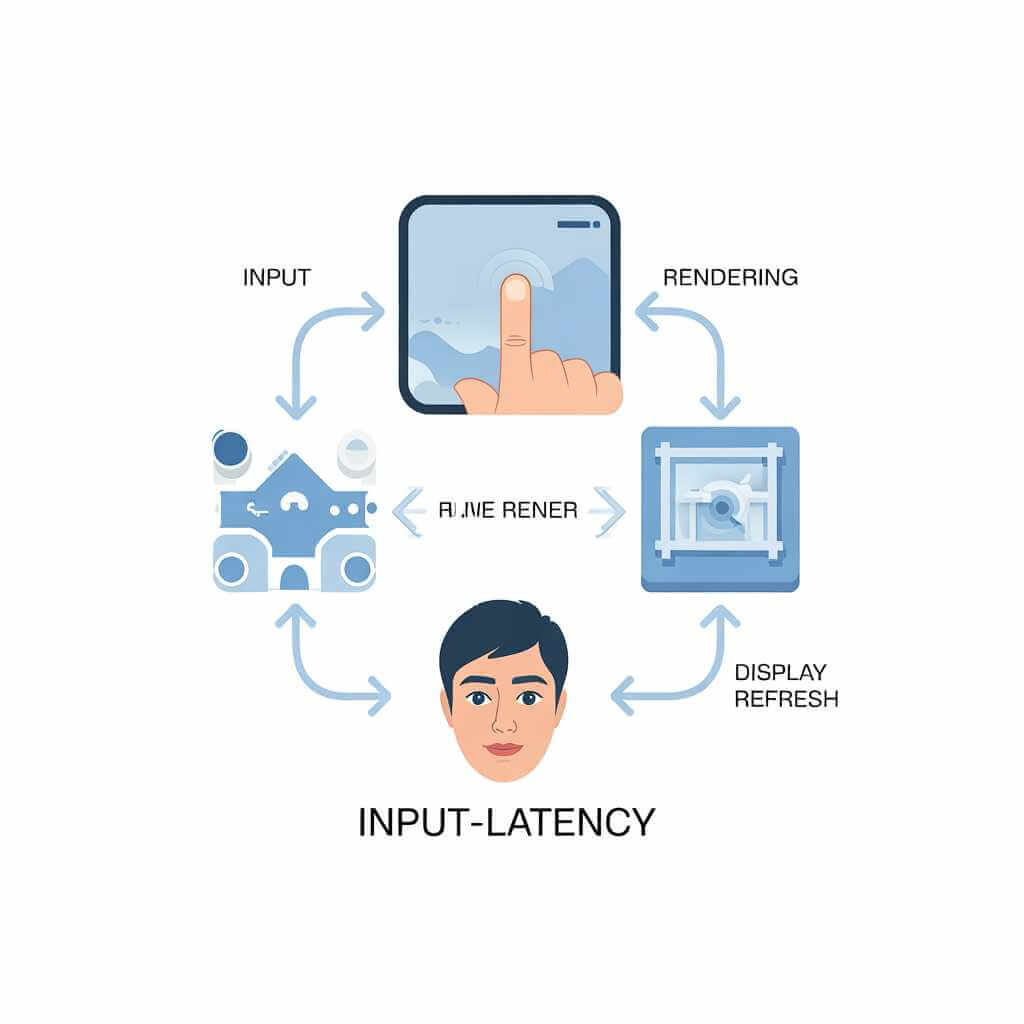
To reduce input lag on Android, you want to lower the total end-to-end delay:
- Touch/controller input → game engine → frame rendering → display refresh → your eyes.
- Heat and power limits can slow CPU/GPU clocks, which increases frame time and makes input feel heavy.
Reduce input lag on Android: Quick wins in 10 minutes (highest impact first)
If you only do a few things, do these first to reduce input lag on Android—because they target the biggest “hidden” causes of sluggish FPS feel.
Turn on Game Dashboard (and use it the right way)
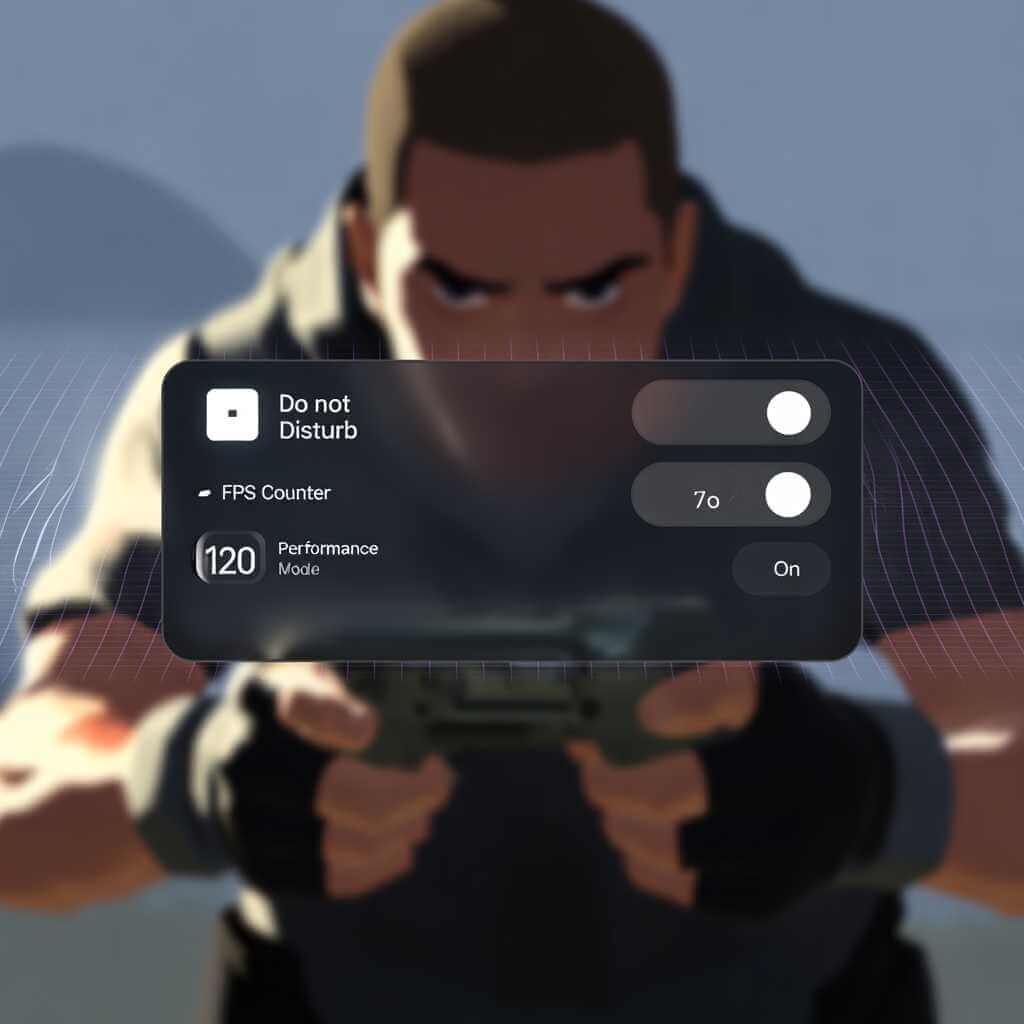
On supported phones (Pixels are the safest bet), Android’s Game Dashboard can help you access Do Not Disturb, an FPS counter, and optimization controls while in-game.
Android Authority describes enabling it via Settings → Apps → Game settings → Game Dashboard, then using the floating gamepad icon during gameplay.
Practical setup to reduce input lag on Android:
- Enable Do Not Disturb from the dashboard so calls/notifications don’t interrupt fights.
- Turn on the FPS counter to see whether you’re truly stable (stability matters more than peak).
Use Performance/Balanced game optimization (when available)
Game Dashboard optimization (for supported games) includes Performance / Standard / Battery choices; Performance ramps up processors but costs more battery, and Battery can hurt framerates.
If your goal is to reduce input lag on Android in an FPS, Performance is usually the right starting point—then you can back down if heat becomes the limiting factor.
Kill the “silent lag” sources
To reduce input lag on Android, remove the stuff competing with your game:
- Close background apps (especially video/social apps).
- Disable Battery Saver for your gaming session (Battery Saver can downclock and add latency feel).
- Turn off auto-updates and heavy sync while playing.
Set display for responsiveness (not battery)
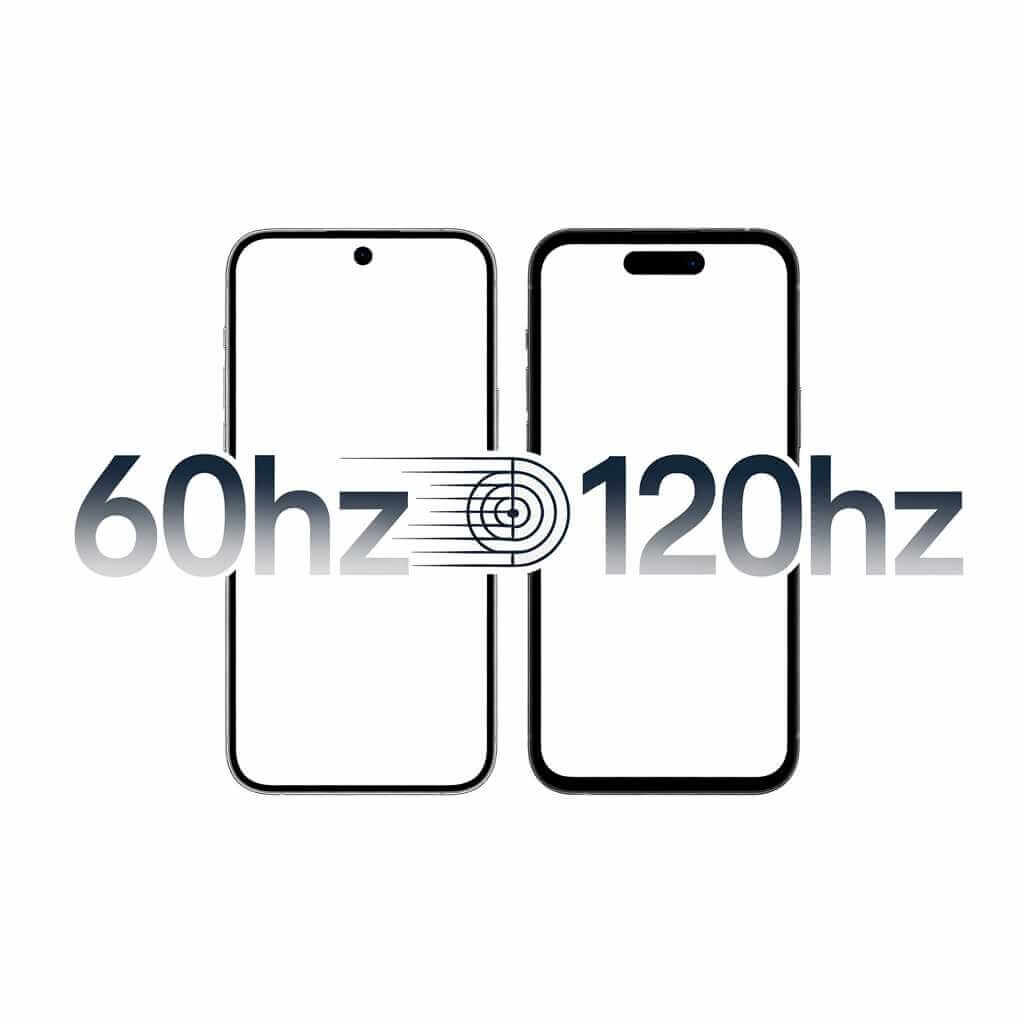
If your phone supports high refresh rate, use it for FPS games (90Hz/120Hz). Even when the game can’t fully match the refresh rate, the UI and touch feel often improves—and perceived latency drops.
Reduce input lag on Android: The settings that actually move the needle
Below is a practical checklist you can revisit before serious sessions to reduce input lag on Android.
Table: Fast checklist to reduce input lag on Android (and heat)
| Tweak | Helps reduce input lag on Android? | Helps thermal throttling? | When to use it |
|---|---|---|---|
| Game Dashboard FPS counter to verify stability | Yes | Indirect | Always (diagnosis) |
| Game Dashboard Do Not Disturb toggle | Indirect | No | Always (competitive) |
| Game Dashboard Optimization → Performance/Standard/Battery | Yes | Depends | Start Performance; switch to Standard if overheating |
| In-game: lock FPS to a stable target (e.g., 60) | Yes | Yes | When temps climb or stutter starts |
| Lower shadows/post-processing first | Yes | Yes | Most efficient “quality-to-performance” win |
| Remove thick case / improve airflow | Indirect | Yes | Long sessions, warm room |
| Keep brightness moderate | Indirect | Yes | Outdoors aside, avoid 100% |
Use Game Mode the way Android intends (Performance vs Battery)
Android’s Game Mode API supports modes like STANDARD, PERFORMANCE, and BATTERY; PERFORMANCE is described as providing the lowest latency frame rates in exchange for reduced battery life and fidelity, while BATTERY prioritizes battery life with reduced fidelity or frame rates.
Even if you’re not a developer, this matters because many OEM “Game Booster” features mirror the same idea: pick the mode that matches your goal to reduce input lag on Android.
Reduce input lag on Android: Fix thermal throttling (the #1 reason “smooth” turns into “mud”)
Thermal throttling is when your phone slows itself down to avoid overheating. In FPS games, throttling shows up as:
- A session that starts buttery, then turns stuttery after 10–20 minutes.
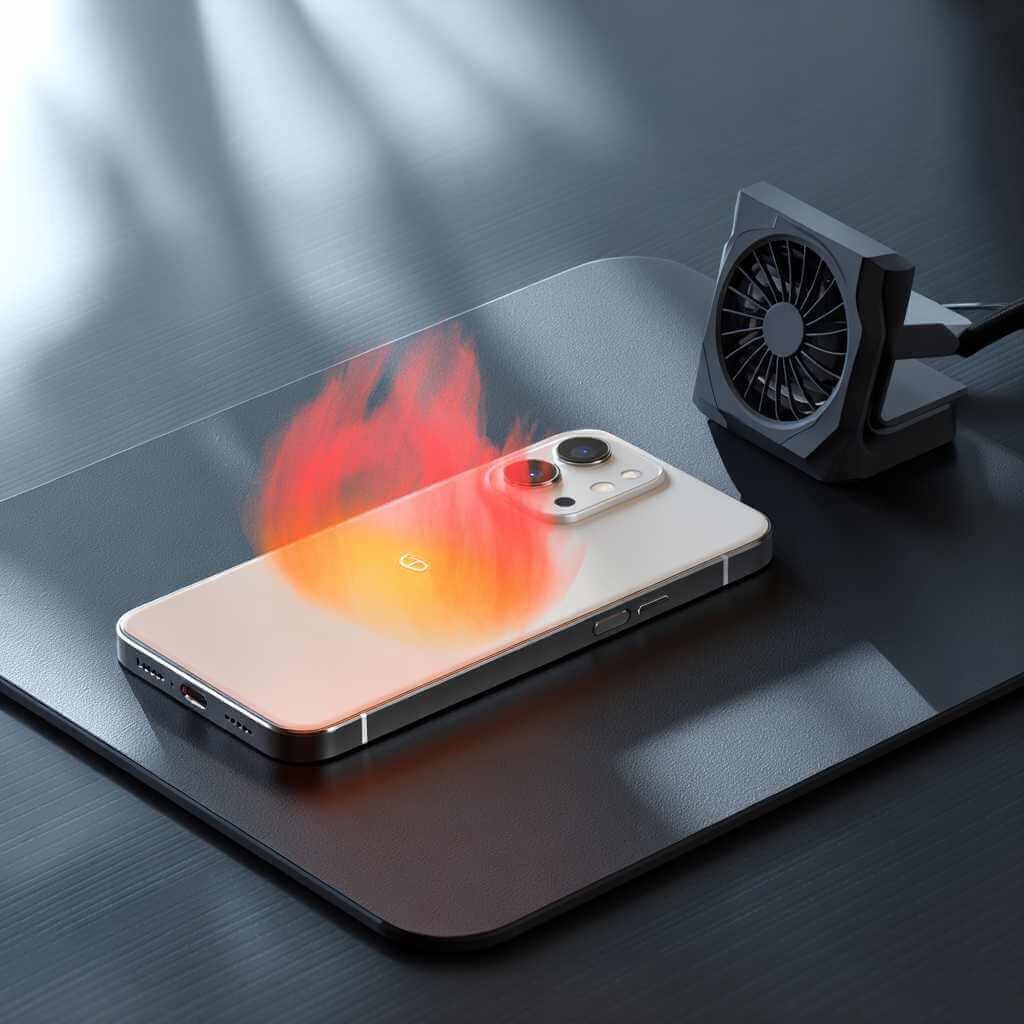
Thermal throttling is the silent FPS killer—cooling keeps performance consistent. - Touch feeling “floaty” because frames are taking longer to render.
- Sudden FPS drops when action gets intense.
Here’s the expert approach: don’t fight heat with hope—fight it with constraints. If you want to reduce input lag on Android over a long session, you need sustainable performance, not a 2-minute benchmark peak.
Choose stability over “Ultra”
If you’re chasing low latency, consistent frame time is king.
- Drop shadows, volumetrics, and heavy anti-aliasing first (they often spike GPU load).
- Consider locking FPS to 60 if 90/120 causes heat spikes.
- Use “Balanced/Standard” mode if “Performance” causes rapid temperature climb (because throttling later is worse than slightly lower clocks now).
Don’t charge the “wrong way” while gaming
Charging adds heat. If you must charge during a session:
- Use a slower charger (less heat) rather than the fastest brick available.
- Avoid covering the phone’s back (blankets, pillows, your palm pressed hard).
Improve airflow like a mobile esports player
To reduce input lag on Android in long FPS sessions, cooling is performance:
- Remove thick/insulating cases.
- Play in a cooler room when possible.
- If you take mobile FPS seriously, a clip-on cooler can make performance consistent (especially on high-end chips that boost aggressively then throttle).
Reduce input lag on Android: Controls, touch, and “why my aim feels late”
Even with perfect FPS, controls can add latency feel. To reduce input lag on Android from the input side:
Touch settings and control layout
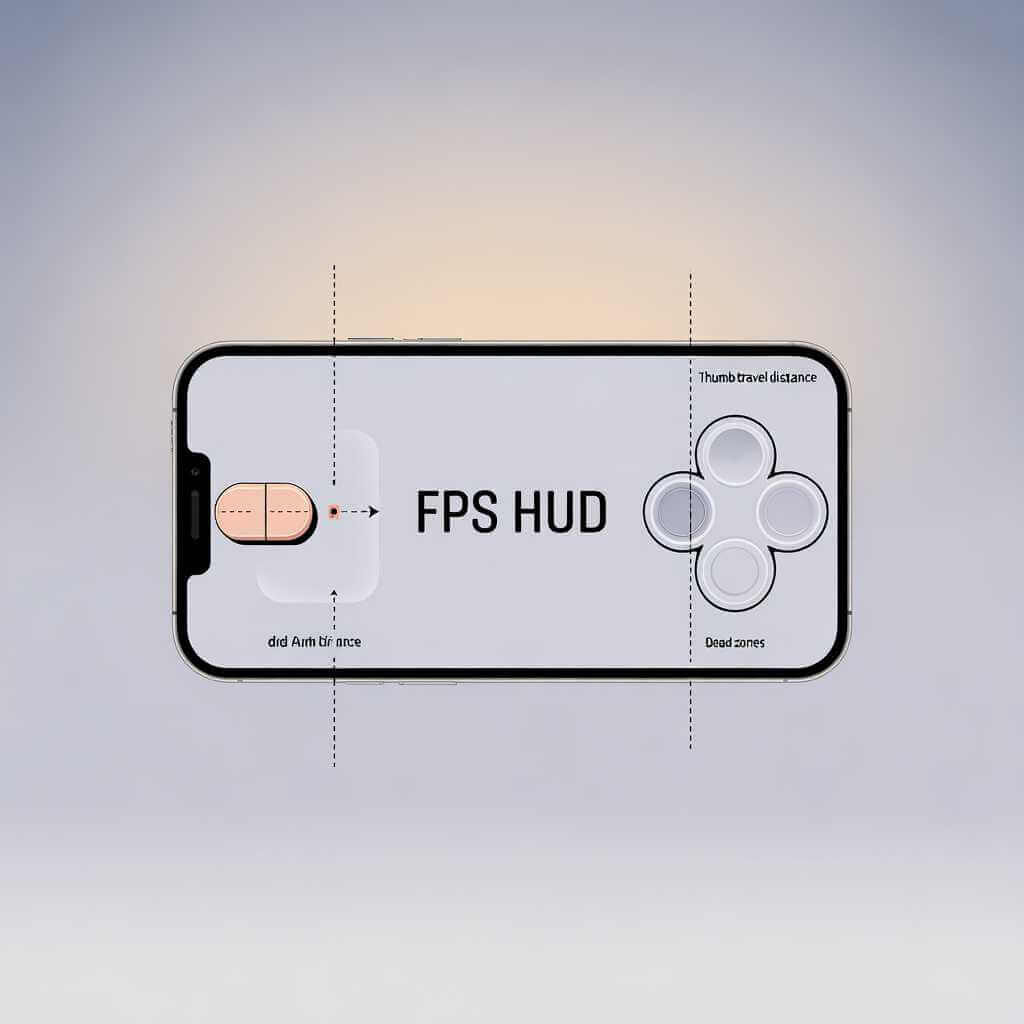
- Use a consistent HUD: keep fire/aim controls away from the hottest part of the screen where your thumb drags across.
- Reduce accidental multi-touch chaos: increase button spacing, reduce transparency only if it helps visibility.
Bluetooth controller tips (if you use one)
Bluetooth can feel great, but if you notice delay:
- Keep the controller battery high (low battery can cause instability).
- Reduce wireless interference (turn off unused Bluetooth devices nearby).
- Prefer wired (USB) if your phone/controller supports it for the lowest latency feel.
Reduce input lag on Android: Measure your changes (so you don’t placebo yourself)
Guessing is how you waste weekends. Measuring is how you reduce input lag on Android efficiently.
Use an FPS counter and replicate the same scenario
Game Dashboard can show an FPS counter, which helps you see if your tweaks actually stabilize performance.
Test in a repeatable situation: same map, same training drill, same 5-minute run—then change one thing at a time.
What “good” looks like for FPS games:
- Stable 60 FPS with clean frame pacing often feels better than unstable 90.
- If FPS drops coincide with the phone heating up, your real enemy is thermal throttling, not “bad optimization.”
Reduce input lag on Android: My CS 1.6-style setup (practical, not magical)
This is the exact mindset I use to keep my Counter Strike 1.6 style sessions smooth on a phone: optimize for consistency, not bragging rights. Just remember to grab a reliable cs 1.6 download from a trusted source.
What I prioritize to reduce input lag on Android:
- Performance/Game mode only as long as temps stay controlled (otherwise Balanced beats throttled Performance).
- Graphics trimmed for stability: shadows down, effects down, resolution reasonable.
- Distraction-free sessions: Do Not Disturb from Game Dashboard so nothing steals focus mid-round.
- Short breaks: 2–3 minutes between matches so the device cools and stays stable.
And here’s the honest part: when everything is tuned, it’s not just “playable”—it’s legitimately competitive-feeling, the way Counter-Strike should feel: immediate, predictable, and crisp.
Reduce input lag on Android: Troubleshooting by symptom
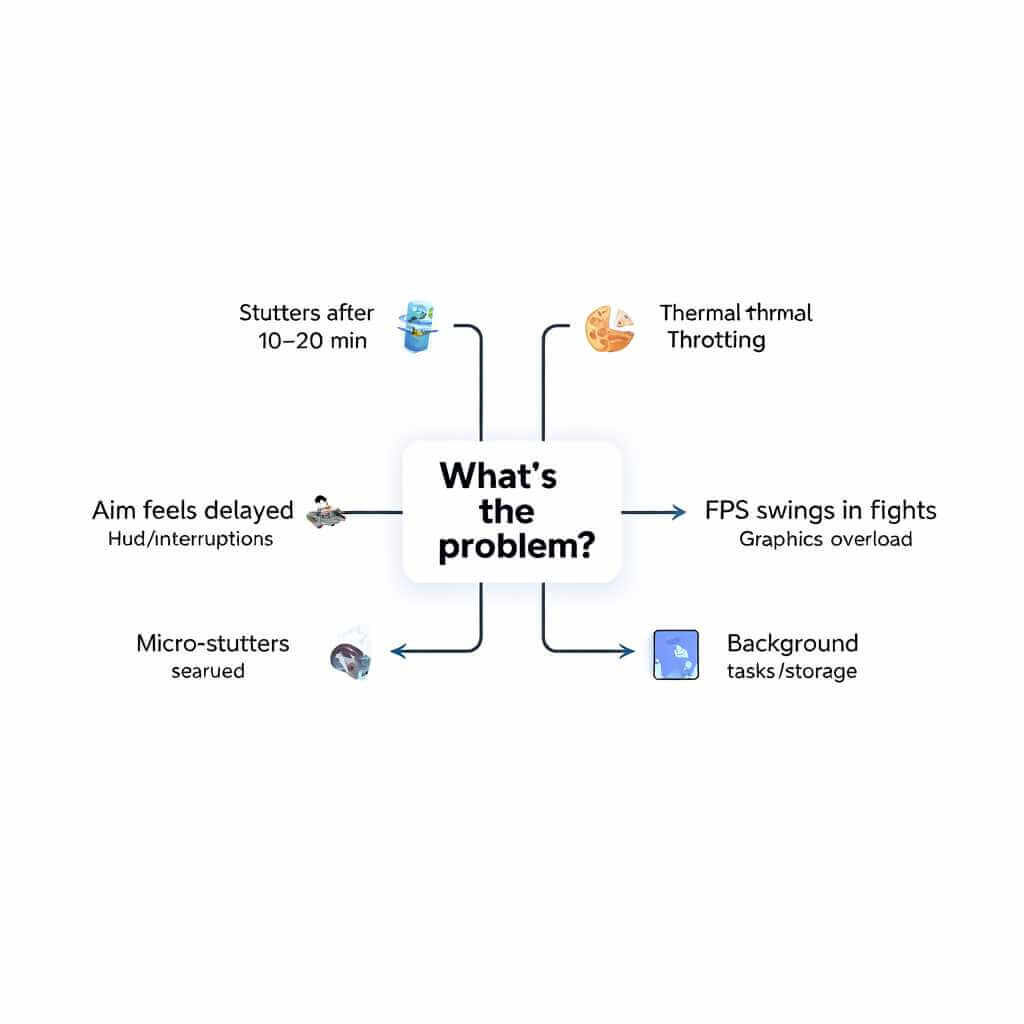
Table: Symptom → likely cause → fix
| Symptom | Likely cause | Fix to reduce input lag on Android |
|---|---|---|
| Smooth for 5 minutes, then stutters | Thermal throttling | Lower graphics, cap FPS, remove case, play cooler, consider Balanced mode |
| Aim feels delayed but FPS looks fine | Touch/control layout, background interruptions | Rebuild HUD, enable DND, close apps, try higher refresh rate |
| FPS swings wildly in fights | GPU overload / effects spikes | Reduce shadows/effects first, lower resolution, cap FPS |
| Random micro-stutters | Background tasks / storage pressure | Free space, restart, disable heavy sync, close apps |
| Phone gets hot near camera bump | Heat concentration area | Avoid pressing palm there, improve airflow, cooler room |
FAQ: Reduce input lag on Android
Q1: What’s the fastest way to reduce input lag on Android for FPS games?
Enable your phone’s gaming tools (like Game Dashboard where available), turn on Do Not Disturb, close background apps, disable Battery Saver, and reduce the heaviest in-game graphics settings first (shadows/effects).
Q2: Does Android Game Mode actually help reduce input lag on Android?
It can. Android’s Game Mode options include PERFORMANCE (lowest latency frame rates with battery/fidelity tradeoffs) and BATTERY (longer battery life with reduced fidelity/frame rate).
Q3: Why does my FPS feel great at the start, then get worse?
That pattern is classic thermal throttling: the chip boosts early, heats up, then downclocks to protect itself. The fix is sustainable settings—slightly lower fidelity, capped FPS, and better cooling—so performance stays consistent.
Q4: Should I use Performance mode all the time?
Use it when it’s sustainable. If Performance mode causes rapid heat buildup and throttling, Standard/Balanced may feel better overall because it avoids the big mid-match collapse.
Q5: Is high refresh rate important to reduce input lag on Android?
Yes for “feel,” especially in fast shooters. Higher refresh can make motion clearer and inputs feel more immediate, but it can also increase heat—so treat it like a tool, not a rule.
Conclusion: Reduce input lag on Android by making performance predictable
If you want to reduce input lag on Android, the goal isn’t “maximum everything”—it’s predictable gameplay: stable FPS, controlled temperatures, and no interruptions. Start with Game Dashboard tools and FPS monitoring, pick a sustainable performance profile, then tune graphics so your phone never hits the heat wall mid-fight.
If you want, tell me your phone model and the FPS game(s) you play most, and I’ll tailor a “best settings” profile to reduce input lag on Android for your exact device.