Table of Contents
TL;DR
On OLED/AMOLED phones, using an OLED black background (dark mode + black wallpaper + dark-themed apps) can save battery because black pixels emit little to no light, so the display draws less power—especially at higher brightness. Purdue’s research suggests dark mode savings are usually modest indoors (~3–9% on average), but can be much larger in bright outdoor use (up to ~39–47%), and lowering brightness often has an even bigger impact than dark mode alone.
Why an OLED black background saves battery
If your phone has an OLED/AMOLED display, an OLED black background can save battery because OLED pixels create their own light—so darker pixels draw less power than bright ones.
In practical terms, black (or near-black) UI elements reduce how hard the display has to “work,” which is why the OLED black background approach can meaningfully extend battery life for some people.
OLED is also different from LCD: LCD panels rely on a backlight, while OLED emits light per pixel, which is why dark pixels can be more efficient on OLED in the first place.
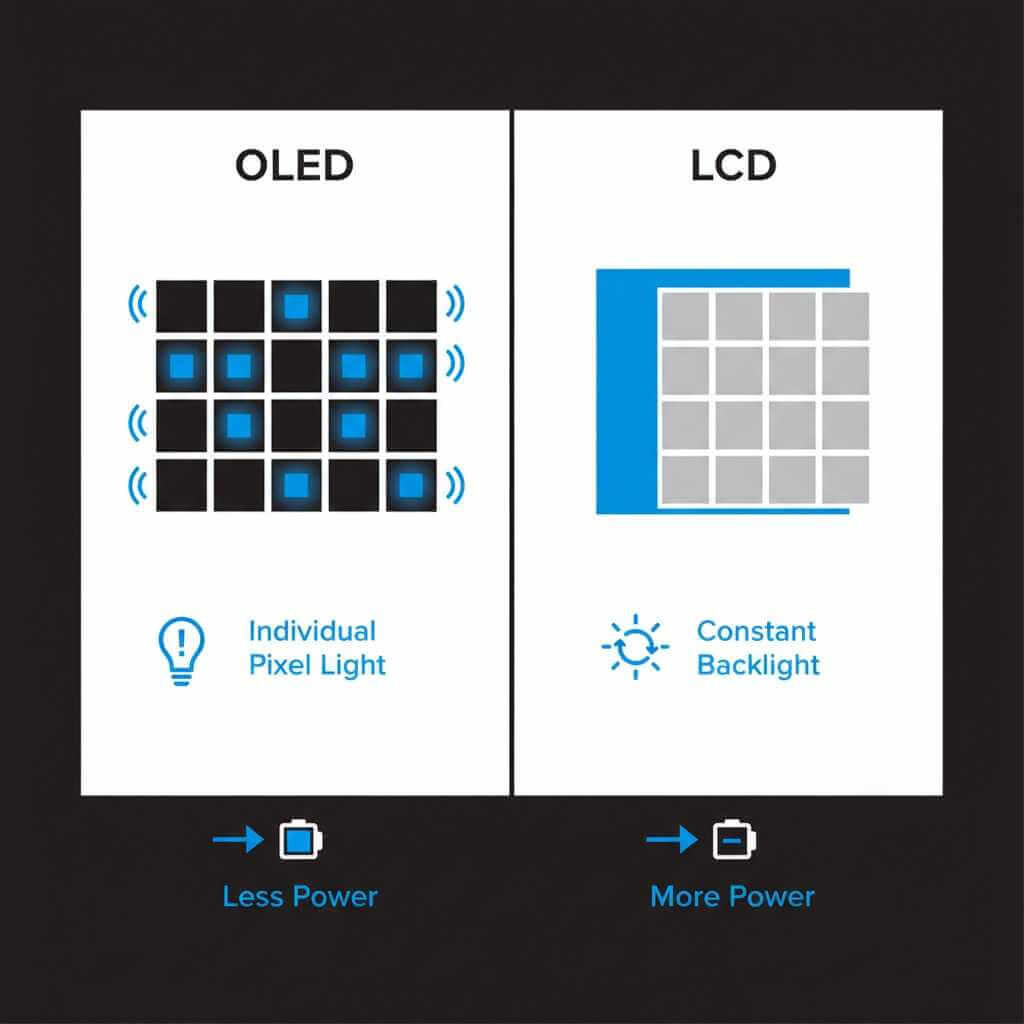
That’s the core reason the OLED black background trick can help on OLED phones but may do almost nothing on older LCD phones.
The real-world savings (what research actually shows)
A common myth is that dark mode “massively” boosts battery life no matter what—but the best data says it depends heavily on brightness and your usage.
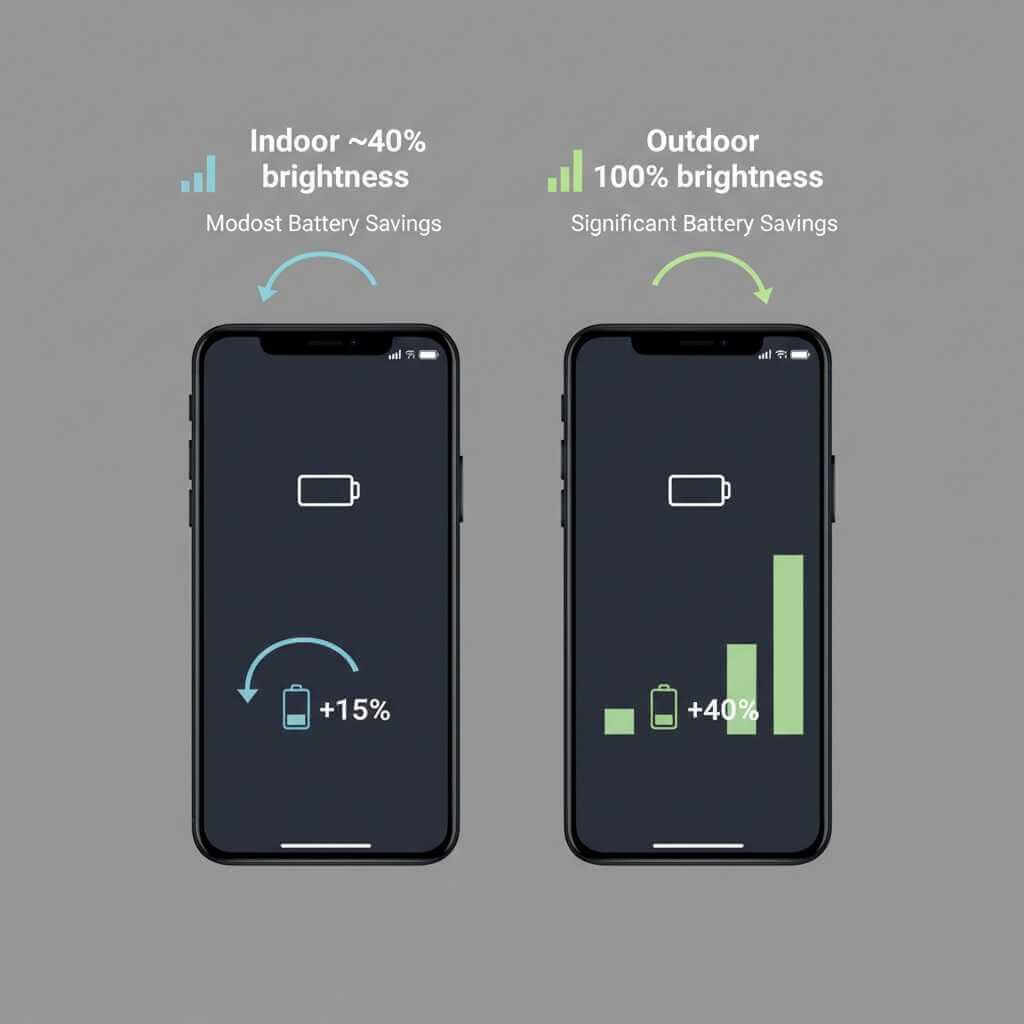
Purdue researchers found that under normal indoor use with auto-brightness, switching to dark mode saved about 3% to 9% of total phone power on average.
They also found scenarios where savings can be much higher—especially outdoors, where brightness can jump to 100% and dark mode savings can reach about 39% to 47%.
One more important point from that Purdue work: lowering brightness can reduce OLED display power draw dramatically—e.g., dropping brightness from 100% to 50% reduced OLED power draw by about 10x (independent of dark vs light content).
So the OLED black background strategy works best when it’s paired with smart brightness habits.
Quick data table: dark mode impact on OLED
| Situation | What changes | Typical impact on power/battery |
|---|---|---|
| Indoor use + auto-brightness | Switch to dark mode / darker UI | ~3% to 9% average total phone power savings |
| Outdoor use + very high brightness | Dark mode matters more because bright pixels cost more | ~39% to 47% possible savings in some scenarios |
| Brightness control (independent “knob”) | Drop brightness from 100% to 50% | About 10x lower OLED power draw (display portion) |
My personal “battery drain” turning point
I used to blame my battery for everything: “This phone’s battery health must be trash,” “This update ruined battery,” “Maybe I need a new phone.”
Then I realized my screen was basically a flashlight all day—white wallpapers, bright apps, bright keyboard, bright browser, bright everything.
When I committed to an OLED black background setup (dark mode + black wallpaper + dark-friendly apps), the difference wasn’t magical—but it was consistent: fewer emergency top-ups, less anxiety at 6–7 PM, and noticeably slower battery drop during heavy scrolling sessions.
And the best part is that once you set up an OLED black background system-wide, you don’t have to think about it again.
OLED black background vs “dark gray”: do you need pure black?
Pure black can save the most power on OLED because it’s effectively “no light,” but there’s a usability tradeoff: pure black can increase perceived contrast and sometimes causes “smearing” or makes text feel harsher.
Also, many modern dark themes use very dark gray for readability—and that still saves power compared to white because the pixels are still emitting very little light.
In other words: you don’t have to chase perfect #000000 everywhere to benefit from an OLED black background lifestyle.
If your phone or favorite app uses dark gray instead of pure black, you’re still getting most of the practical benefit without making the interface feel aggressive.
Step-by-step: Android guide (OLED black background setup)
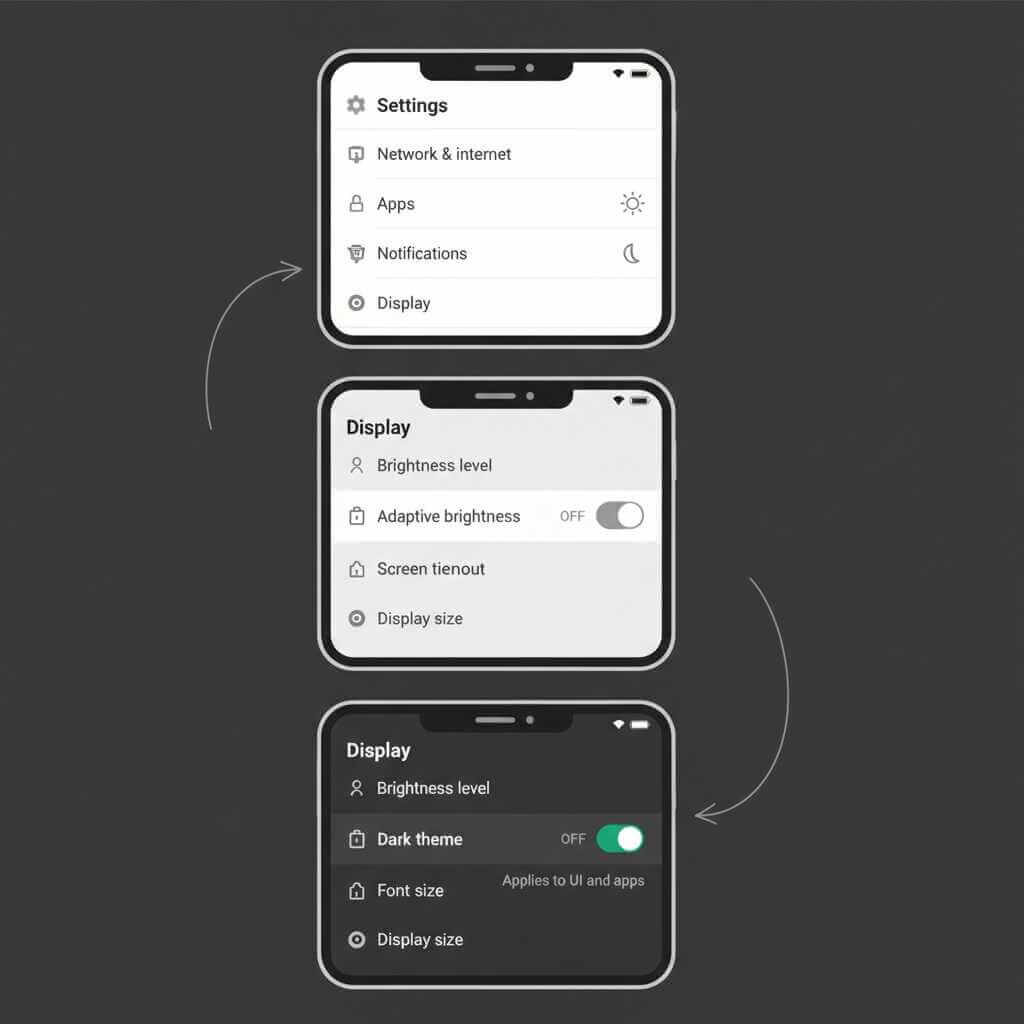
Android makes it easy to switch your whole phone toward an OLED black background look with Dark theme, and Google explicitly notes it “can save battery on some screens.”
The exact names may vary slightly by brand (Samsung, Pixel, Xiaomi), but the workflow is consistent.
1) Turn in Dark theme (system-wide)
- Open Settings → Display → toggle Dark theme on.
- Or use the Quick Settings tile for Dark theme for faster switching.
2) Use dark mode scheduling (optional, but practical)
If you want the OLED black background effect mostly at night, use scheduling so it flips automatically.
On Android, Dark theme scheduling options can include custom times or sunset-to-sunrise (availability depends on version and device).
3) Push into dark mode
Many apps follow the system Dark theme, but some need manual toggles inside the app.
If an app supports Android’s dark theme properly, it should respond to the system setting (Android 10+), helping you maintain an OLED black background consistently.
4) Make your wallpaper truly dark
This is the underrated step: your home screen is something you see dozens (or hundreds) of times a day.
Pick a pure black or near-black wallpaper so your most-viewed screens match the OLED black background goal.
5) Bonus: Keyboard and browser
If your keyboard app supports themes, choose a dark theme so typing doesn’t become a bright “battery tax.”
In browsers, enable dark mode for the UI, and consider dark-reader style options carefully (some can alter site rendering and readability).
Step-by-step: iPhone (iOS) guide (OLED black background setup)
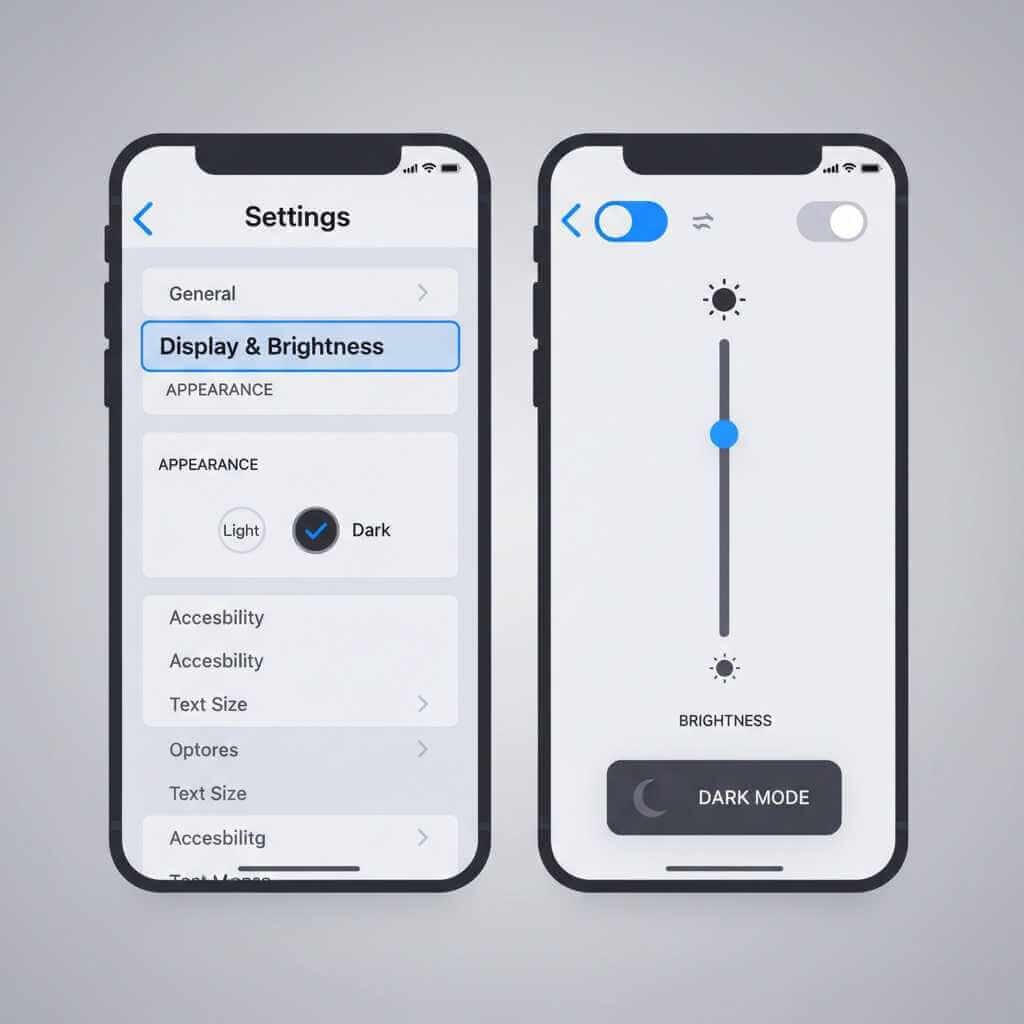
On iPhone, Dark Mode is straightforward, and Apple provides multiple ways to enable it.
If you have an iPhone with an OLED display (many recent non-SE models), the OLED black background strategy can be especially worthwhile.
1) Turn on Dark Mode in Settings
2) Turn on Dark Mode from Control Center
- Touch and hold the brightness bar, then toggle Dark Mode on/off.
3) Add Dark Mode to Control Center (if missing)
- Touch and hold a blank space in Control Center to edit → tap Add a Control → add Dark Mode.
4) Schedule Dark Mode (optional)
- Settings → Display & Brightness → enable Automatic → tap Options to set a schedule.
Scheduling makes the OLED black background approach effortless because it becomes “set and forget.”
5) Don’t forget wallpaper and Lock Screen
Dark Mode alone helps, but a bright wallpaper can still undermine your OLED black background plan.
Choose a black (or nearly black) wallpaper for both Lock Screen and Home Screen so the first thing you see isn’t a bright battery drain.
OLED black background checklist (fast setup table)
| Area to change | Android | iPhone (iOS) |
|---|---|---|
| System dark mode | Settings → Display → Dark theme | Settings → Display & Brightness → Dark |
| Quick toggle | Quick Settings tile for Dark theme | Control Center (hold brightness bar) |
| Schedule | Built-in schedule options on supported Android versions | Automatic → Options schedule |
| App support | Apps should follow system dark theme on Android 10+ if implemented properly | Many apps follow iOS appearance setting; some have in-app toggles (varies by app) |
| Wallpaper | Use a black/dark wallpaper to reinforce the OLED black background | Use a black/dark wallpaper to reinforce the OLED black background |
Expert tips to get bigger gains than “dark mode alone”
The Purdue research makes something very clear: brightness is a major lever, and dark mode is just one piece of the battery puzzle.
So if you want the biggest practical benefit from an OLED black background, combine it with these habits.
- Use auto-brightness, but don’t be afraid to nudge brightness down a notch when you’re indoors; OLED power draw rises quickly as brightness rises.
- Treat “white screens” as expensive: long reading sessions on bright backgrounds (documents, spreadsheets, shopping pages) can cost more than quick messaging in dark mode.
- Don’t obsess over pure black everywhere—very dark gray still delivers most of the benefit while improving readability and comfort.
- If your phone offers an always-on display, consider using a minimalist clock style; fewer lit pixels aligns with the OLED black background concept (and can also reduce distraction).
FAQ: OLED Black Background Battery Saving
Q1: Does turning everything black really save battery on OLED?
Yes—on OLED/AMOLED screens, darker pixels draw less power, so using dark mode + dark UI can reduce battery drain, but the savings depend heavily on brightness and what you’re doing.
Q2: How much battery can dark mode save in real life?
In typical indoor use (around 30–50% brightness), Purdue found dark mode saves about 3%–9% on average.
At very high brightness (like outdoors at 100%), switching to dark mode can save ~39%–47% in their scenarios.
Q3: Is this worth doing if my phone is LCD (not OLED)?
Not really—LCD screens use a backlight, so black pixels don’t “turn off” the same way, and battery gains are usually negligible compared to OLED.
Q4: Do I need pure black (#000000), or is dark gray fine?
Dark gray is usually fine—XDA’s breakdown shows the power difference between true black and very dark gray is typically negligible, so you should prioritize readability and comfort.
Q5: What matters more: dark mode or lowering brightness?
Brightness often matters more because higher brightness increases OLED power draw a lot; dark mode helps most when brightness is high.
Q6: What’s the fastest “OLED black background” setup?
- Turn on system Dark Mode.
- Set a black (or near-black) wallpaper.
- Switch your keyboard and your most-used apps (browser, social, email) to dark themes.
Q7: Why don’t I always see big battery improvements after enabling dark mode?
Because your screen isn’t the only thing draining battery, and at common indoor brightness levels the improvement can be small enough that many users won’t notice it day-to-day.
Q8: Can dark mode cause any downsides?
Sometimes: pure black can feel harsh, and some people notice OLED “smearing” or prefer dark gray themes for readability—another reason not to obsess over perfect black everywhere.
Q9: Does an always-on display change the advice?
It can—always-on display keeps some pixels lit, so using minimalist styles (fewer lit pixels, darker design) generally aligns with the same OLED battery-saving logic.
Q10: What’s the best simple rule to follow?
Use dark mode when you can, but when you need a bigger battery boost, reduce brightness—especially outdoors where the display is a major power drain.
Conclusion: make OLED black background your default
An OLED black background setup works because OLED pixels consume less power when displaying dark colors, and research shows real (though situational) battery savings—especially at higher brightness.
Start with system Dark Mode, then lock in a dark wallpaper, and finally chase down the few “holdout” apps that still blast white screens.
If you try this, tell me your phone model and average screen-on time, and I’ll suggest a personalized OLED black background setup (including which settings usually matter most for your device).
If you meant a specific PDF with URLs you want embedded in the blog, send it (or paste the links) and I’ll weave every one into the article with contextually relevant anchor text.