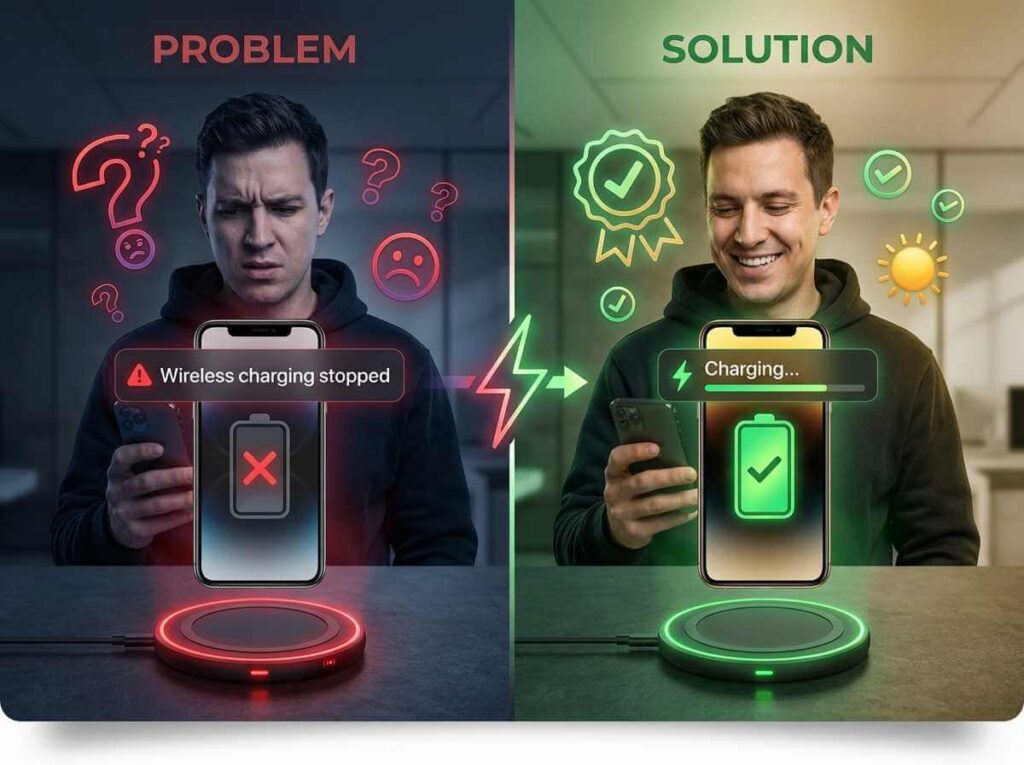
with the right troubleshooting steps
Table of Contents
Quick Fix Summary
Is your wireless charging not working on your smartphone? Before you panic or buy a new charger, try these quick fixes that resolve 90% of wireless charging issues within minutes:
-
Reposition your phone on the charging pad center
-
Remove your phone case or thick accessories
-
Check the power adapter connection
-
Restart your device completely
-
Update your phone’s software to the latest version
If your wireless charger not working persists after these steps, this comprehensive guide walks you through every troubleshooting method used by tech professionals.
Why Wireless Charging Matters (And Why It Stops Working)
Wireless charging has become the standard for modern smartphones. Over 80% of smartphone users now prefer devices with wireless charging capability, making it one of the most expected phone features in 2025. However, when wireless charging is not working, it leaves users frustrated and confused about what went wrong.
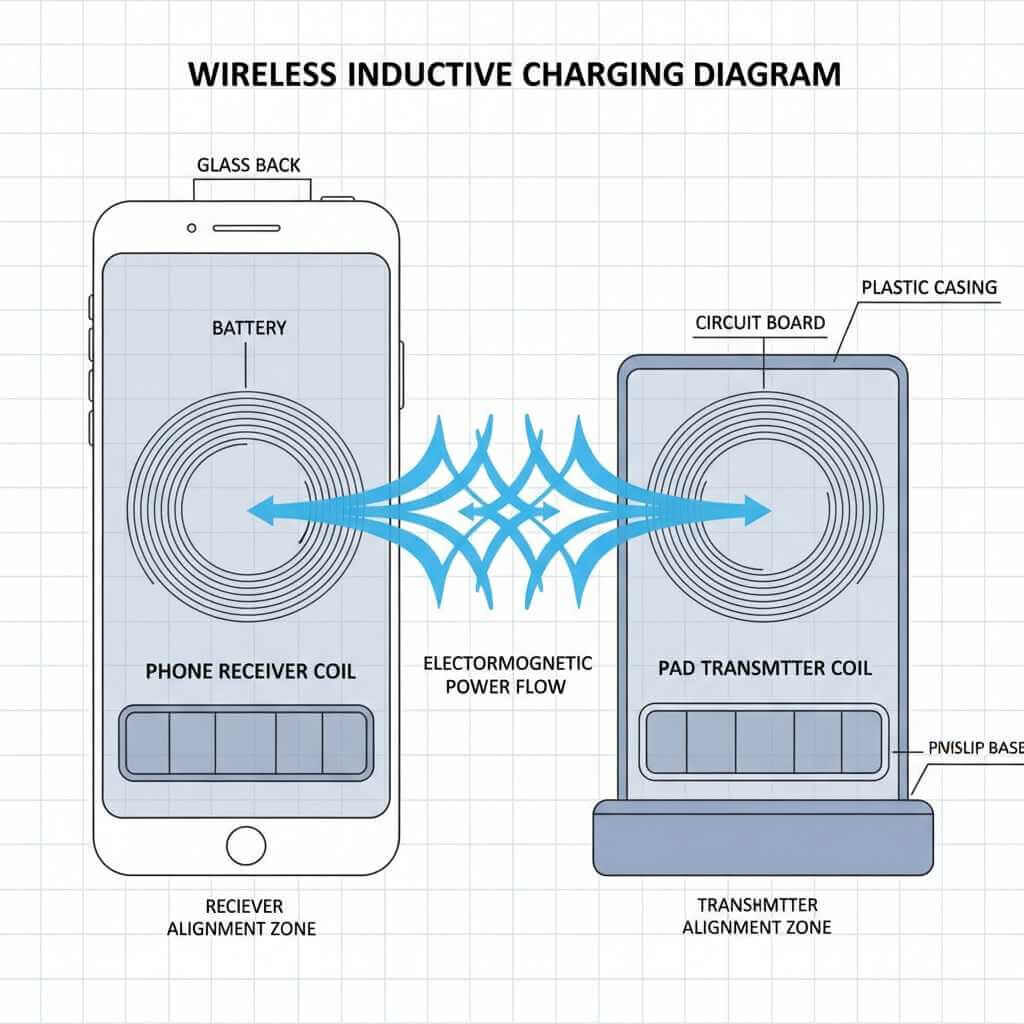
The technology behind wireless charger troubleshooting starts with understanding how electromagnetic induction technology works. Your phone contains electromagnetic coils that communicate with coils inside your charging pad. When aligned perfectly, these coils create a magnetic field that transfers electrical power wirelessly—no cables required. Modern systems now use Qi2 certified wireless charging, which offers faster speeds and better safety than older standards.
But this elegant system has multiple points of failure. Understanding why your wireless charging not working helps you fix it faster and prevent future issues.
The #1 Reason: Wireless Charging Not Working Due to Misalignment
Misalignment is responsible for 70% of all wireless charging failures. When your phone isn’t positioned correctly on the pad, the electromagnetic coils don’t connect properly, and charging never begins.
How to Fix Misalignment When Wireless Charging Not Working
Your phone has a specific “sweet spot” on the charging pad where the coils align perfectly. This varies by phone model:
-
iPhones (MagSafe): The magnetic alignment in newer iPhones makes this less of an issue, but placement still matters. For detailed compatibility information, consult the Learn more about MagSafe charger compatibility guide from Apple’s official support
-
Samsung Galaxy phones: Usually have coils centered on the back
-
Google Pixel phones: Coils are often positioned differently than Samsung
Action Steps:
-
Place your phone in the center of the wireless charging pad
-
Look for any visual indicators on the pad showing the alignment zone
-
Gently nudge your phone around the pad to find the charging icon appearing on your screen
-
Once charging starts, mark this position mentally for future use
-
If your pad has magnetic alignment (Qi2), the phone should snap into position automatically
If you’re still experiencing wireless charging not working after repositioning, move to the next troubleshooting step.
Phone Case Problems: Why Thick Cases Prevent Wireless Charging Not Working
Your beloved phone case might be the culprit behind wireless charging not working. Even though many cases claim “wireless charging compatible,” they can still interfere with the charging process.
Cases That Block Wireless Charging
-
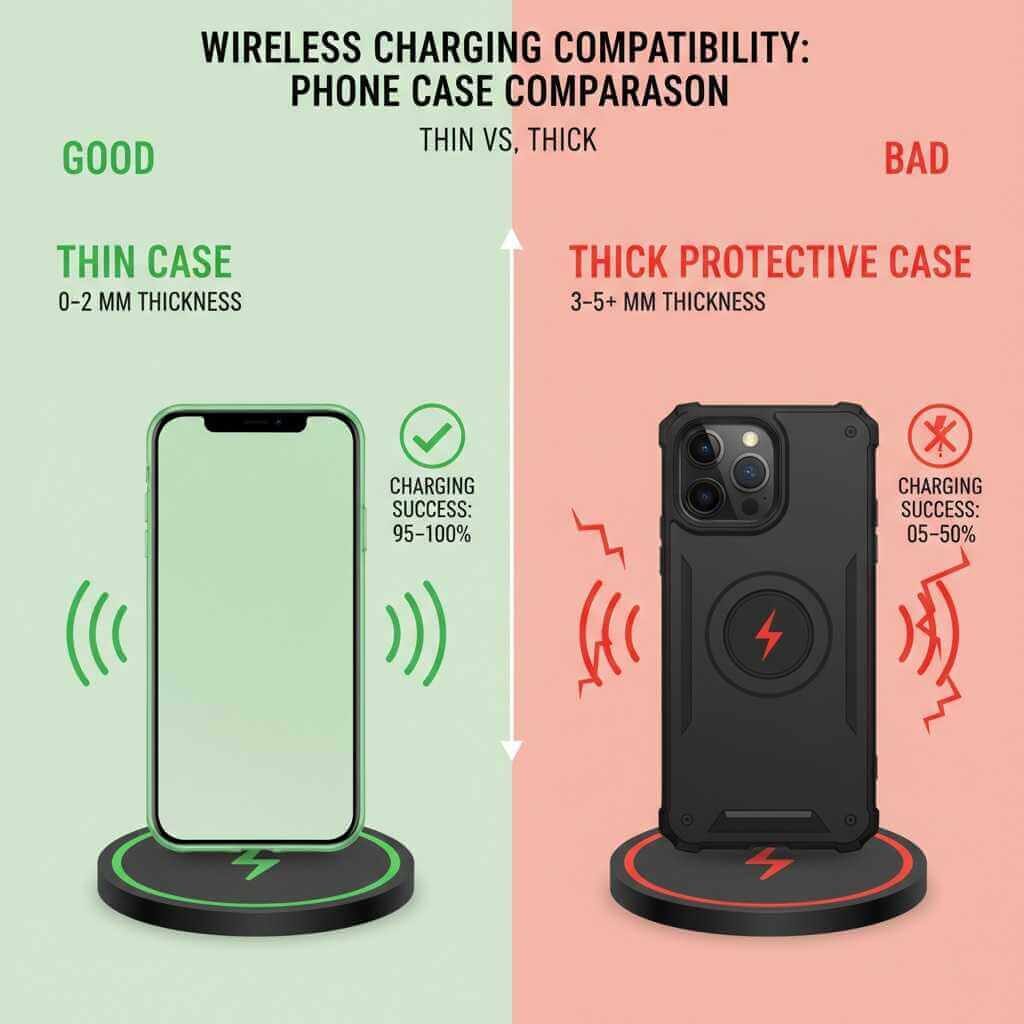
Metal-reinforced cases: Any metal components completely block the magnetic field
-
Extra-thick protective cases: More than 3mm thickness can interrupt the connection (check phone case thickness standards for wireless charging)
-
Credit card holder cases: Cards can interfere with electromagnetic signals
-
Magnetic wallets: Magnets conflict with charging coil alignment
-
RFID-blocking cases: These often use materials that obstruct wireless signals
How to Fix Wireless Charging Case Issues
-
Remove your phone case completely before testing
-
Try charging your naked phone on the wireless charging pad
-
If charging works without the case, the case is the problem
-
Order a slim, officially certified wireless charging case following case thickness specifications for wireless charging guidelines
-
Test charging with the new case to confirm it’s compatible
Pro Tip: Check your case manufacturer’s website for a “wireless charging verified” badge. This indicates the case has been tested for proper wireless charging performance.
If your wireless charger not working even without a case, continue troubleshooting.
Power Source Issues: Why Your Adapter Matters More Than You Think
Many people overlook the power adapter when diagnosing why their wireless charging is not working. The charging pad needs sufficient power delivery to function properly. Understanding the USB Power Delivery specification helps you select the right adapter.
Common Power Adapter Problems
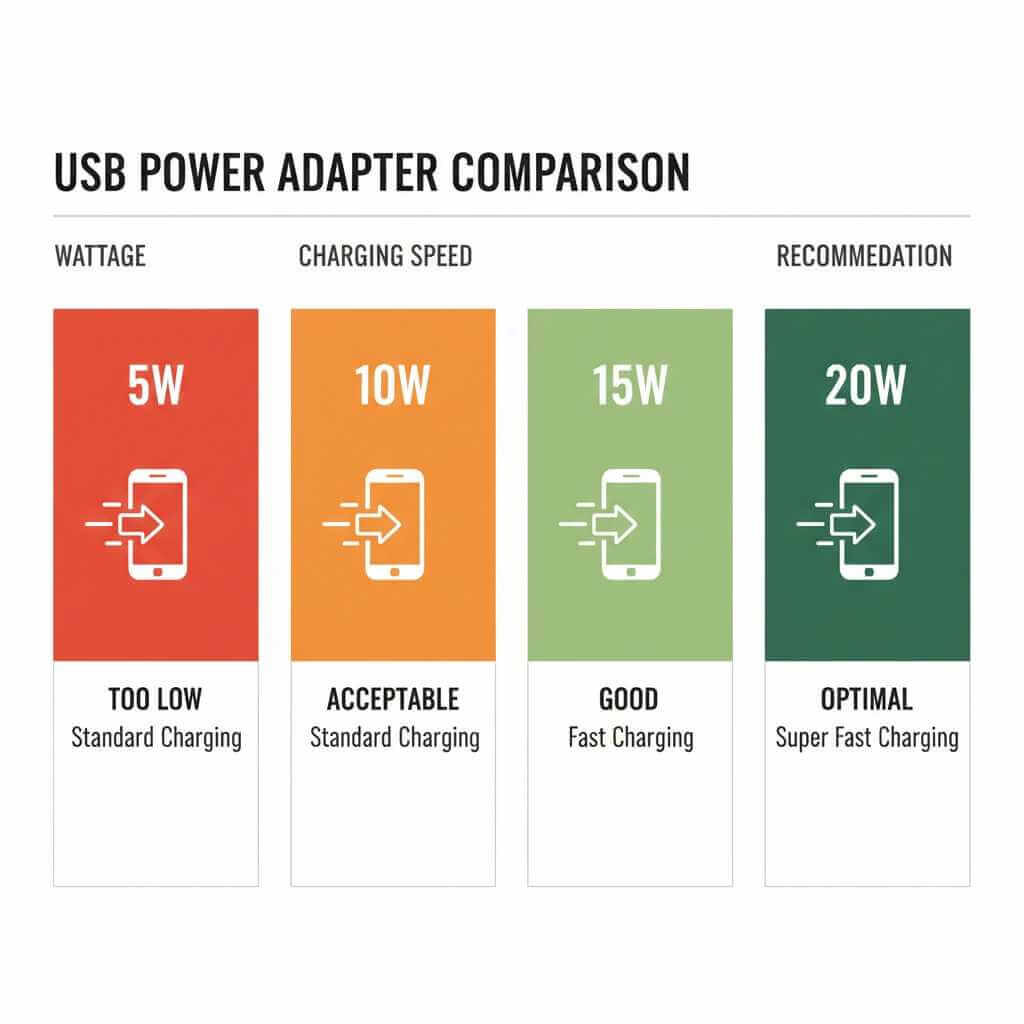
Insufficient Wattage: Using an old 5W phone charger won’t provide enough power for modern wireless charging pads. Modern wireless chargers require:
-
Minimum 10W adapter for standard charging
-
15W+ adapter for fast wireless charging
-
20W+ adapter for optimal performance with Qi2 chargers
Loose Connections: A partially connected USB cable prevents power from reaching your wireless charger not working issue.
Wrong Adapter Type: Not all USB-C adapters are created equal. Some provide lower voltage than required by the USB Power Delivery specification.
How to Fix Power Adapter Issues
-
Check that your adapter is at least 10W (look at the wattage printed on the adapter)
-
Verify the USB cable is firmly connected to both the pad and wall adapter
-
Try a different power outlet—some outlets are unreliable
-
If you have access to a higher wattage adapter (15W or 20W), try it
-
Test if the outlet works by plugging in a lamp or other device
-
If the outlet works but your wireless charging pad doesn’t, the issue is the charger or phone
This power-based troubleshooting resolves many cases of wireless charging not working.
Software Issues: When Wireless Charging Not Working is Actually a Software Problem
Sometimes wireless charging not working isn’t a hardware issue—it’s your phone’s software preventing the charging process.
Software Reasons for Wireless Charging Failures
Power Saving Mode: Aggressive battery-saving modes disable wireless charging to conserve power. Ultra Power Saving modes on Samsung phones frequently cause this issue.
Outdated Operating System: Older software versions can have bugs that disable wireless charging functionality.
Disabled Charging Features: Some phones allow you to toggle wireless charging on and off in settings.
Battery Degradation Alerts: Phones with severely degraded batteries sometimes disable charging as a safety feature.
How to Fix Software-Related Wireless Charging Issues
For Android Phones:
-
Go to Settings > Battery (or Battery and Device Care)
-
Look for Wireless Charging or Fast Wireless Charging toggle
-
Ensure the toggle is switched ON
-
If it’s already on, toggle it OFF, wait 10 seconds, then toggle it back ON
-
Disable any Power Saving or Ultra Power Saving modes
-
Restart your phone completely
For iPhones:
-
Go to Settings > Battery
-
Check if Low Power Mode is enabled—disable it
-
Ensure your phone isn’t in a restricted state
-
Restart your iPhone by holding power button and sliding to power off
Update Your Software:
-
Go to Settings > About (or System Update on Android)
-
Tap Check for Updates
-
Install any available system updates
-
Restart your phone after updating
-
Test your wireless charger not working issue again
Many cases of wireless charging not working resolve simply by updating your phone’s software.
Testing Phase: How to Confirm Where the Problem Is
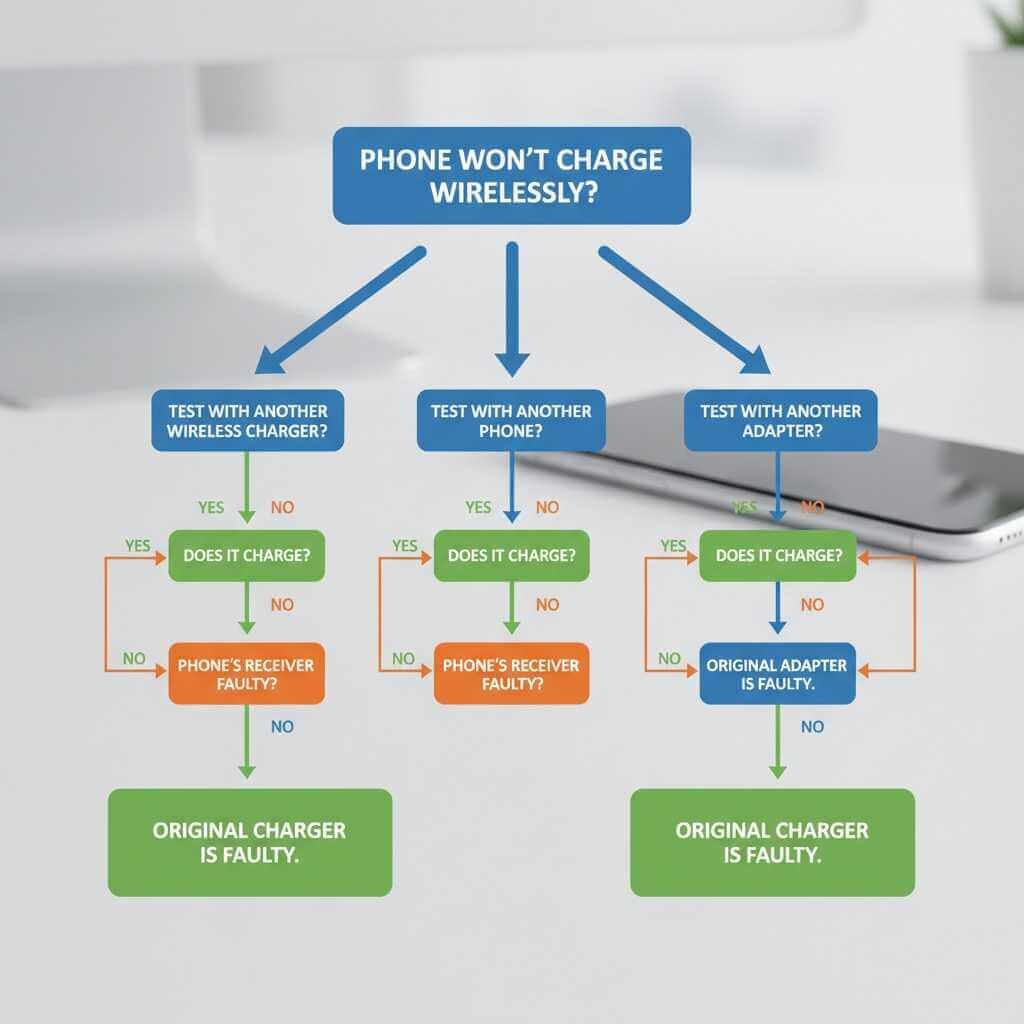
At this point, you need to isolate whether the issue is your phone, your wireless charging pad, or the power adapter.
Test 1: Try Another Wireless Charging Pad
If you have access to another Qi charger (at a friend’s house, retail store, or office):
-
Place your phone on the different wireless charging pad
-
Wait 30 seconds to see if the charging icon appears
-
If it charges: Your original pad is faulty—order a replacement
-
If it doesn’t charge: Your phone has the issue—move to Test 2
Test 2: Test Another Phone on Your Charger
If you can borrow someone else’s compatible phone:
-
Remove your phone completely from the pad
-
Place the other phone on your wireless charging pad
-
Wait 30 seconds for any response
-
If it charges: Your phone is the problem
-
If it doesn’t charge: Your pad or power adapter is faulty
Test 3: Swap Power Adapters
-
Borrow a different power adapter (ideally 15W or higher)
-
Plug your wireless charging pad into this new adapter
-
Test charging your phone
-
If it works: Your original adapter needs replacement
-
If it still doesn’t work: Your pad likely has a hardware failure
This testing matrix eliminates guesswork and tells you exactly which component is causing wireless charging not working.
Foreign Objects & Interference: Hidden Culprits for Wireless Charging Issues
Beyond cases and positioning, other objects can interfere with your wireless charger troubleshooting efforts.
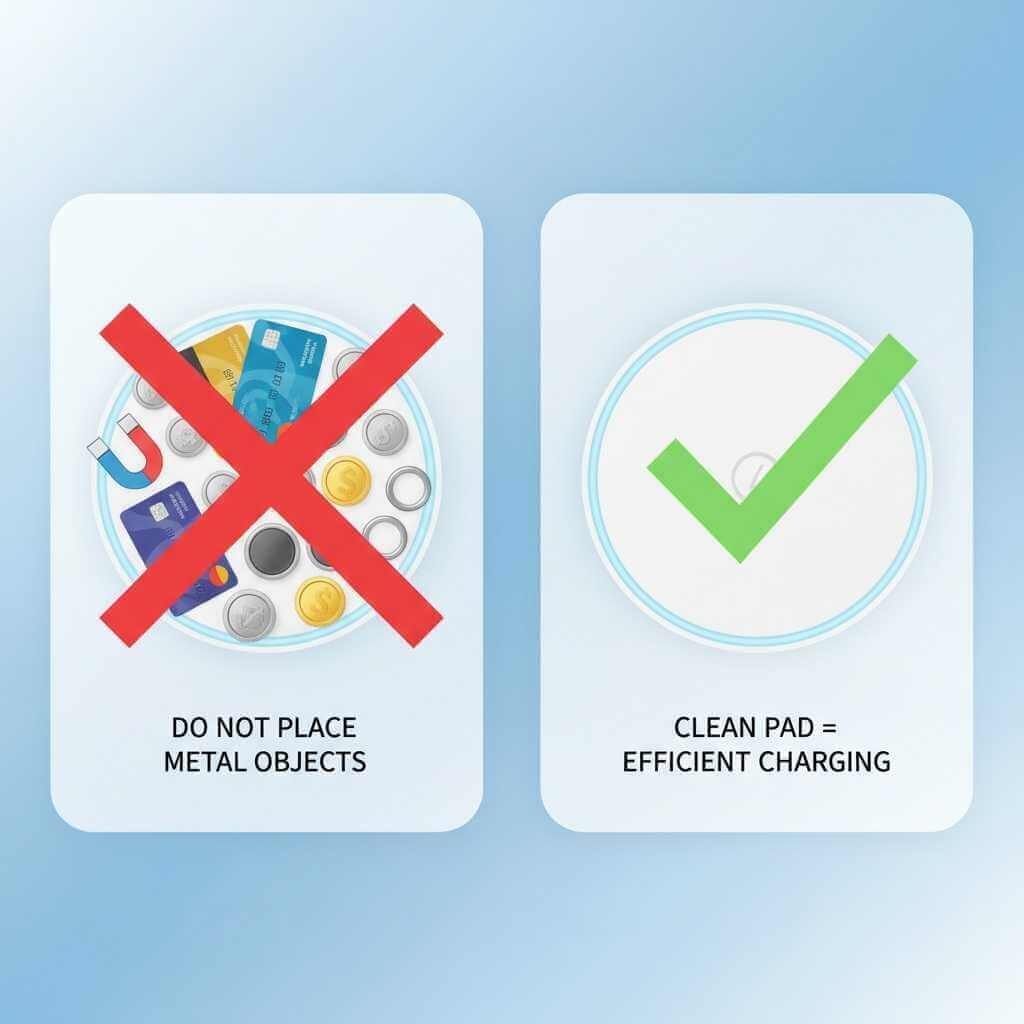
Objects That Block Wireless Charging
-
Metal coins or keys left on the charging pad
-
Credit cards with magnetic strips placed near the pad
-
Magnets or magnetic stands close to the charger
-
Metallic screen protectors (rare, but some exist)
-
Phone holders with metal plates for magnetic car mounts
-
Protective stickers on the back of your phone
-
Ring holders or pop-sockets with metal components
How to Clear Interference
-
Inspect the charging pad surface for any debris, dust, or foreign objects
-
Clean the back of your phone with a soft, dry cloth
-
Remove all magnetic accessories from your phone
-
Clear the area around your charger of metal objects
-
Clean the coil contacts on both the phone and pad gently with a dry cloth
-
Try charging again on your wireless charging pad
This interference troubleshooting often reveals why your wireless charging not working despite everything else being normal.
Overheating: When Wireless Charging Not Working is Actually a Safety Feature
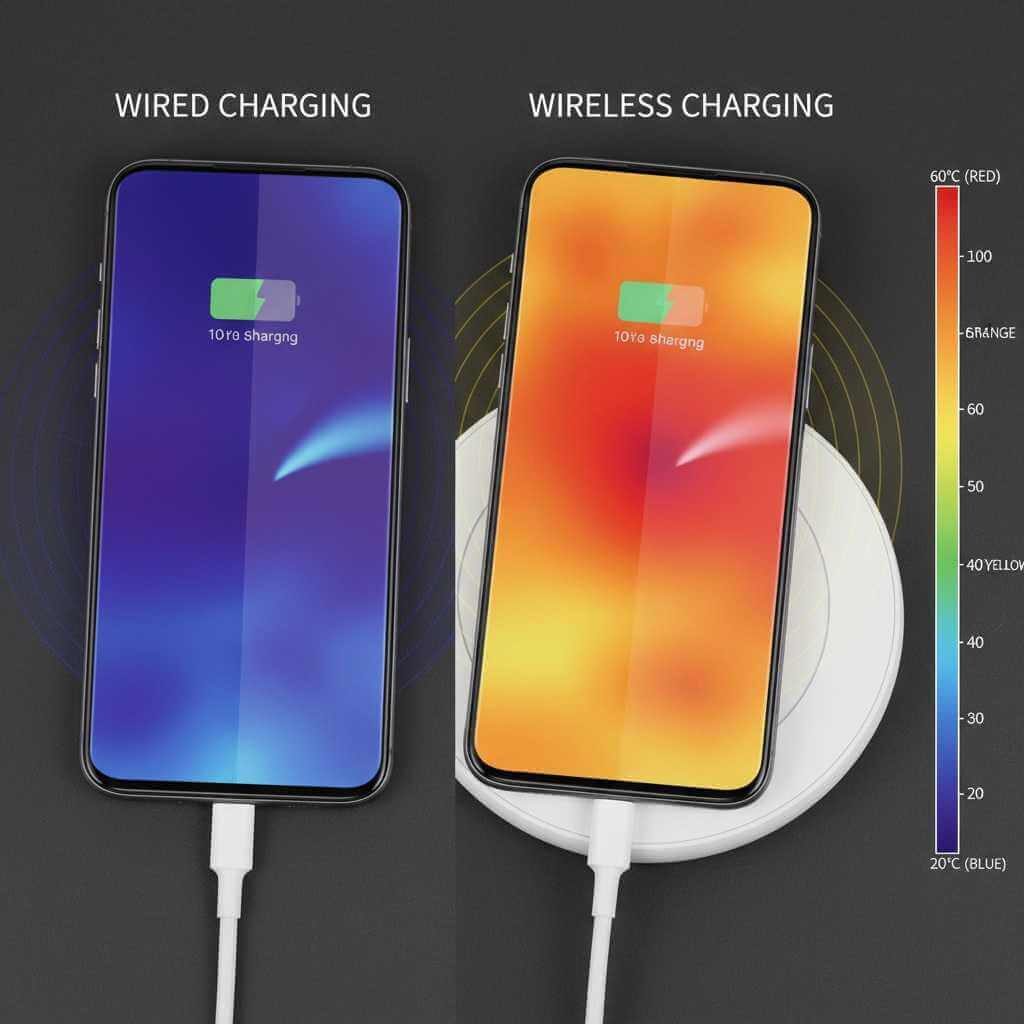
Modern phones disable wireless charging when they overheat to protect the battery. This is by design, not a failure. Understanding thermal management during wireless charging helps prevent this issue.
Why Phones Overheat During Wireless Charging
-
Wireless charging inherently creates more heat than wired charging
-
Thick cases trap heat around the phone during charging
-
Charging in direct sunlight or hot environments
-
Phone running demanding apps while on the wireless charging pad
-
Defective battery causing excessive heat generation
How to Cool Your Phone
-
Remove the case immediately from the phone
-
Stop using the phone while it’s charging
-
Move it away from direct sunlight or heat sources
-
Disable apps running in the background
-
Wait 15-20 minutes for the phone to cool
-
Resume charging once the phone cools down
If your phone consistently overheats during wireless charging, the battery may need professional inspection. For detailed information on heat management, review Apple’s thermally limited charging documentation, which explains safety thresholds and how automatic power reduction works.
Device-Specific Issues: When Wireless Charging Not Working Needs Special Fixes
Different phone brands require different troubleshooting for wireless charging not working issues.
iPhone-Specific Wireless Charging Issues
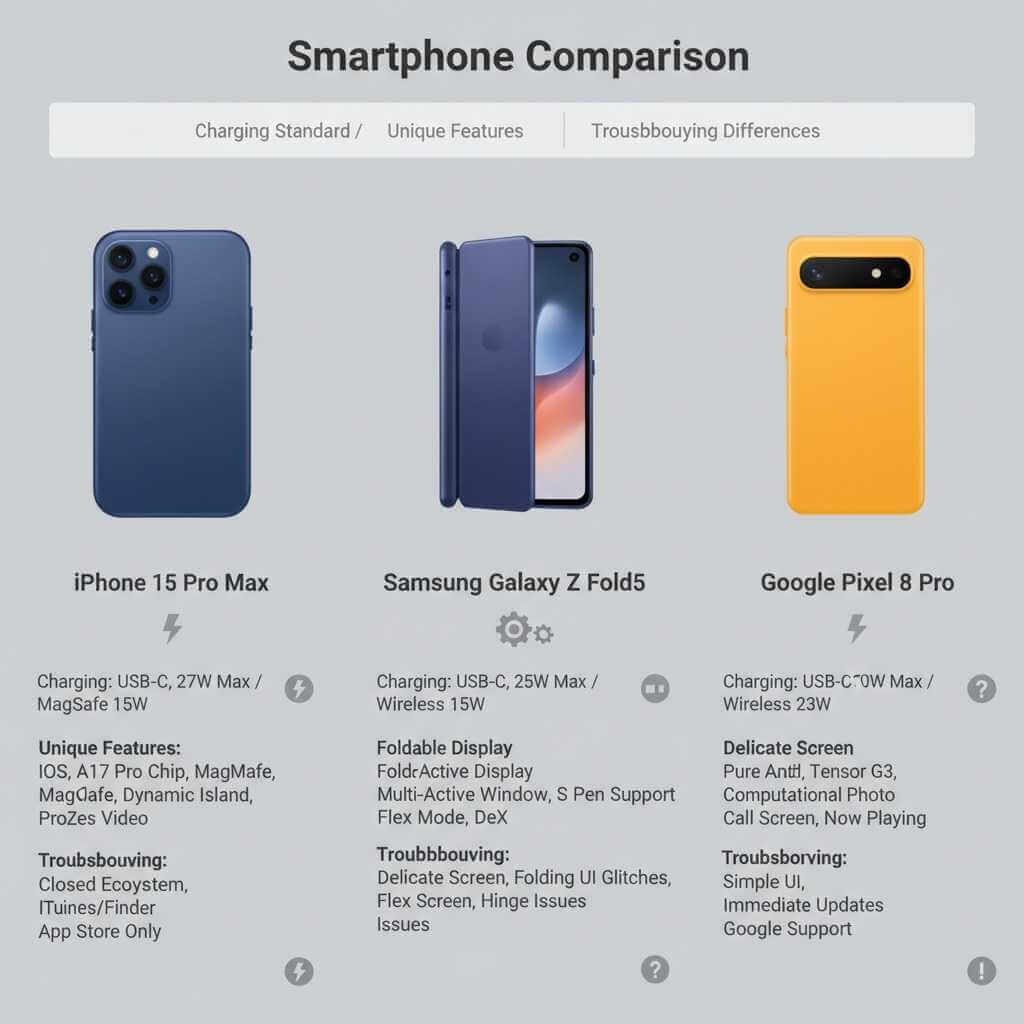
MagSafe Problems: Newer iPhones use MagSafe magnets for precise alignment. For detailed guidance, follow Learn more about MagSafe charger compatibility from Apple’s official support. If your iPhone isn’t charging:
-
Ensure you’re using an official Apple MagSafe charger or Qi2 certified alternative
-
Check that the magnetic ring inside your iPhone isn’t damaged
-
Remove any third-party metal plates that might interfere
-
Clean the charging contacts with a soft cloth
Samsung Galaxy-Specific Issues
Wireless PowerShare Conflicts: Some Galaxy phones have reverse wireless charging (PowerShare) enabled, which can interfere. Follow Samsung’s official troubleshooting guide for device-specific steps:
-
Go to Settings > Battery > More battery settings
-
Find Wireless Powershare and toggle it OFF
-
Try charging your phone on the wireless charging pad again
Foldable Phone Issues: Galaxy Z Fold and Z Flip phones have special charging requirements:
-
Close the phone completely before placing on the wireless charging pad
-
Ensure the back is facing the charger
-
Use a charger specifically certified for foldable devices
Google Pixel-Specific Issues
Adaptive Charging: Pixel phones use adaptive charging that may limit charge speed. For troubleshooting steps, consult Google Pixel’s wireless charging troubleshooting steps:
-
This is not a failure—it’s a feature to protect long-term battery health
-
Your phone will still charge; it may just be slower
-
Disable adaptive charging in Settings > Battery if you need faster charging
For advanced diagnostics, use the Pixel troubleshooting app for wireless charging diagnosis built into your device settings.
When to Replace: Signs Your Wireless Charger Needs Replacement
Not all wireless charging not working issues can be fixed. Sometimes your wireless charging pad has reached the end of its life.
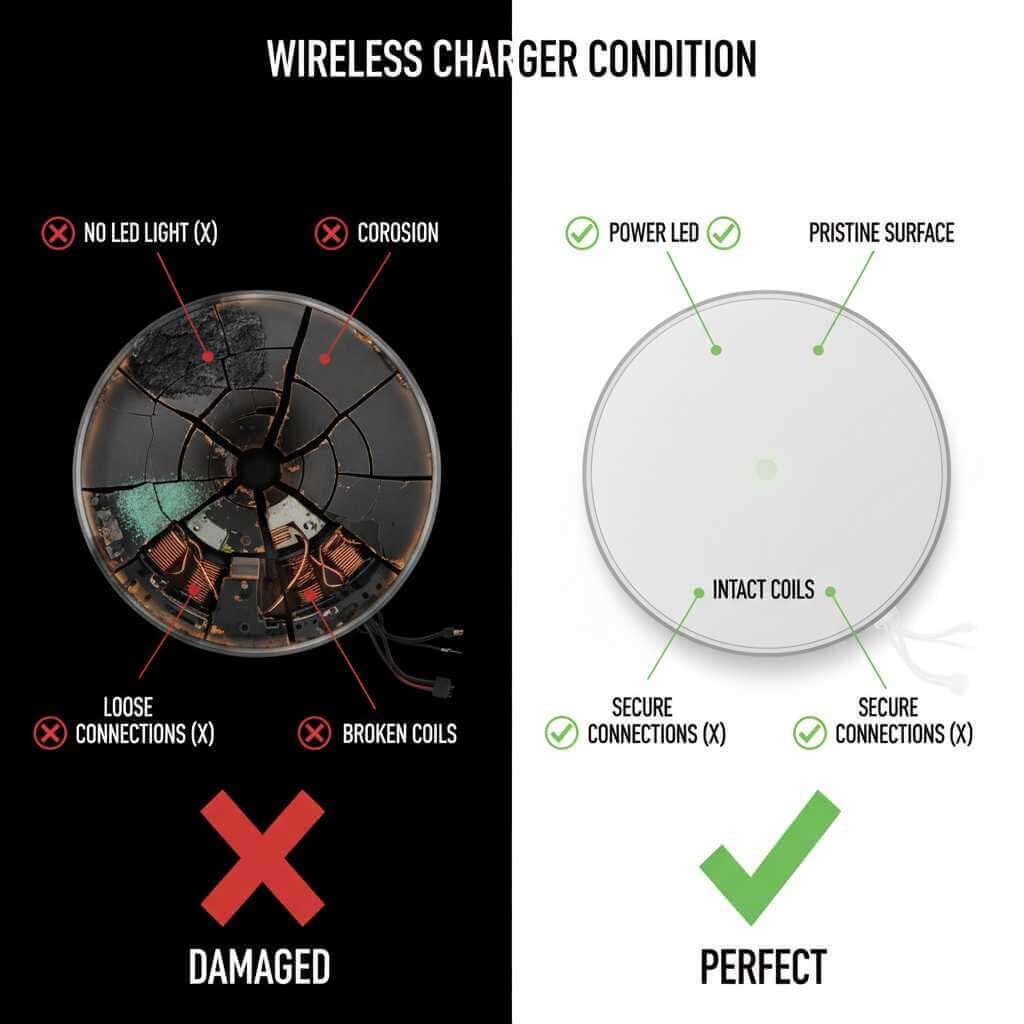
Signs Your Wireless Charger Pad is Failing
-
Inconsistent charging: Charges sometimes, fails other times
-
Visible damage: Cracks, burn marks, or physical damage on the pad
-
No power light: The pad’s LED doesn’t turn on when plugged in
-
Burning smell: Any burnt plastic or electrical odors
-
Works with only one phone: Fails with all other compatible devices
-
Age: Most wireless charging pads last 3-5 years before degradation
If you’ve eliminated phone and software issues, your pad likely needs replacement. Modern Qi2 certified chargers offer better reliability and faster charging speeds than older Qi 1.0 pads.
Prevention: How to Avoid Wireless Charging Not Working in the Future
Once you’ve fixed your wireless charging not working issue, prevent it from happening again.
Best Practices for Wireless Charging Longevity
-
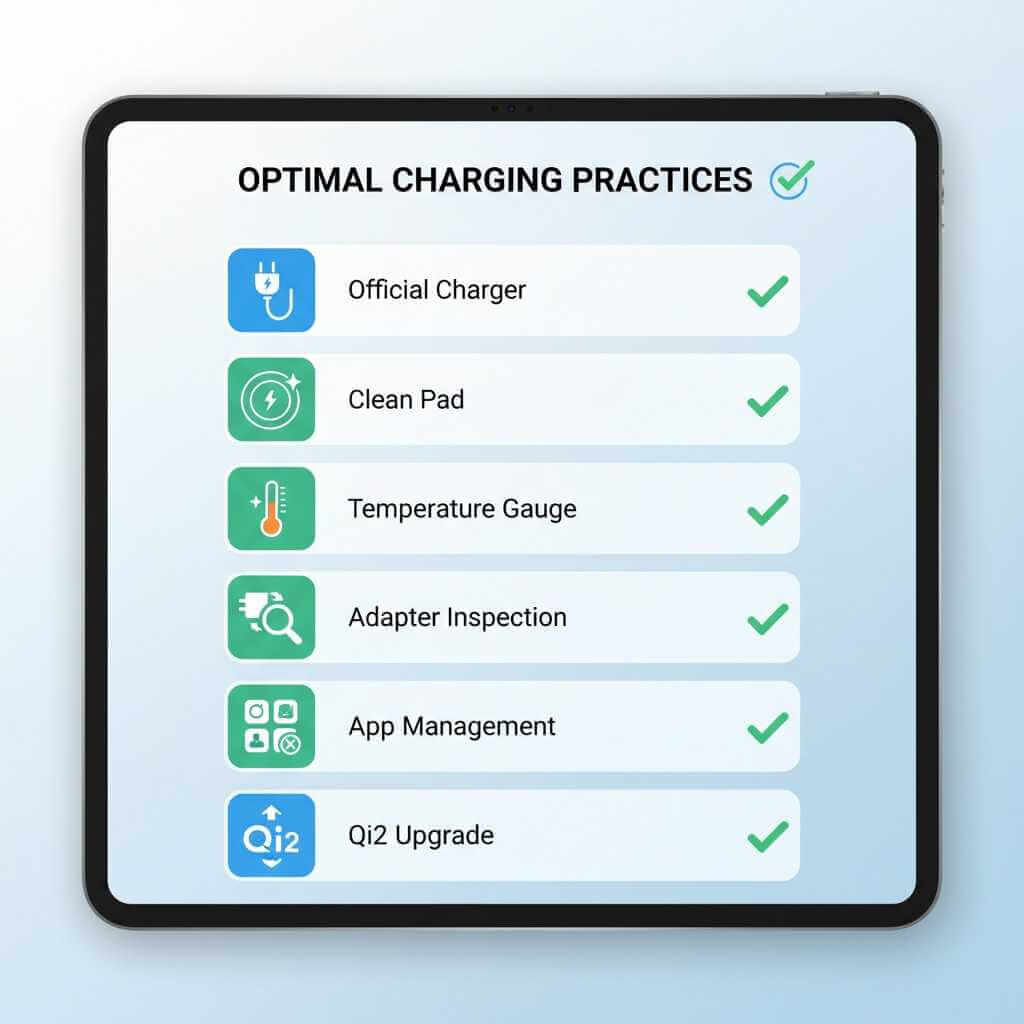
Use official chargers whenever possible—they’re engineered for compatibility
-
Invest in a slim case specifically rated for wireless charging
-
Keep the pad clean—dust and debris reduce efficiency
-
Avoid extreme temperatures—don’t charge in direct sunlight or cold
-
Replace adapters before they fail—check for fraying or damage
-
Update your phone software regularly
-
Don’t run demanding apps while charging
-
Upgrade to Qi2 chargers—they’re more reliable than older Qi standards
Understanding fast charging battery degradation research shows that modern battery management minimizes long-term wear, so using quality chargers with appropriate wattage extends your device lifespan.
Professional Help: When DIY Troubleshooting Isn’t Enough
If your wireless charger troubleshooting efforts haven’t resolved the issue, seek professional help.
When to Visit a Technician
-
Your phone doesn’t charge wirelessly or wired (battery or charging port issue)
-
You suspect battery damage causing overheating
-
Physical damage is visible inside the charging port
-
Multiple wireless charging pads don’t work with your phone
-
Your phone has been dropped or water-damaged recently
Professional technicians have specialized equipment to test charging coils, measure electrical output, and diagnose problems that DIY troubleshooting can’t reveal.
Frequently Asked Questions About Wireless Charging
Can I use my phone while it’s on a wireless charging pad?
Yes, but it’s not recommended. Using your phone generates heat, which combined with wireless charging heat can degrade your battery faster. For optimal battery longevity, let your phone charge undisturbed.
Why is my phone charging slowly on the wireless charger?
Slow charging usually indicates a power adapter issue (too low wattage), misalignment, or case interference. Try a higher wattage adapter or remove your case to test.
Is wireless charging bad for my battery?
Modern wireless charging with Qi2 standards is safe for batteries. However, older Qi 1.0 technology generates more heat and can degrade batteries if used 24/7. If you notice your battery degrading quickly, reduce overnight wireless charging frequency.
Will my wireless charger work with any phone?
No. Only phones with wireless charging capability (usually flagship and mid-range models) work with wireless charging pads. Budget phones typically lack this feature. Check your phone’s specifications to confirm wireless charging support.
Why won’t my phone charge wirelessly even with a new charger?
If a brand-new charger doesn’t work, the issue is likely your phone’s charging coil or software. Run through the software troubleshooting steps, then seek professional inspection if still failing.
How do I know if my phone supports wireless charging?
Check your phone’s official specifications or look for the Qi logo on the packaging. You can also try placing it on any wireless charger—if nothing happens after 30 seconds, it doesn’t support wireless charging.
What’s the difference between Qi and Qi2 charging?
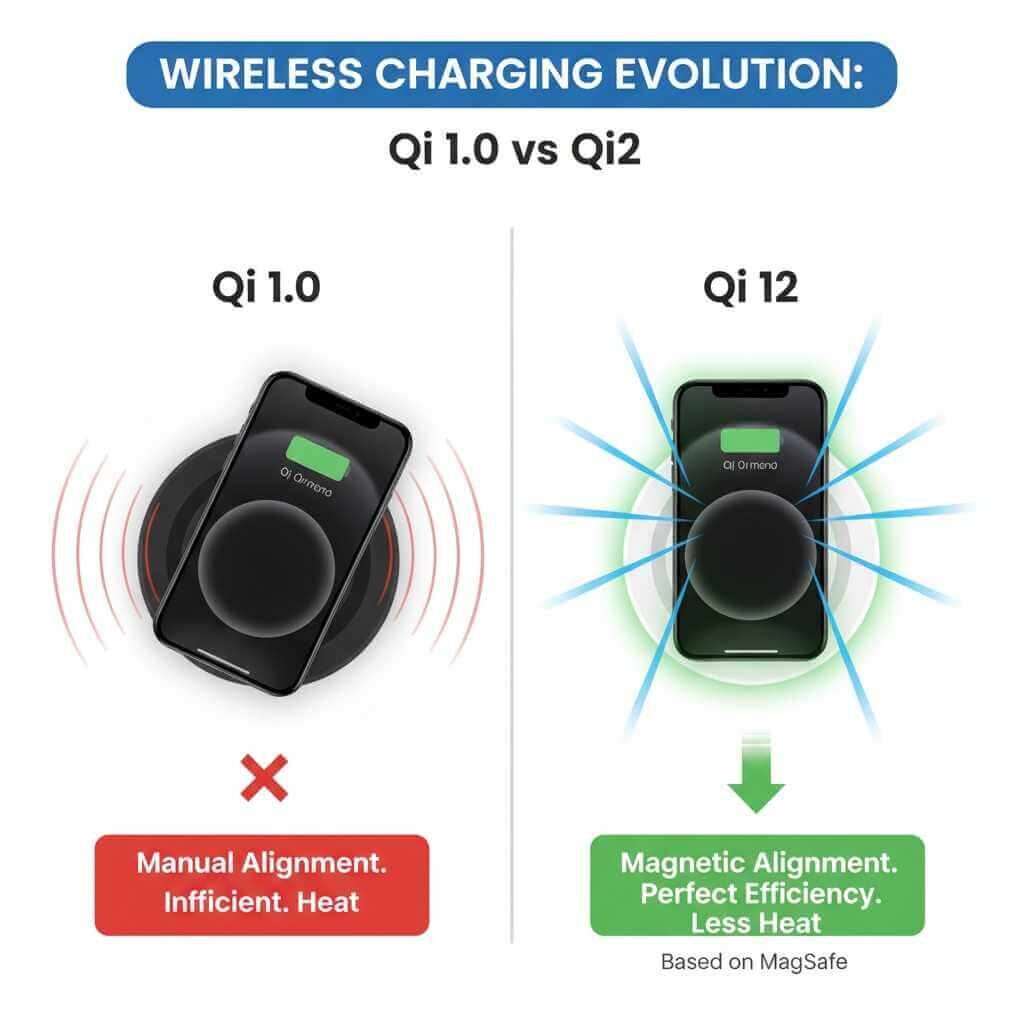
Qi2 is the newer standard with built-in magnetic alignment (like Apple’s MagSafe). It charges faster (up to 25W), produces less heat, and requires perfect coil alignment automatically. Qi 1.0 is older technology that requires manual positioning and supports up to 15W charging.
Can I leave my phone on a wireless charger overnight?
Yes, modern phones are safe to charge overnight. However, leaving any phone on a charger for extended periods stresses the battery. Most phones pause charging once full to minimize damage, but overnight wireless charging daily may reduce long-term battery lifespan.
Conclusion: Wireless Charging Not Working is Usually Easy to Fix
When your wireless charging not working, remember that 90% of issues stem from misalignment, cases, power adapters, or software settings. By methodically working through this troubleshooting guide, you’ll identify and resolve the problem without expensive repairs or replacements.
The future of smartphone charging is wireless, and understanding how to maintain and troubleshoot your wireless charging pad ensures you stay connected without cable frustration.
Start with the quick fixes, work through each troubleshooting step systematically, and test after each change. Most users resolve wireless charging issues within 15 minutes of applying these methods.
If you’ve worked through every solution and your wireless charger not working persists, it’s time to consult a professional or invest in a newer Qi2 certified charger—they’re more reliable and significantly faster than older wireless charging technology.