Table of Contents
TL;DR:
5G reliability problems usually come from:
- Coverage type and indoor signal behavior,
- A phone setting that prefers LTE to save battery,
- SIM/plan provisioning,
- A device hardware issue.
Carriers reduce these issues with deeper visibility (packet capture), safer rollout testing (digital twins), and experience monitoring—areas where VIAVI builds tooling used across telecom and cloud environments.
1) The 5G reality check
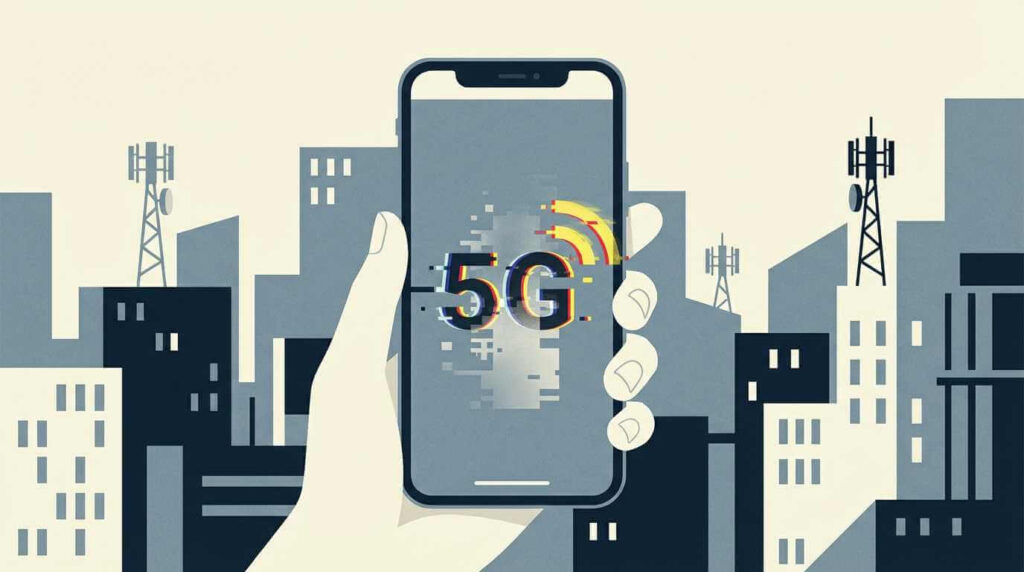
Not all “5G” behaves the same: low-band travels far but may feel only slightly better than LTE, mid-band is the balance most people want, and high-band/mm wave can be extremely fast but is short-range and easily blocked indoors. That’s why a phone can be “in a 5G city” but still stick to LTE at your exact spot, especially inside buildings.
- What you’ll notice: the 5G icon can appear briefly outdoors and disappear indoors, and that can be normal behavior rather than a broken phone.
Carriers’ 5G maps can look better than real-world 5G at your exact spot, especially indoors. 5G also comes in “three flavors” (low-band, mid-band, and high-band/mmWave), and the high-band/mmWave variant has very short range and can be blocked by things as simple as glass, leaves, or even your hand. If you step outside into a clear area and 5G appears, your phone is likely fine—your indoor location is the limiting factor.
- Low-band 5G: wider coverage and better building penetration, but speeds may feel only slightly better than 4G.

Low-band vs mid-band vs mmWave: range and reliability differ. - Mid-band 5G: the “Goldilocks” balance of range and strong speed gains versus 4G.
- High-band/mmWave 5G: extremely fast, but very short-range and easily blocked.
2) Fix it on your phone (simple wins)
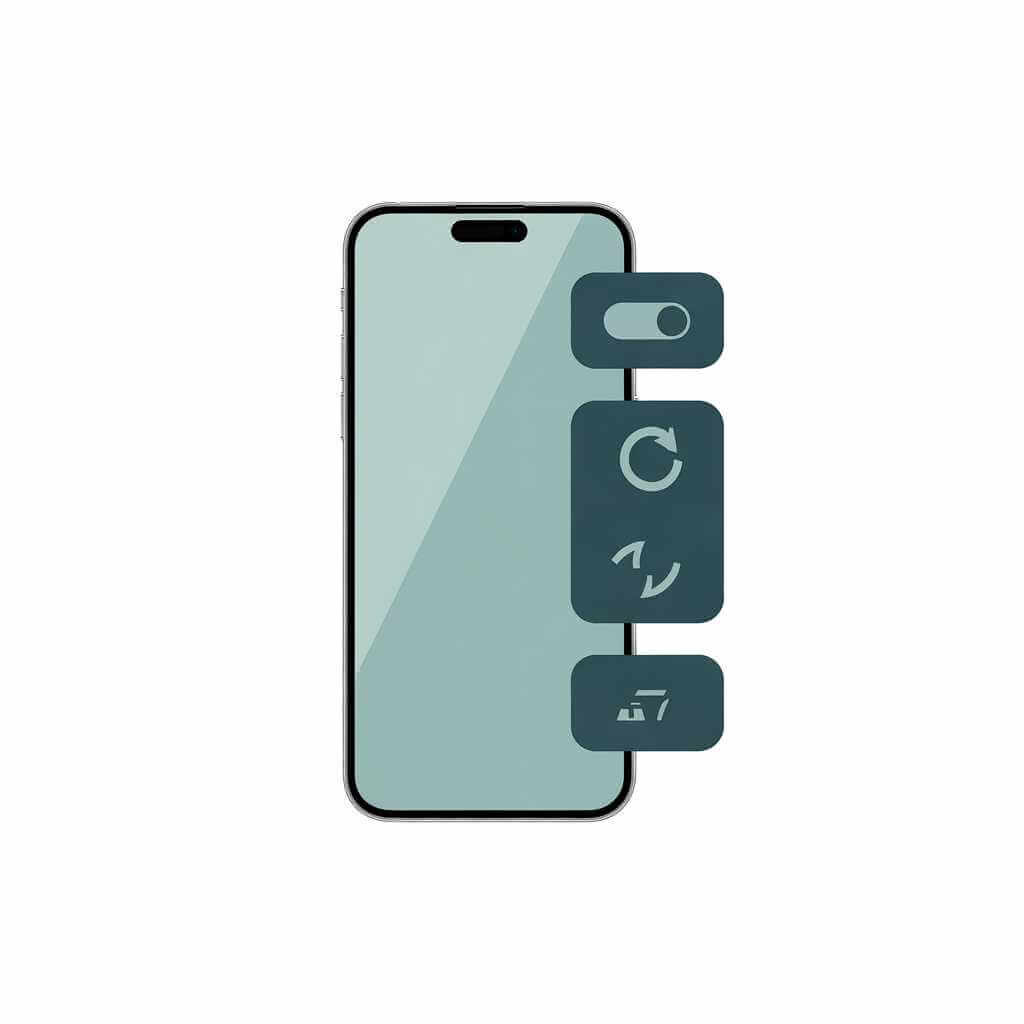
A common culprit is that 5G is effectively “soft-disabled” by default behavior meant to save battery, so start by forcing 5G temporarily to test. Then do quick radio resets and updates, because modem behavior depends on firmware that is updated through iOS/Android updates.
These are the highest-success, lowest-effort checks before you assume your carrier or handset is defective.
- iPhone: Settings → Cellular → Cellular Data Options → Voice & Data → test 5G On (then you can switch back to 5G Auto later).
- Android: Settings → Network & internet → SIMs (or Mobile network) → Preferred network type → choose 5G (recommended) / a 5G-capable mode.
- Toggle Airplane Mode for ~30 seconds, then turn it off to force a fresh network scan.
- Fully restart the phone (power off/on), not just screen lock.
- Update iOS/Android because modem firmware is tied to OS updates, and outdated firmware can misbehave with newer tower upgrades.
- iPhone only: Settings → General → About, wait ~15–30 seconds to trigger any “Carrier Settings Update” prompt.
3) If it’s not the phone: carrier/SIM issues
Even with a 5G phone, your plan may not actually include 5G access—especially on cheaper, prepaid, or older plans—so confirm your plan/package is 5G-enabled in your carrier account. Another frequent issue is an older 4G-era SIM moved into a new phone, because it may not be provisioned to authenticate properly on a 5G network. If you’re stuck after the steps above, resetting network settings is the last strong software step (it won’t erase photos/apps, but it will remove saved Wi‑Fi and Bluetooth pairings).
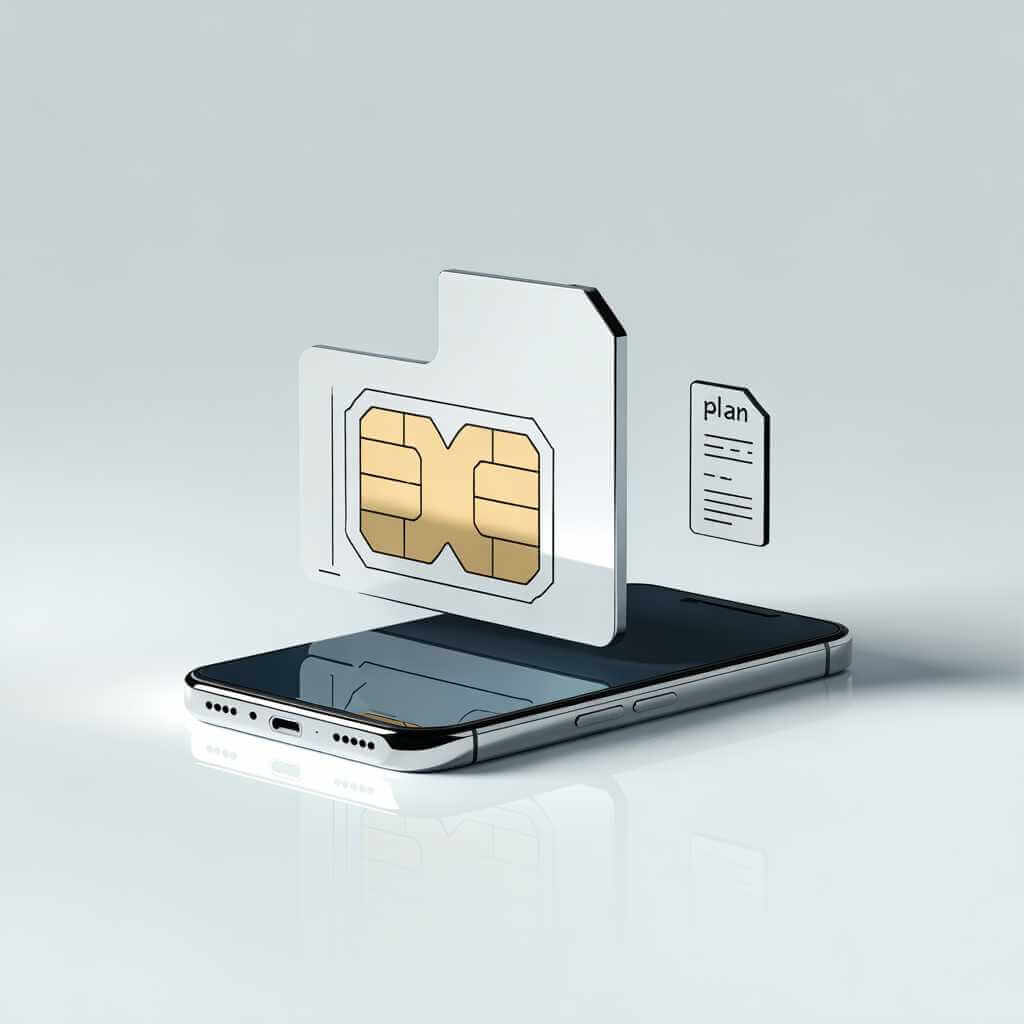
- Ask your carrier for a new “5G-provisioned SIM” (often free) if you suspect your SIM is old.
- Reset network settings: iPhone (Settings → General → Transfer or Reset iPhone → Reset → Reset Network Settings) or
- Reset network settings: Android (Settings → System → Reset options → Reset Wi‑Fi, mobile & Bluetooth).
- If your phone shows “5G E,” note that it’s not true 5G; it’s a marketing label for LTE‑Advanced used by AT&T
Two common “it’s not you” causes are (a) your plan doesn’t actually include 5G access, or (b) your SIM is too old to authenticate properly on the 5G network. TechInDeep’s guide recommends confirming 5G is enabled on your plan and requesting a new 5G-provisioned SIM if you moved an older SIM from a 4G-era device.
4) Hardware red flags (when 4G works but 5G never does)
If you’ve confirmed settings + plan + SIM and you still can’t hold 5G, TechInDeep notes hardware scenarios like a disconnected internal 5G antenna after a drop, a repair reassembly mistake, or (less commonly) modem damage. A key clue is “LTE works fine, Wi‑Fi works fine, but 5G never does,” because phones have multiple antennas and a failure can affect 5G without killing 4G entirely.
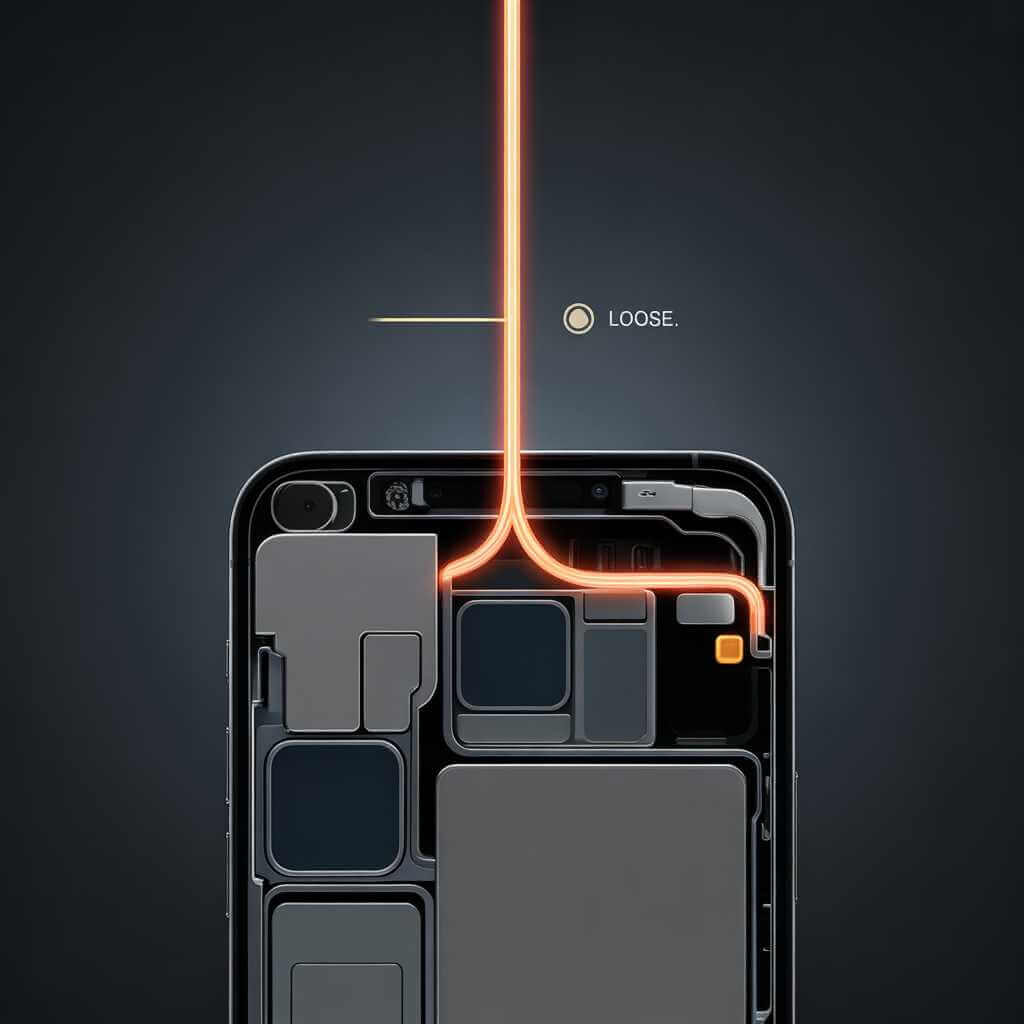
- What to do: this isn’t a software fix—get a qualified technician to inspect antenna connectors/cables and diagnose the radio path safely.
- Battery note: forcing “5G On” can drain battery faster than “5G Auto” or LTE, especially with a weak signal, which is why “5G Auto” is often recommended for everyday use.
Practical takeaway: at this stage, software tweaks won’t fix a physical connector/cable problem; it needs inspection/diagnosis.
5) Why carriers can’t “just fix it” instantly
Many 5G problems only show up under specific conditions—certain devices, certain cells, certain indoor locations—so operators rely on tools that capture detailed evidence and correlate it to user experience. Approaches like full packet capture, network “digital twins” for pre-deployment testing, and end-user experience monitoring are designed to reduce guesswork and catch regressions before they impact large numbers of users. Vendors in this space include VIAVI Solutions (the focus of your original draft), alongside other test-and-assurance providers used by telecom operators and cloud networks.
If you’ve confirmed settings, location, plan, SIM, and you’ve reset network settings—but 5G still won’t connect—then it may be a physical issue in the device. The article’s most likely hardware scenario is a disconnected internal 5G antenna cable after a hard drop, because phones use multiple antennas and a 5G antenna problem can leave 4G and Wi‑Fi working normally. Another real-world cause is a bad repair where antenna cables weren’t reconnected correctly or were pinched during reassembly.
FAQ
Q1) Why does my phone switch between 5G and 4G/LTE?
Most of the time it’s normal behavior: phones will drop to a stronger 4G/LTE signal when 5G is weak (especially indoors) to keep the connection stable. On iPhone, the default “5G Auto” mode can also prefer LTE to reduce battery drain when 5G wouldn’t help much.
Q2) I’m “in a 5G area” on the coverage map—why do I still get LTE?
5G marketing and coverage maps can be ahead of real, moment-to-moment signal conditions at your exact location. Indoor signal penetration is a frequent reason, and walking outside to an open area is a quick way to confirm whether it’s location-related.
Q3) What’s the difference between low-band, mid-band, and mm Wave 5G?
Low-band 5G has long range and better building penetration, but speeds may look only a bit better than LTE. Mid-band 5G tends to be the best balance of range and strong speed gains. High-band/mm Wave can be extremely fast but has very short range and can be blocked easily (even by glass or your hand).
Q4) How do I force 5G on iPhone to test if it works?
Go to Settings → Cellular → Cellular Data Options → Voice & Data, then select “5G On” for testing. If 5G appears after ~30 seconds, your phone can connect and the earlier behavior was likely due to “5G Auto” or weak signal conditions.
Q5) How do I check 5G settings on Android?
Go to Settings → Network & internet → SIMs (or Mobile network) → Preferred network type, then choose a 5G-capable option like “5G (recommended)” or “5G/4G/3G/2G.” If it was set to LTE/4G only, switching it is often the fix.
Q6) Why does Airplane Mode sometimes “fix” 5G?
Toggling Airplane Mode off/on forces the phone to disconnect radios and perform a fresh scan for available networks. That can help it re-register properly or find a 5G band it didn’t latch onto before.
Q7) Do OS updates affect 5G performance?
Yes—your modem is controlled by firmware, and the article notes that modem firmware is updated via full iOS/Android updates. If your phone is on an old OS version, it may also be running older modem firmware that can have bugs or mismatch newer carrier upgrades.
Q8) Could my plan or SIM be the reason I’m stuck on LTE?
Yes—some plans don’t include 5G access by default, particularly cheaper, prepaid, or older plans. Also, moving an older 4G-era SIM into a 5G phone can cause 5G authentication/provisioning issues, and requesting a new 5G-provisioned SIM is a common fix.
Q9) What does “5G E” mean—am I actually on 5G?
No—“5G E” (5G Evolution) is described as a marketing label for LTE‑Advanced rather than true 5G. If you only ever see “5G E,” you are not connected to a real 5G network.
Q10) Does 5G drain battery faster?
It can—forcing “5G On” typically uses more power than “5G Auto” or LTE, especially when the 5G signal is weak and the modem has to work harder. That’s why “5G Auto” exists: it aims to balance performance and battery life.
Q11) Can a drop or a bad repair break 5G but leave 4G working?
Yes—the article explains phones use multiple antennas, and a hard drop can knock a 5G antenna cable loose while other radios (4G, Wi‑Fi) still function. It also notes repairs can cause issues if antenna cables aren’t reconnected correctly or get pinched during reassembly.
Q12) If the issue isn’t my phone, what do carriers do to prevent 5G reliability problems?
Operators rely on deeper network visibility (like full packet capture) to determine what actually happened during failures rather than guessing. They also use simulation approaches (network “digital twins”) to test changes before deploying them into live networks.
Conclusion
If your phone is stuck on 4G, don’t assume you bought the “wrong” device—most 5G problems come from coverage reality, a simple setting like 5G Auto, or carrier provisioning (plan/SIM), and those are usually fixable in minutes. Start with the quick checks (force 5G briefly, toggle Airplane Mode, restart, update iOS/Android, confirm plan and SIM), then move to deeper steps like resetting network settings only if you still can’t connect. If none of that works, treat it as a likely hardware issue—especially after a drop or a recent repair—because a loose or damaged 5G antenna connection can leave 4G working while 5G fails.