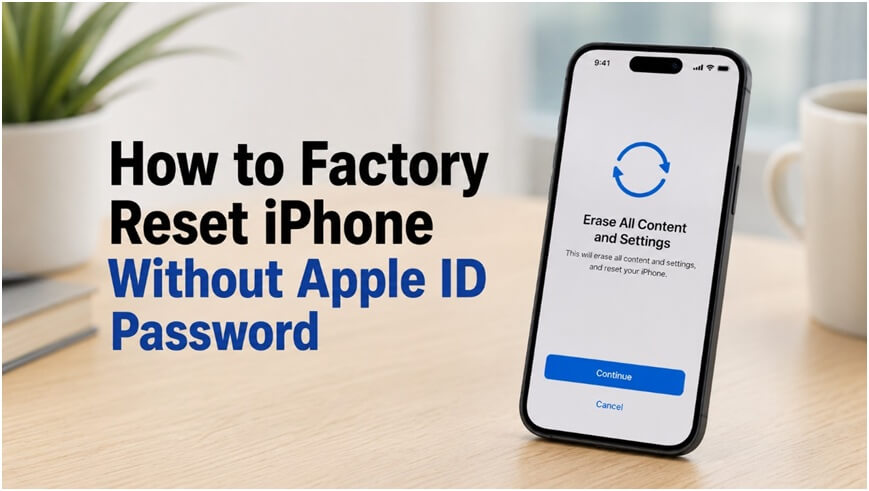
A factory reset is one of the most effective ways to erase an iPhone and return it to its original setup state. You may need to do this if your iPhone is locked, disabled, malfunctioning, or being prepared for sale. However, things can become complicated when you forget your Apple ID password, especially if you need to turn off Find My before erasing the device.
Fortunately, there are several ways to factory reset an iPhone without Apple ID password. This guide covers four practical methods, from resetting your Apple ID password to using Recovery Mode, iTunes/Finder, or a professional iOS system recovery tool.
Table of Contents
What Is a Factory Reset and When Do You Need It?
A factory reset removes personal data, settings, apps, accounts, and other content from an iPhone and returns it to the setup screen. It is different from a simple restart or settings reset because your personal content is erased.
You might want to factory reset an iPhone when:
- You forgot your iPhone passcode and cannot access the device.
- Your iPhone is disabled or stuck on the lock screen.
- The device has serious software problems that cannot be fixed normally.
- You are selling, trading in, or giving away your iPhone.
- You want to start over with a clean system.
Important: A factory reset erases data stored on the iPhone. If possible, back up your important photos, contacts, and other files before proceeding.
How to Factory Reset iPhone Without Apple ID Password
Method 1: Reset Apple ID Password If You Forgot It
If you remember your iPhone passcode but have forgotten your Apple ID password, you may be able to update it directly while erasing the device.
Steps:
- Open Settings and go to General > Transfer or Reset iPhone.
- Tap Erase All Content and Settings, then select Continue.
- Enter your iPhone passcode when prompted.
- When the Apple ID password screen appears, tap Forgot Passcode.
- Enter your iPhone passcode again to verify your identity.
- Create a new password for your Apple ID when prompted.
- Tap Done and continue with the reset process.
Method 2: Use a Professional iOS System Recovery Tool
If your iPhone is locked, disabled, stuck during startup, or experiencing serious iOS problems, a professional system recovery tool can provide an alternative way to factory reset iPhone or repair iOS.
For example, TunesKit iOS System Recovery is designed to troubleshoot various iOS system problems without requiring complicated manual operations.
Steps:
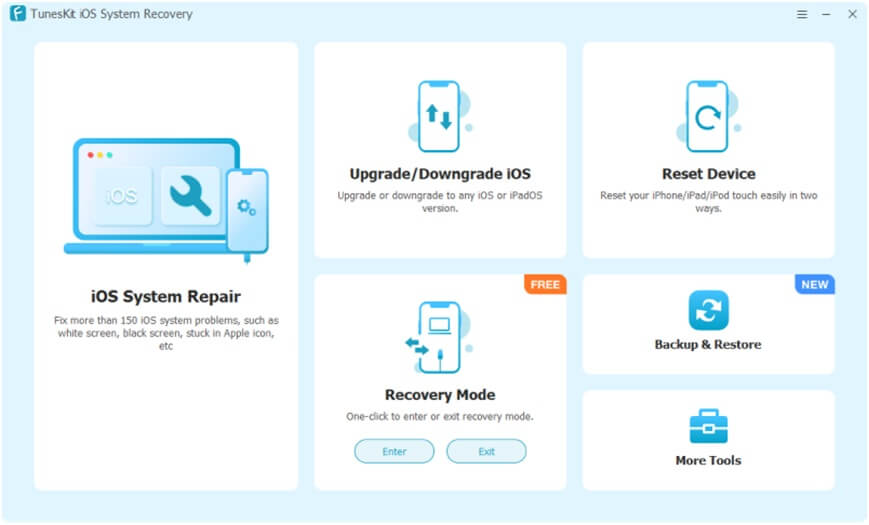
- Download and install TunesKit iOS System Recovery on a Windows PC or Mac. Launch the program and connect your iPhone to the computer with a USB cable.
- Select the Reset Device function. Choose Factory Reset. You can also use its Backup & Restore feature to back up your iPhone before the reset.

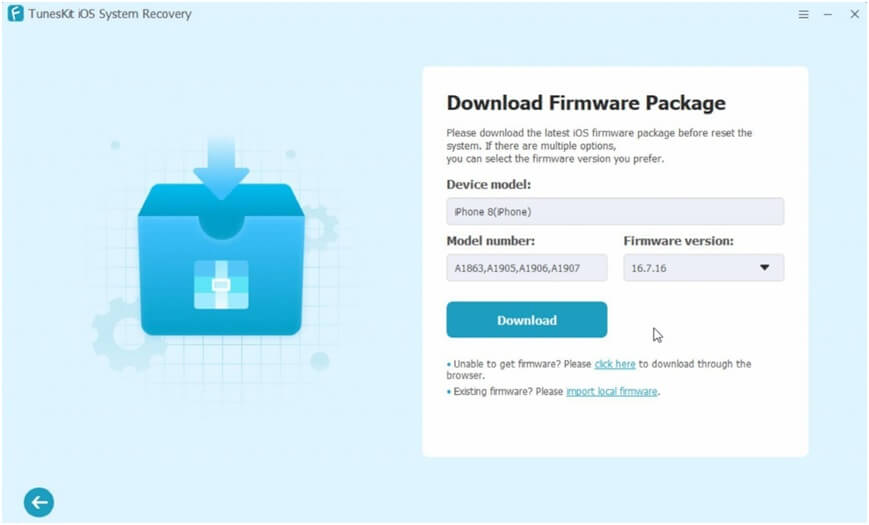
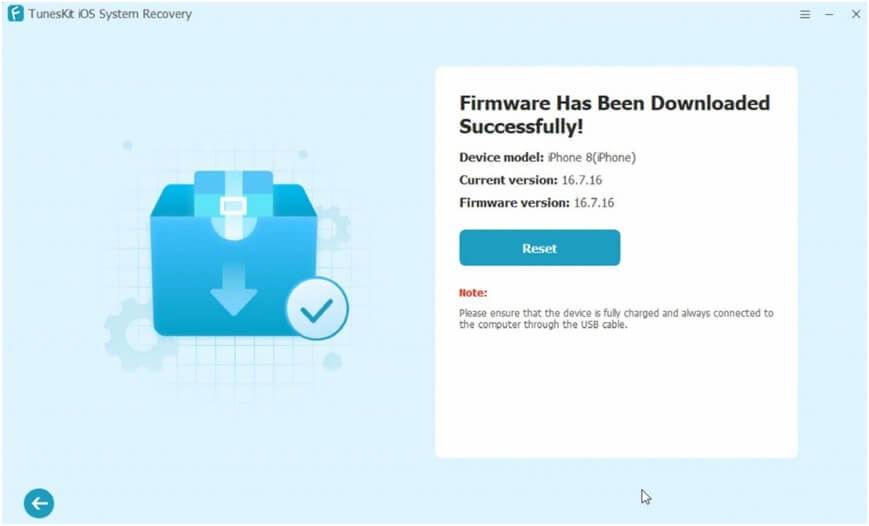
- Confirm your iPhone model and download the matching firmware package.
- Click Reset to begin the process. Keep the iPhone connected until the reset process is complete.

Method 3: Factory Reset iPhone with Recovery Mode
Recovery Mode is an Apple-supported method for restoring an iPhone when you cannot access the device normally. It can be useful if you forgot your iPhone passcode, iPhone stuck on the Apple logo or the system is not responding. Before resetting your iPhone, learn how to transfer files from an iPhone to a Windows PC to preserve important photos, videos, contacts, and other files.
Before starting, install the latest version of the Apple Devices app on Windows, or make sure you have Finder available on a Mac.
Steps:
- Connect your iPhone to your computer using a USB cable. Open Finder on a Mac or Apple Devices on Windows.
- Enter Recovery Mode:
iPhone 8 or later: Quickly press and release Volume Up, quickly press and release Volume Down, then press and hold the Side button until the Recovery Mode screen appears.
iPhone 7/7 Plus: Press and hold the Side and Volume Down buttons together until the Recovery Mode screen appears.
iPhone 6s or earlier: Press and hold the Home and Side/Top buttons together until the Recovery Mode screen appears. - When the computer detects the iPhone in Recovery Mode, select Restore.
- Confirm that you want to restore the device. Wait while the computer downloads the necessary software and restores the iPhone.
Method 4: Use iTunes or Finder
If you have access to a computer and your iPhone can communicate with it, you can also restore the device through iTunes on supported Windows setups or Finder on macOS.
Steps:
- Connect the iPhone to your computer.
- Open Finder or iTunes. Select the iPhone icon
- Click Restore iPhone.
- Confirm the restore and wait for the restoration to finish.
- Disconnect the device after the process is complete and set it up again.
If the iPhone is disabled or iTunes/Finder cannot recognize it normally, use Recovery Mode before attempting the restore.
If you want to learn more about troubleshooting startup problems and restoring an iPhone with iTunes, see our guide on how to fix an iPhone stuck on the Apple logo.
What to Do If Activation Lock Appears
A factory reset does not remove Activation Lock. If Find My was enabled, the iPhone may remain associated with the Apple Account that was previously used on the device.
If you see an iPhone Locked to Owner or Activation Lock screen after resetting the device, you generally need to enter the Apple Account credentials associated with the iPhone.
If you bought the iPhone second-hand, contact the previous owner and ask them to remove the device from their Apple Account. If you are the legitimate owner but cannot recover your account, use Apple’s account recovery options or contact Apple Support with valid proof of purchase when applicable.
FAQ:
Q1: Will a factory reset remove the Apple ID from my iPhone?
A factory reset erases the data and settings stored on the iPhone, but it does not necessarily remove Activation Lock. If Find My is enabled, you may still need the associated Apple Account credentials to activate the device.
Q2: Can I factory reset an iPhone without a passcode?
Yes. You can use Recovery Mode to restore the device. This will erase the iPhone and reinstall iOS.
Q3: Does factory resetting an iPhone remove Activation Lock?
No. If the device is linked to an Apple Account through Find My, you must use the correct account credentials or have the previous owner remove the device from their account.
Final Thoughts
Forgetting your Apple ID password does not necessarily prevent you from restoring an iPhone. If you can recover your account, resetting the password is the safest option. For locked or problematic devices, Recovery Mode, iTunes/Finder, and professional iOS system recovery software can provide additional ways to reset an iPhone to factory settings.