Table of Contents
TL;DR
-
- Most apps skip thorough smartphone testing before launch — crashes, freezes, and lost data are the result
- A properly tested app handles weak Wi-Fi, background interruptions, and device-specific quirks without breaking
- Even Samsung and Apple ship apps with real regressions — silent alarms, disappearing boarding passes, room keys that die offline
- Before downloading, check 1-star reviews for crash and freeze patterns, not just low ratings
- Look at the update history — frequent bug fix notes signal a team that monitors and cares about quality
- Make sure permissions match the app’s purpose — mismatches are a red flag for poor quality control
- Test offline behavior for any app you’d need without a signal — it’s the most revealing two-minute check
- Two minutes of due diligence before downloading beats being stuck at a gate with a spinning wheel
Smartphone Testing Introduction
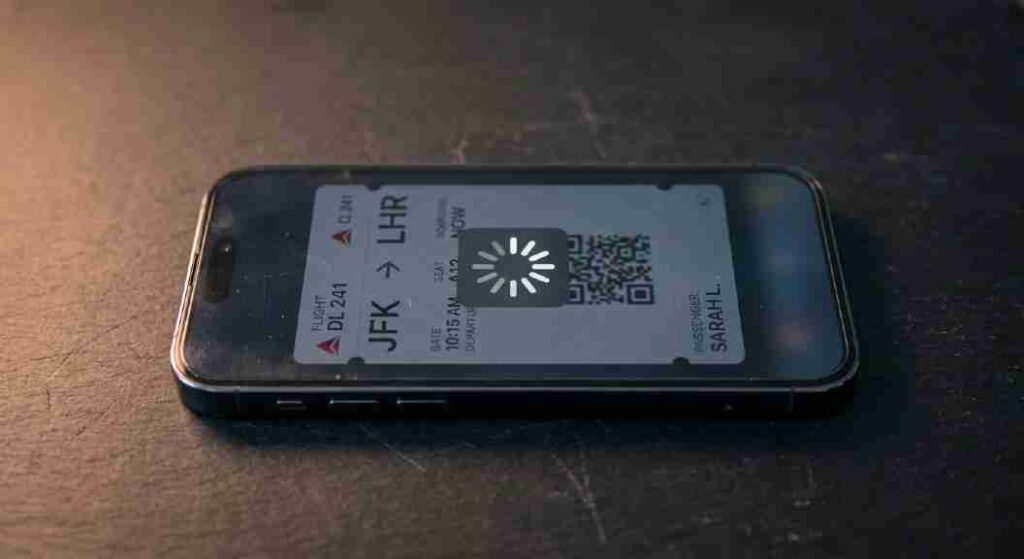
Picture this: You’re at the airport, thirty seconds from a gate closure, and the boarding pass app freezes. No error message, no retry button—just a spinner. You’re patting your pockets for a screenshot, a PDF, anything. You make it through, barely. But that moment of blind panic? That’s what a poorly tested app does to you.
That exact situation happened to me. As someone who follows smartphone hardware obsessively and spends serious time thinking about how apps are built, I’ve started treating app behavior as a direct signal of the team behind it.
Years of switching between Samsung and Apple devices, testing dozens of apps, and suffering through some that had absolutely no business passing a QA review have given me a very clear picture of what separates a properly tested app from one that wasn’t.
Here’s what smartphone testing means, what to look for before you tap “install,” and why it should be part of every tech-savvy person’s download routine.
The App Store Has a Quality Problem Nobody Admits
Both Google Play and the App Store host millions of apps. Not all of them deserve a spot there. Research shows that 25% of apps are deleted after their very first use
—poor performance is a leading driver of that stat. On top of that, 70% of users abandon apps with slow or broken performance, meaning developers who cut testing corners bleed users almost immediately.
The uncomfortable truth is that testing is expensive and time-consuming. Some teams rush to launch and patch issues post-release. Others skip real-device testing entirely, leaning on software emulators that miss a massive category of real-world failures. A few genuinely hope the community will find the bugs for them. As a user, you’re often the unpaid beta tester—whether you agreed to that role or not.
What Smartphone Testing Really Involves
Before you can reliably spot a well-tested app, you need a solid mobile application testing guide to understand what proper smartphone testing looks like from the inside. It’s a layered discipline that covers network behavior, hardware quirks, OS-specific edge cases, and how the app behaves when life inevitably interrupts.
Real Devices vs. Emulators
One of the most common shortcuts dev teams take is testing exclusively on emulators or simulators—software programs that mimic a phone on a laptop. They’re cheap to run and work fine for catching obvious bugs. But they miss a wide range of real-world failures: battery drain under load, device-specific rendering glitches, and hardware-related performance drops that only show up on physical screens.
A team that takes quality seriously runs their app across a broad set of actual phones. Android testing alone is a logistical challenge given fragmentation across manufacturers, screen sizes, and OS versions. Apps that go through this process feel noticeably different—buttons align correctly, fonts don’t clip, touch targets are properly sized.
Scaling real-device testing across hundreds of configurations is where cloud infrastructure becomes essential. AWS Device Farm, for example, lets teams run tests on physical Android and iOS devices hosted in the cloud, no hardware procurement needed. For dev teams considering migrating to AWS to support this kind of scalable testing setup, working with a dedicated AWS partner like Cloudvisor can simplify the transition significantly.
Network Stress Testing
Your home broadband connection is not a realistic test environment. A properly tested app gets run through 2G, 3G, slow connections, and unstable networks with packet loss to see exactly how it holds up. Teams simulate dropped connections, high latency, and interrupted sessions. Apps that pass these tests handle a subway’s patchy signal gracefully—reconnecting automatically, preserving your session rather than throwing an error and wiping everything you’d done.
Interruption and Background Handling
Real users switch apps. They get phone calls. They lock their screen mid-task. Proper smartphone testing covers all of this. QA teams check what happens when an app moves to the background, when a notification interrupts a session, and when battery saver restricts activity. If an app loses your progress when you answer a call and return—data entry gone, login session killed—that scenario almost certainly never made it into a test plan.
Signs That Tell You an App Was Properly Tested
You don’t need access to a QA report to assess this. Here’s what to check before downloading:
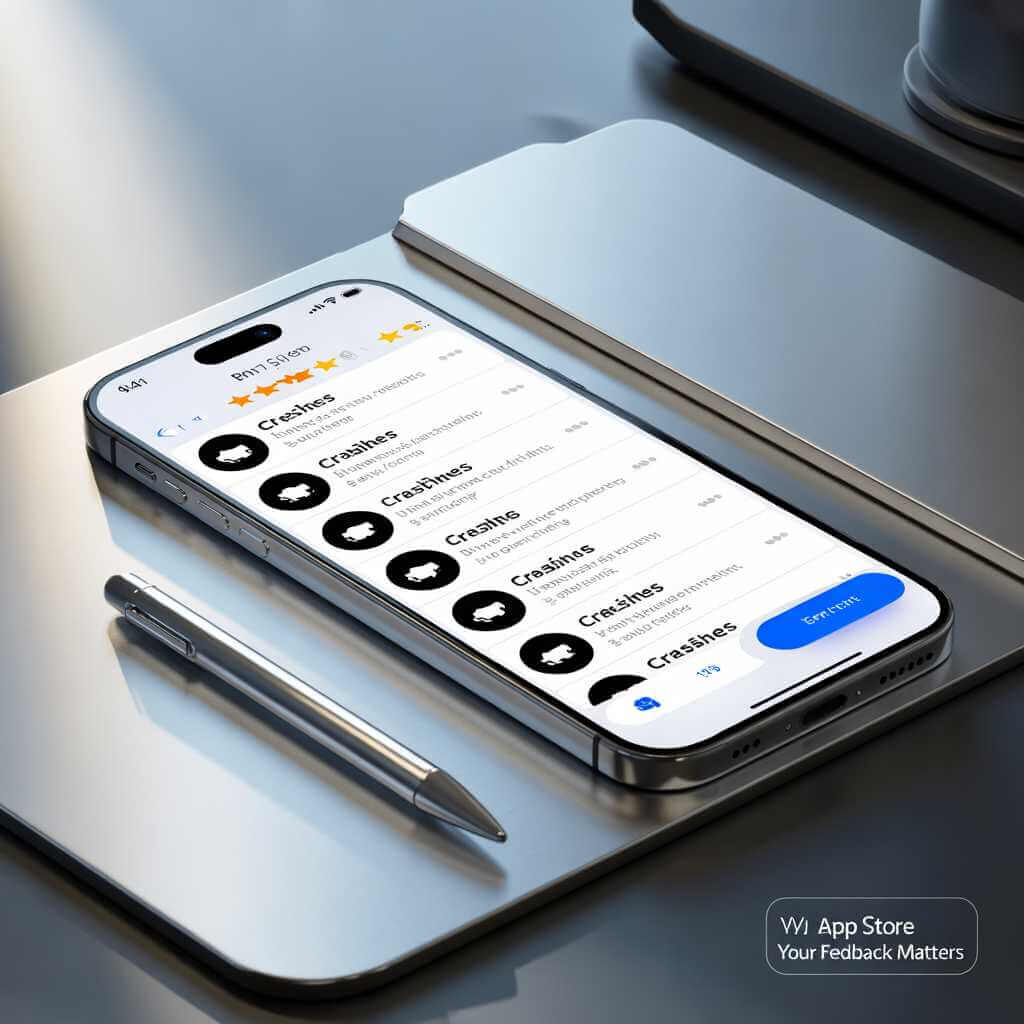
- Read the 1-star reviews with intent — Don’t dismiss an app based on a few negative scores. Categorize the complaints. Crashes, freezes, lost data, and broken features are testing failures. Complaints about pricing or missing features are a different matter entirely. A quality app has far fewer 1-star reviews than 4-star ones, and the negative ones tend to be preference-based rather than functional
- Check the update history — An app receiving consistent, descriptive updates signals an active team monitoring real-world performance. Update notes that mention specific bug fixes show a team that’s tracking issues and closing them—not ignoring them
- Audit the permissions — A well-tested app requests only what it needs for its core function. Apps that ask for permissions unrelated to their purpose haven’t just failed security testing—they signal a broader lack of quality discipline
- Cross-reference download volume and app age — High download numbers combined with a long lifespan suggest the app has survived real-world edge cases. New apps with few downloads carry more risk simply because those edge cases haven’t been discovered yet
- Run a quick bug search — A search like “[app name] bug 2025” takes sixty seconds and often surfaces known, active problems before you commit to the install
- Observe the onboarding experience — A properly tested app has a clean, logical first-run flow. One that stumbles during onboarding—asking for permissions at confusing moments, displaying layout errors on your screen size—reveals gaps early
Well-Tested vs. Poorly Tested — A Real-World Comparison
The difference shows up in workflow. A well-tested app moves out of your way. A bad one makes you negotiate with it at every step. Tapping a button and wondering if it registered. Submitting a form and hoping it didn’t silently fail. Going back and landing on the wrong screen. That friction adds up fast.
| Dimension | Well-Tested App | Poorly Tested App |
|---|---|---|
| Launch behavior | Consistent, fast cold start every time | Slow, inconsistent, or occasionally hangs |
| Navigation | Predictable back behavior, no dead ends | Broken back navigation, unexpected screen jumps |
| Network handling | Graceful degradation, auto-retries | Blank screen or crash on poor signal |
| Interruption recovery | Saves state, resumes correctly after calls/app switch | Loses data or session after any interruption |
| Permissions | Requests only what’s relevant at the right time | Asks for unrelated access, sometimes at wrong moments |
| Error feedback | Clear, actionable messages to the user | Generic or silent failures |
| Update cadence | Regular patches, transparent changelogs | Infrequent updates, known bugs sit for months |
Stories From the Samsung and Apple Testing Trenches
Abstract comparisons only carry you so far. Let me get specific.
Samsung’s Clock App: A Basic Feature That Broke
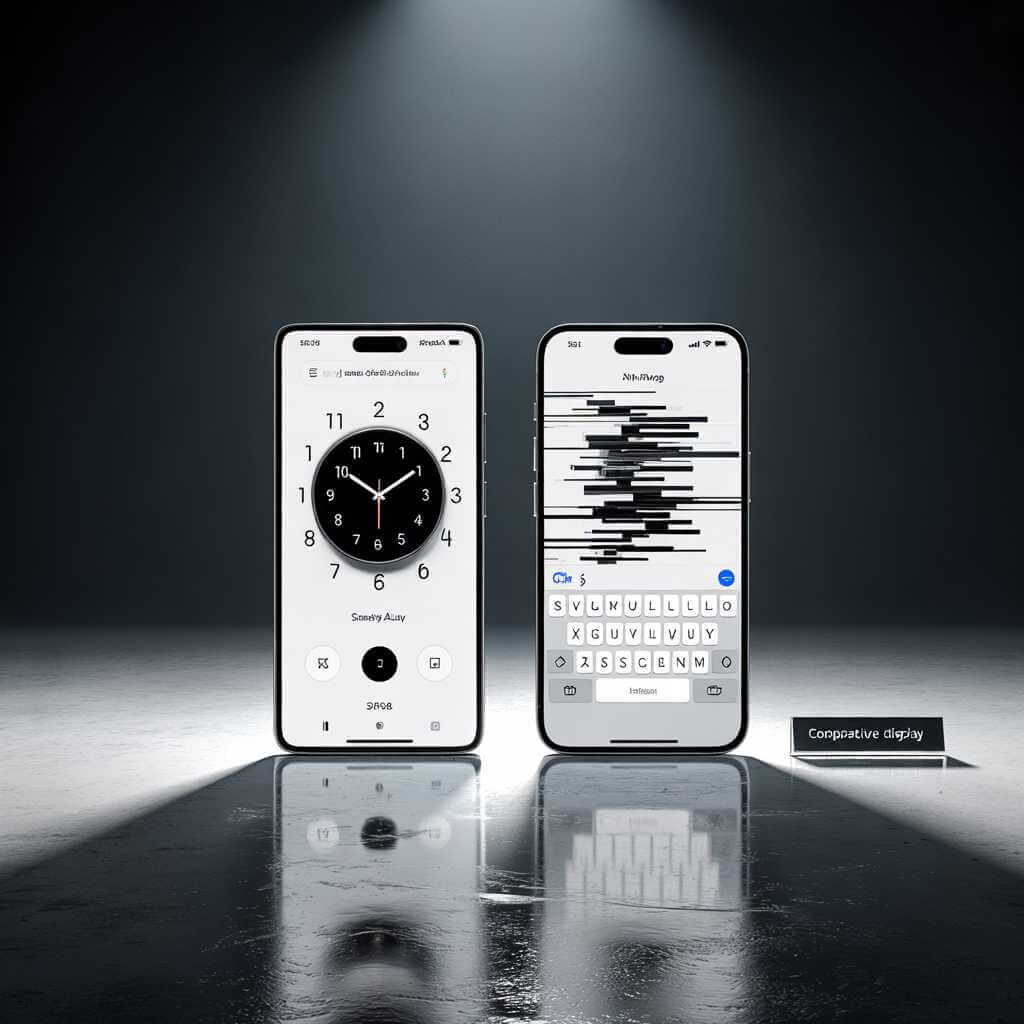
In 2024, Samsung’s own preinstalled Clock app on Galaxy devices—including the S24 Ultra—developed a bug where alarms would fire silently or fail to trigger entirely. Not a third-party app. Samsung’s own clock. A function phones have had since the feature-phone era. Users slept through alarms, missed meetings, and flooded Samsung’s support channels before a patched version rolled out.
That’s a regression testing failure. Somebody changed something elsewhere, and nobody re-ran the alarm test cases to confirm sound still played. It’s the kind of catch that should never reach production.
Samsung’s software history is genuinely mixed on this front.
TouchWiz, its earlier Android skin, was widely criticized for lag and heavy resource use—often dragging down excellent hardware. One UI improved things considerably from the Galaxy S10 era onward, but the platform still struggles with one specific smartphone testing gap: Samsung’s adaptive battery aggressively kills background apps, breaking health trackers, alarms, and anything that needs to wake up periodically.
I ran into this firsthand on a Galaxy S21. A sleep tracking app I used daily stopped recording overnight after three days without opening it—precisely the documented behavior of Samsung’s background process management. The same app on a Pixel worked without issue. Same app, completely different result. That’s a device-specific testing gap that no emulator would have caught.
Apple’s iOS 26 Alarm and Keyboard Saga
Apple doesn’t get a pass either. Early 2026 reports showed iOS 26.3 and 26.3.1 shipping with alarm bugs affecting a subset of users, alongside keyboard inconsistencies, display refresh stutters, and CarPlay issues. iOS 26.4 resolved most of these, but the pattern is familiar: a major update introduces regressions that a more thorough test pass would have flagged. User experience varied wildly across devices—some people reported zero problems, others reported daily crashes in the same builds.
| Update | Known Issues | Resolution |
|---|---|---|
| iOS 26.3 | Alarm bug, keyboard inconsistency, promotion stutter | Partially fixed in 26.3.1 |
| iOS 26.3.1 | Alarm bug persisted for some users, CarPlay problems | Mostly resolved in 26.4 |
| iOS 26.4 | Minor lag, battery inconsistency on select devices | Ongoing improvement |
Apple’s consistency, when everything is properly patched and running well, sets a high bar. App switching is instant, background behavior is predictable, and the overall flow feels deliberate. That’s what rigorous smartphone testing produces at scale. The contrast between a well-patched iOS build and a broken one is stark enough to feel like two different products.
How a Bug-Free Workflow Got Us Out of a Sticky Situation
Back to airports. A few months ago, I had a tight connection in Frankfurt—maybe twelve minutes between landing and my next gate closing. The airline’s app loaded my boarding pass instantly on spotty airport Wi-Fi, having cached it locally during an earlier session. Gate change notification had already come through. Lock screen display worked without needing to unlock and navigate menus.
Every one of those features exists because someone on that development team wrote test cases for offline caching, push notification reliability, and lock screen widget behavior—and ran them across real devices in degraded network conditions. That app passed continuous testing integrated into its CI/CD pipeline, meaning each build was verified before release.
Compare that to a hotel app I tried on the same trip. It required an active network connection to display a digital room key I’d already downloaded. Switching to check my gate caused the key to disappear. Reopening asked me to log in again—which required Wi-Fi I didn’t have. I ended up at the front desk at midnight asking for a physical key card.
The app failed in the exact scenario it was built to solve. Each one of those failures traces back directly to a missing test case: no offline caching test, no app-switch resume test, no session-persistence test.
Your Pre-Download Checklist
Based on real smartphone testing knowledge and years of living with the consequences of apps that weren’t properly checked:

- Scan 1-star reviews for crash, freeze, or data-loss patterns — preference complaints are noise; broken functionality is signal
- Check update notes for bug fix mentions — teams that test well also patch well
- Match permissions to app function — mismatches indicate poor quality control
- Look at longevity plus download volume — a five-year-old app with ten million downloads has been road-tested by real people
- Test immediately at first launch — broken onboarding predicts broken everything else
- Verify offline behavior for any app you’d need without signal
- Search for active known bugs before committing to anything you’ll rely on daily
FAQ: Smartphone Testing
Q1: How do I know if an app was properly tested before I download it?
Check the 1-star reviews for recurring crash, freeze, or data loss complaints — these are direct signs of testing gaps. Also look at the update history: an app that ships regular bug fix patches shows an active team monitoring real-world performance. Mismatched permissions are another red flag — a well-tested app only requests access it actually needs.
Q2: What is smartphone testing and why does it matter to regular users?
Smartphone testing is the process developers use to verify that an app works correctly across real devices, network conditions, OS versions, and everyday interruptions like phone calls or app switching. For regular users, it matters because every crash, frozen screen, or lost input you experience traces back to a test case that was either missed or never written. The fewer testing gaps, the fewer bad moments you have with the app.
Q3: What are the most common signs of a poorly tested app?
The five most common signs are: unexpected crashes when switching away and back, blank or broken screens on weak network connections, permissions that don’t match the app’s function, navigation that breaks the back button behavior, and generic error messages with no guidance on what went wrong. Any one of these points to a specific testing type that the dev team skipped.
Q4: Does a high app store rating guarantee the app is bug-free?
Not at all. A high average rating reflects overall satisfaction, not testing depth. Apps with heavy marketing spend can accumulate 5-star reviews quickly while still carrying serious functional bugs. The more reliable signal is the ratio of 1-star to 4-star reviews — if those numbers are close, the high average score is likely inflated.
Q5: Why do apps from big companies like Samsung and Apple still have bugs?
Even large platforms with dedicated QA teams ship regressions because software updates affect interconnected systems in ways that aren’t always caught during test cycles. Samsung’s background process management has historically broken third-party alarms and health trackers across multiple Galaxy updates, while Apple shipped keyboard and alarm regressions in iOS 26.3 that required two follow-up patches. Scale makes testing harder, not easier.
Q6: Is it safe to download an app with a lot of downloads but few recent updates?
High download counts paired with a long lifespan suggest the app survived real-world edge cases over time. However, an app with no recent updates on a modern OS version is a warning sign — it may not have been tested against the latest Android or iOS changes, meaning bugs introduced by system updates will go unpatched. Always cross-check the last update date against the OS version you’re running.
Q7: What should I check in app store reviews before downloading?
Skip the 5-star and 1-star extremes as standalone signals. Instead, read 2-star reviews — they tend to be the most specific and honest, written by people who wanted the app to work but hit real problems. Look for patterns: multiple people mentioning the same crash scenario, the same broken feature, or the same device model suggests a systemic testing gap rather than a one-off issue.
Q8: Can I check if an app works offline before downloading it?
You can’t test offline behavior before downloading, but you can infer it. Check the app’s description for mentions of offline mode or local storage. Read reviews filtered by keywords like “no internet,” “offline,” or “Wi-Fi” to see how existing users report the experience. Apps that handle offline scenarios well almost always mention it as a feature — those that don’t usually haven’t tested for it.
Conclusion: Smartphone Testing
Smartphone testing is the invisible work that separates apps you trust from apps you tolerate. When it’s done right, you don’t think about it—the app just works. When it’s skipped, you’re the one standing at an airport gate with a spinning wheel and a racing heart.
Now you know what to look for. Two minutes of due diligence before downloading can save you from being that person. Check the reviews, scan the update history, match the permissions—and make the apps you install work for you, not against you.