Table of Contents
TL;DR
- This article gives a practical 25-step mobile app testing checklist for Android and iOS that small teams can run in 1–2 hours.
- Focus is on real-world failure points: installs/upgrades, permissions, offline behavior, bad network switching, notifications, battery, login, and data persistence.
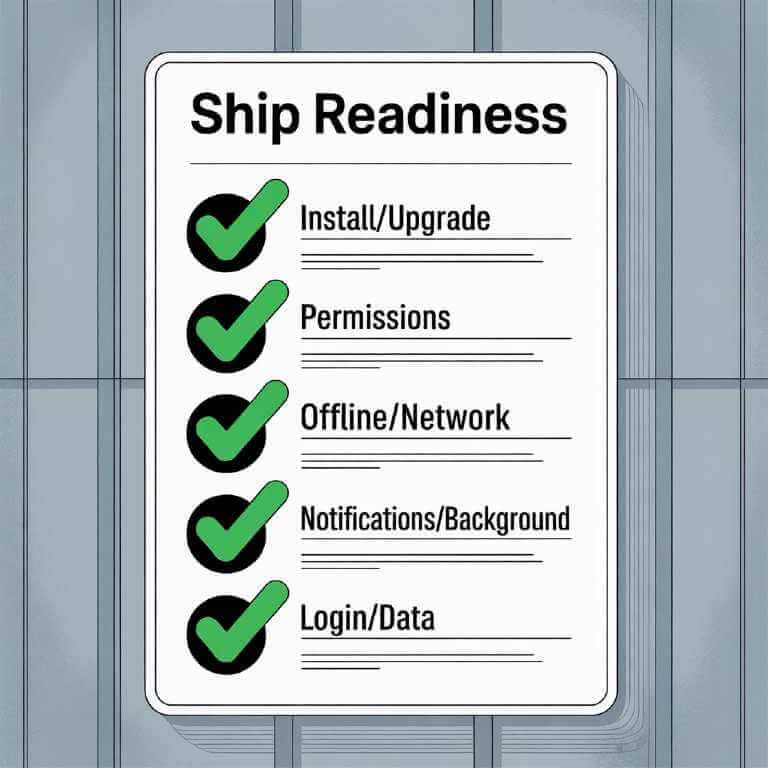
- Tests are grouped into blocks (install/upgrade, permissions, offline/network, notifications/background, battery/performance, login/data safety) with suggested time per block.
- Emphasis is on quick, repeatable checks that prevent expensive post-release bugs rather than exhaustive test coverage.
- The article is written in a conversational, experience-based style aimed at smartphone developers without dedicated QA.
Introduction
Shipping a mobile app is weirdly humbling: everything looks perfect in your simulator, your unit tests are green, and then one real device on a flaky café Wi‑Fi turns your “ready to ship” build into a support ticket factory.
I’m writing this as someone who’s spent too many evenings doing a “quick final pass” that turned into a midnight bug hunt. Over time, I’ve learned that a mobile app testing checklist only works if it targets what breaks in real life: installs, upgrades, permissions, offline mode, network switching, notifications, battery impact, login edge cases, and data persistence.
This post gives you a mobile app testing checklist of 25 tests you can run in 1–2 hours—even if you’re a small team without dedicated QA. It’s written for smartphone developers, from the perspective of a hands-on app tester who wants fewer surprises after release.
How to use this mobile app testing checklist (1–2 hours)
The trick is to timebox and sequence your mobile app testing checklist so you catch high-risk failures first.
My “1–2 hour” run plan
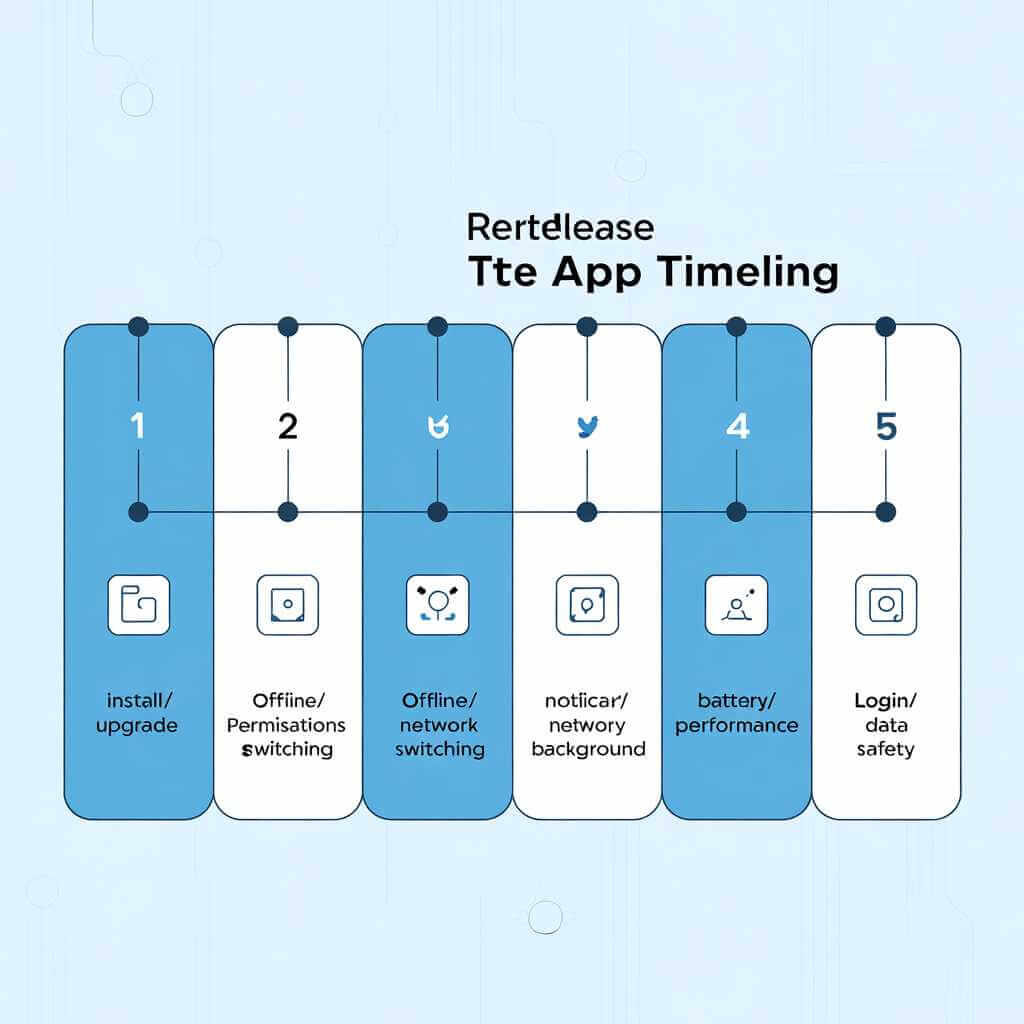
| Block | Time | What you’re trying to catch | Tests covered |
|---|---|---|---|
| Smoke + install/upgrade | 15–20 min | Crashes, broken first-run flows, migration bugs | 1–7 |
| Permissions + core journeys | 15–20 min | “Works on my phone” permission issues, broken critical path | 8–13 |
| Offline + network switching | 15–20 min | Data loss, stuck spinners, retries, duplicate writes | 14–18 |
| Notifications + background | 10–15 min | Silent failures, wrong deep links, background restrictions | 19–21 |
| Battery + performance sanity | 10–15 min | Drains, jank, overheating complaints | 22–23 |
| Login + data safety | 10–15 min | Session loops, logout bugs, persistence failures | 24–25 |
If you have cloud device testing available, you can offload coverage to a device farm—Google’s Firebase Test Lab, for example, runs tests on a wide range of Android and iOS devices hosted in Google data centers and supports real-device testing and CI integration.
Setup: your pre-release baseline (so results are comparable)
Before you start the mobile app testing checklist, set a baseline so “it felt slow” becomes “it took 6 seconds on cold start over LTE”.
What I record every run
- Device model + OS version (one “new” device, one “older” device if possible)
- Install type (fresh install vs upgrade)
- Network state (Wi‑Fi, LTE/5G, VPN on/off)
- Build number + environment (staging/prod)
- A short screen recording for anything weird
If you distribute iOS betas, TestFlight is designed to let you invite users to beta test versions of your app before you release on the App Store.
The mobile app testing checklist: 25 real-world tests
Each item below is phrased as a mobile app testing checklist test with a quick “how” and a clear pass/fail. Don’t aim for perfection—aim for “no showstoppers” and “no data loss.”
Install & upgrade (tests 1–7)
1) Fresh install: first launch sanity
How: Install from your beta channel, launch once, go through onboarding.
Pass: No crash, no infinite loading, no blank screens; onboarding completes.
2) Cold start vs warm start
How: Cold start (force quit), then relaunch; then warm start (background → foreground).
Pass: Cold start isn’t dramatically slower than last build; warm start resumes correctly.
3) Install with low storage
How: Get the device near low-storage conditions; install and launch.
Pass: App doesn’t crash; if it must fail, it fails gracefully with a useful message.
4) Upgrade from previous version (migration test)
How: Install the last public/beta build, log in, create some data; update to the new build.
Pass: No logout loop, no missing data, no broken cached state.
Personal checklist note: This is the test that has saved me the most pain. On one release, we changed how we stored session tokens; fresh installs worked, upgrades didn’t. The only reason we caught it was because “upgrade then login” is always on my mobile application testing checklist.
5) Upgrade while offline
How: Turn on airplane mode, update build, open app.
Pass: App starts; it shows an offline state rather than failing unpredictably.
6) Upgrade + background restore
How: Start a task, background the app, update, reopen from the app switcher.
Pass: No corrupted state; app navigates to a safe screen.
7) Uninstall/reinstall: data reset expectations
How: Uninstall, reinstall, reopen.
Pass: Any local-only data is gone (expected), but server data restores cleanly after login.
Permissions & device realities (tests 8–13)
A surprising chunk of “bug reports” are just permission states you didn’t test.
8) Permission denied path (camera/photos/location)
How: Deny the permission your core feature needs.
Pass: The app explains why it needs access and still remains usable (or offers an alternative).
9) “Don’t ask again” / permanently denied
How: Permanently deny on Android (or deny repeatedly), then try the feature again.
Pass: You show a clear path to Settings; you don’t spam prompts.
10) Permission granted after denial (settings round-trip)
How: Deny → hit the feature → go to Settings → grant → return to app.
Pass: Feature works without requiring a full restart.
11) Notification permission (iOS) + post-install prompt timing
How: Trigger the moment you ask for notifications.
Pass: Prompt appears at a sensible time (after value is explained), and app handles denial cleanly.
12) Accessibility text size / display scaling
How: Increase font size / display size; check key screens.
Pass: No clipped buttons, no impossible-to-tap controls, no layout collapse.
13) One older device check (performance + layout)
How: Run 5 minutes on a slower phone (or older OS version you support).
Pass: Critical path still works; no severe jank on main screens.
Offline & bad networks (tests 14–18)
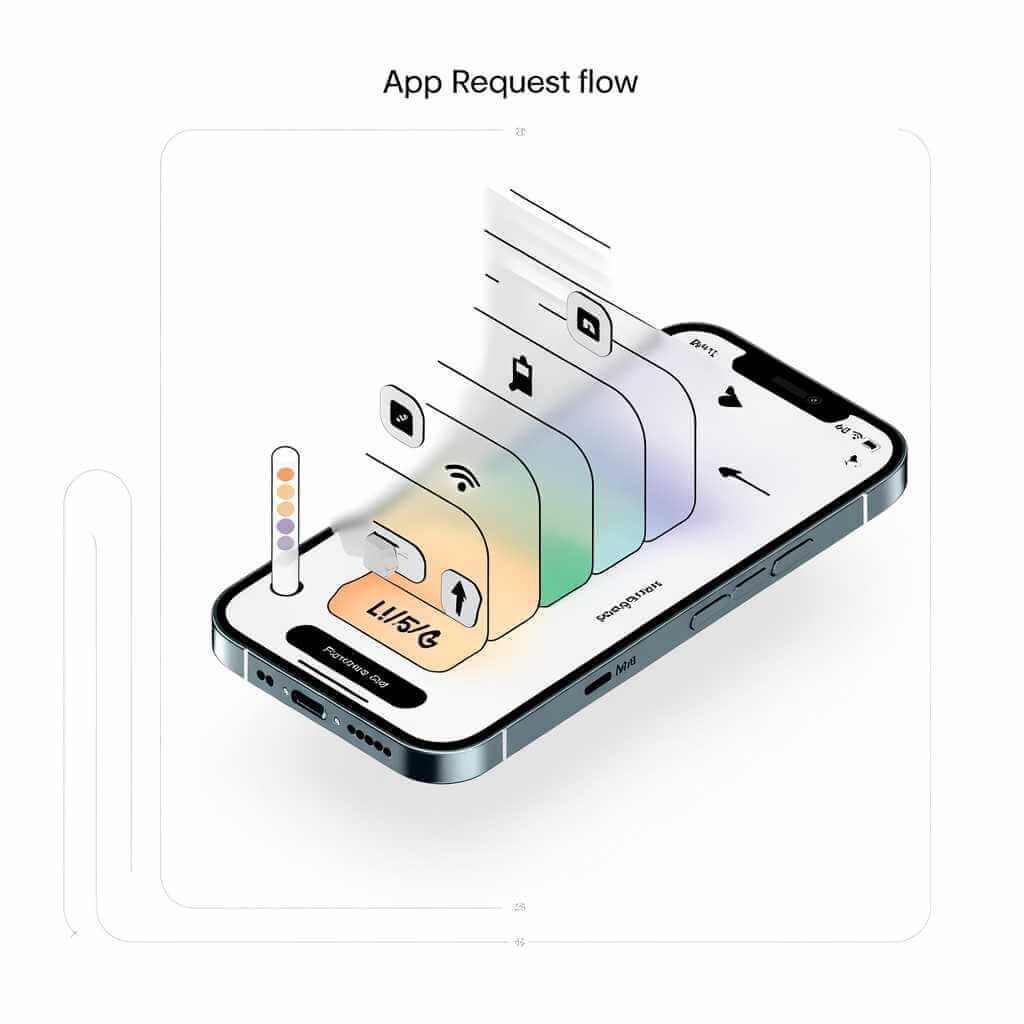
Real users don’t live on perfect Wi‑Fi. This is the section that separates a “demo build”
14) Offline mode: open the app with no network
How: Airplane mode → cold start.
Pass: You show cached content or a clear offline screen; no infinite spinner.
15) Offline create/edit queue (if your app writes data)
How: Offline → create/edit something → close app → reopen still offline.
Pass: The change is preserved locally and marked pending.
16) Reconnect sync correctness
How: Go online again.
Pass: Pending changes sync once (no duplicates), and UI reflects success/failure.
17) Network switching: Wi‑Fi ↔ LTE/5G mid-action
How: Start loading a feed/upload, then toggle Wi‑Fi off/on.
Pass: Requests retry intelligently; user isn’t stuck; you don’t corrupt data.
18) Bad network latency simulation (the “pain test”)
How: Use network shaping tools (or a weak signal area) and navigate core flows.
Pass: You show loading states, allow cancel/retry, and avoid “tap doesn’t work” moments.
Notifications & background behavior (tests 19–21)
Notifications are deceptively fragile because OS behavior differs and background execution is constrained.
19) Push arrives: correct title/body + no duplicates
How: Send one push; then send the same payload again.
Pass: One notification per event; content is correct.
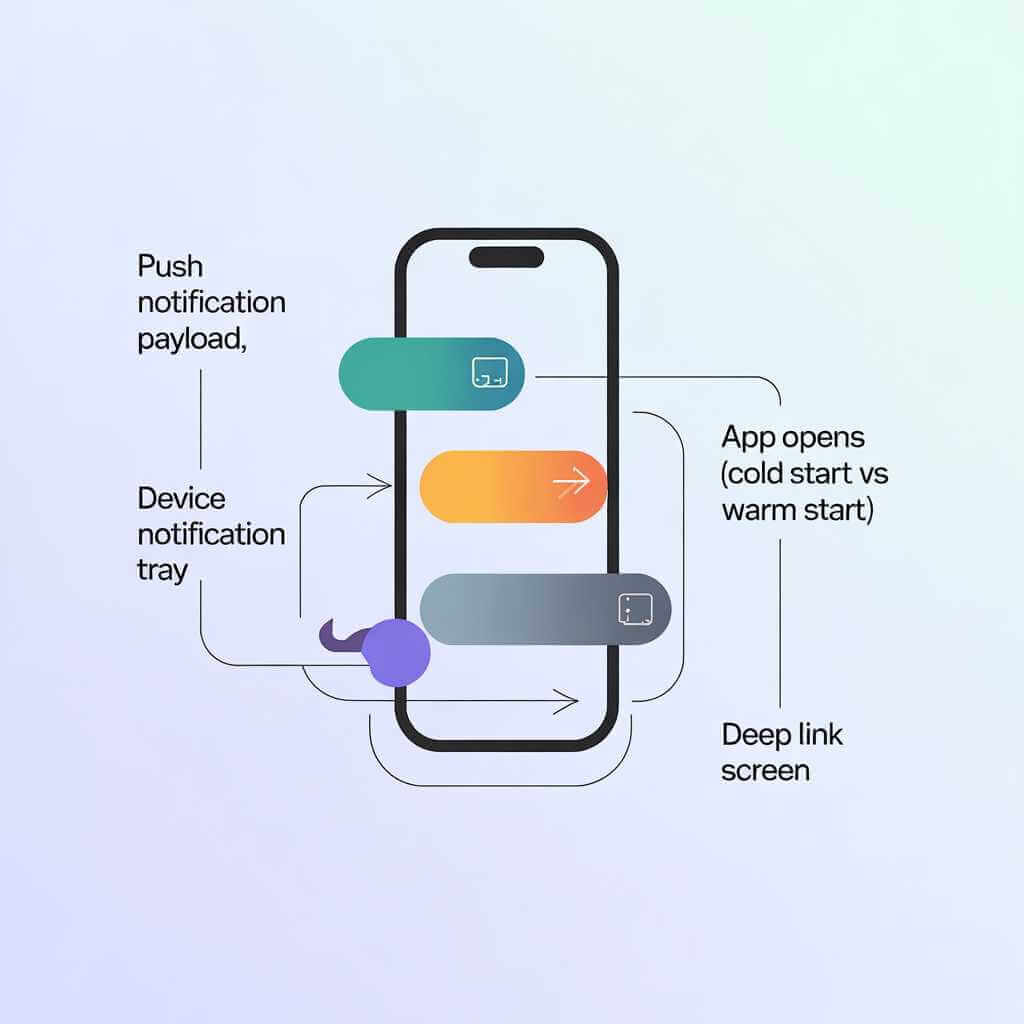
20) Deep link correctness (cold start and warm start)
How: Tap notification when app is closed; repeat when app is in background.
Pass: You land on the correct screen; back navigation makes sense.
21) Background refresh / sync sanity
How: Leave app idle; come back later.
Pass: App doesn’t “forget” state; it refreshes gracefully without blocking the UI.
Battery & performance sanity (tests 22–23)
You don’t need a full lab to catch obvious drains—just a repeatable quick check.
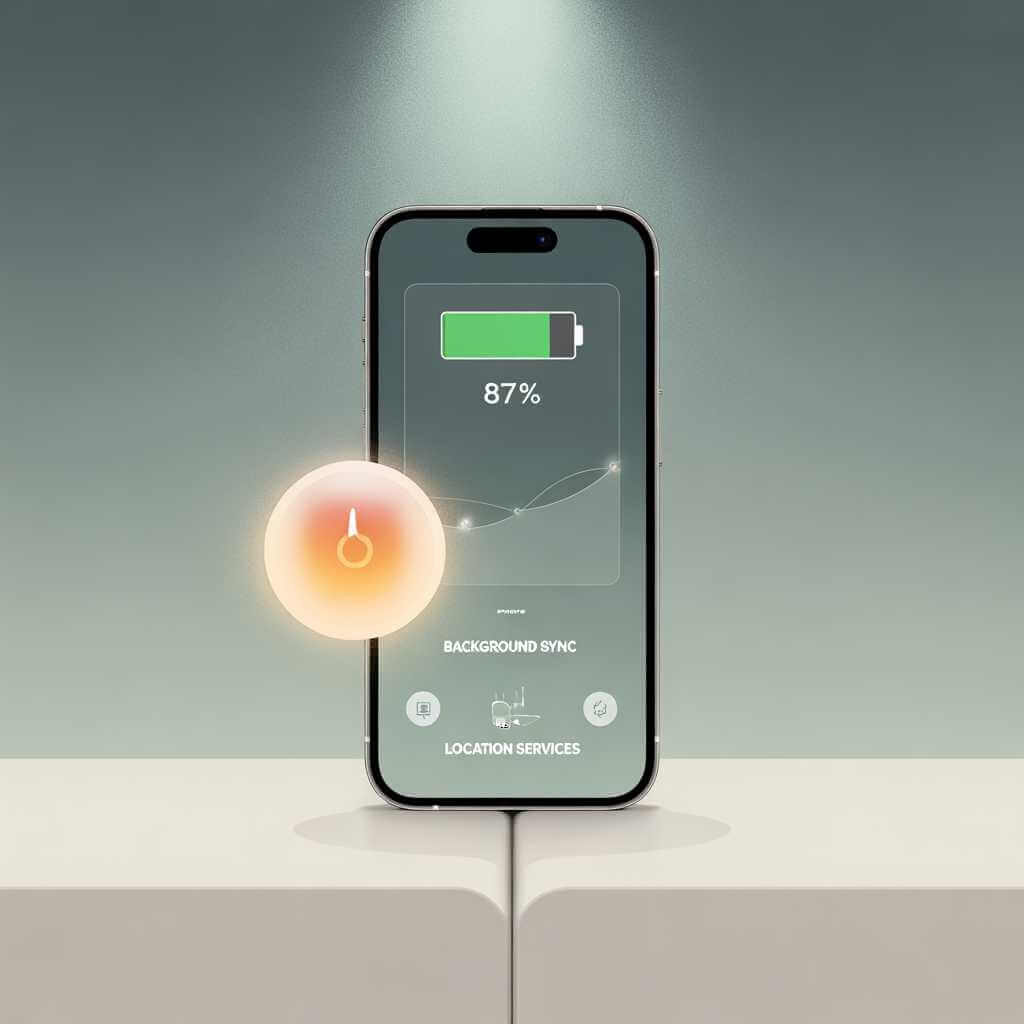
22) Battery impact quick check (10-minute usage loop)
How: Use the app continuously for ~10 minutes (scroll, search, open media).
Pass: Device doesn’t heat excessively; no obvious battery cliff; no runaway background work.
23) “Feels slow” triage: identify the bottleneck class
How: Note where delays happen: cold start, API calls, heavy screens, image loading.
Pass: You can point to at least one measurable improvement target before release.
Login, sessions, and data safety (tests 24–25)
If your login breaks, nothing else matters.
24) Login edge cases (the “3 states” test)
How: Test: first login; expired session; logout then login again.
Pass: No loops, no silent failures, no stuck loading when tokens expire.
25) Data persistence: “can I trust this app with my stuff?”
How: Create important data, kill the app, reboot device (if feasible), reopen.
Pass: Data is still there (locally cached or server-restored), and nothing silently disappears.
For cloud-style apps, the attached draft specifically warns to test synchronization and data handling across upgrades—this is exactly why this last test exists.
Small-team coverage: what to test on Android vs iOS
A good mobile app testing checklist isn’t “test everything everywhere.” It’s “test the right things on representative devices.”
| Area | Android focus | iOS focus |
|---|---|---|
| Devices/OS | Wider device/OS fragmentation; test at least one lower-end device | OS versions are tighter; test the oldest iOS you support |
| Permissions | More varied “don’t ask again” states and manufacturer quirks | Notification permission timing is critical |
| Background | Vendor battery optimizations can be aggressive | Background modes are strict; behavior is consistent but unforgiving |
| Distribution | Multiple channels, APK/AAB behaviors | TestFlight workflows for beta distribution |
If you want quick coverage without owning a drawer of phones, consider running automated checks on a device farm—Firebase Test Lab highlights real-device testing for both Android and iOS and integrates with CI tooling.
Tools and references I actually keep handy
When I’m updating my mobile app testing checklist, I keep a few references close—not as “reading material,” but as reality checks:
- A quick stats-driven reminder that users abandon slow apps (use this carefully and verify your sources)
- A general overview of mobile app testing (useful for onboarding new devs/testers) from TestGrid’s mobile app testing article.
- A “what mistakes look like” perspective similar to Alpha Logic’s post on mobile app testing mistakes.
- A broader discussion of mobile testing challenges (useful for planning coverage) from Testsigma’s article on mobile app testing challenges.
- For security-oriented teams, OWASP’s Mobile Application Security Verification Standard (MASVS) is a commonly referenced baseline that describes security verification levels (L1/L2) and requirements categories.
FAQ: Mobile App Testing Checklists
Q1: How long does this mobile app testing checklist actually take?
The full checklist is designed for 1–2 hours if you follow the timeboxed blocks: 15–20 minutes per major section (install/upgrade, permissions, offline/network), down to 10–15 minutes for shorter ones like battery and login.
Q2: Do I need expensive hardware or a device farm to run this?
No—you can run it on just 2–3 real devices (one new Android/iOS, one older/slower). Cloud farms like Firebase Test Lab are optional for wider coverage.
Q3: What’s the most common bug this checklist catches?
Upgrade migration issues (test 4): changing session storage or data formats breaks existing users. The author mentions this saved them from multiple bad releases.
Q4: Should I run this checklist every release, or just major versions?
Every release—especially minor updates, since background/background execution changes or permission prompts can break unexpectedly.
Q5: What if my app doesn’t have login or notifications?
Skip those tests (login/data safety, notifications/background) and spend more time on your core flows (e.g., offline sync if it’s a productivity app).
Q6: Android vs iOS: any tests specific to one platform?
Yes—Android needs more “permanently denied” permission checks and vendor battery optimization tests; iOS focuses on notification timing and background modes. See the “Small-team coverage” table.
Q7: Can I automate parts of this checklist?
Yes—automate smoke tests, cold starts, and basic offline flows with UI automation (Espresso/Appium). Manual testing shines for network switching and battery feel.
Q8: Where can I find more mobile app testing resources?
Official docs like Apple TestFlight and Firebase Test Lab; for security, OWASP MASVS. The checklist draws from common pitfalls like those in TestGrid and Testsigma blogs.
Conclusion: ship with fewer surprises
A mobile app testing checklist isn’t about catching every bug—it’s about catching the expensive ones: upgrade failures, permission dead-ends, offline data loss, broken notifications, battery drain, and login/session chaos.
If you only adopt one habit from this post, make it this: run the checklist as a tight, timeboxed ritual before every release, and write down what broke so next release’s mobile app testing checklist gets smarter.