Got an old Android phone sitting in a drawer? You can turn it into a clean digital signage screen for a coffee shop menu, promo display, QR stand, or home dashboard in less time than you think.
Table of Contents
TL;DR
- An old Android phone can work well as a small digital signage screen for menus, promos, reminders, QR codes, or desk displays.
- This setup is low-cost since you reuse hardware you already own instead of buying a new commercial display and media player.
- Start with a factory reset, remove old accounts, update the phone, and keep the setup focused on a single signage task.
- You only need a few basics: an old phone, a charger, stable Wi-Fi, and a stand or mount.
- Apps like Rise Vision Player can connect an Android device to a signage account using a display ID and show ready-made templates on screen.
- Android signage platforms support content such as menus, announcements, promos, images, videos, and scheduled playlists.
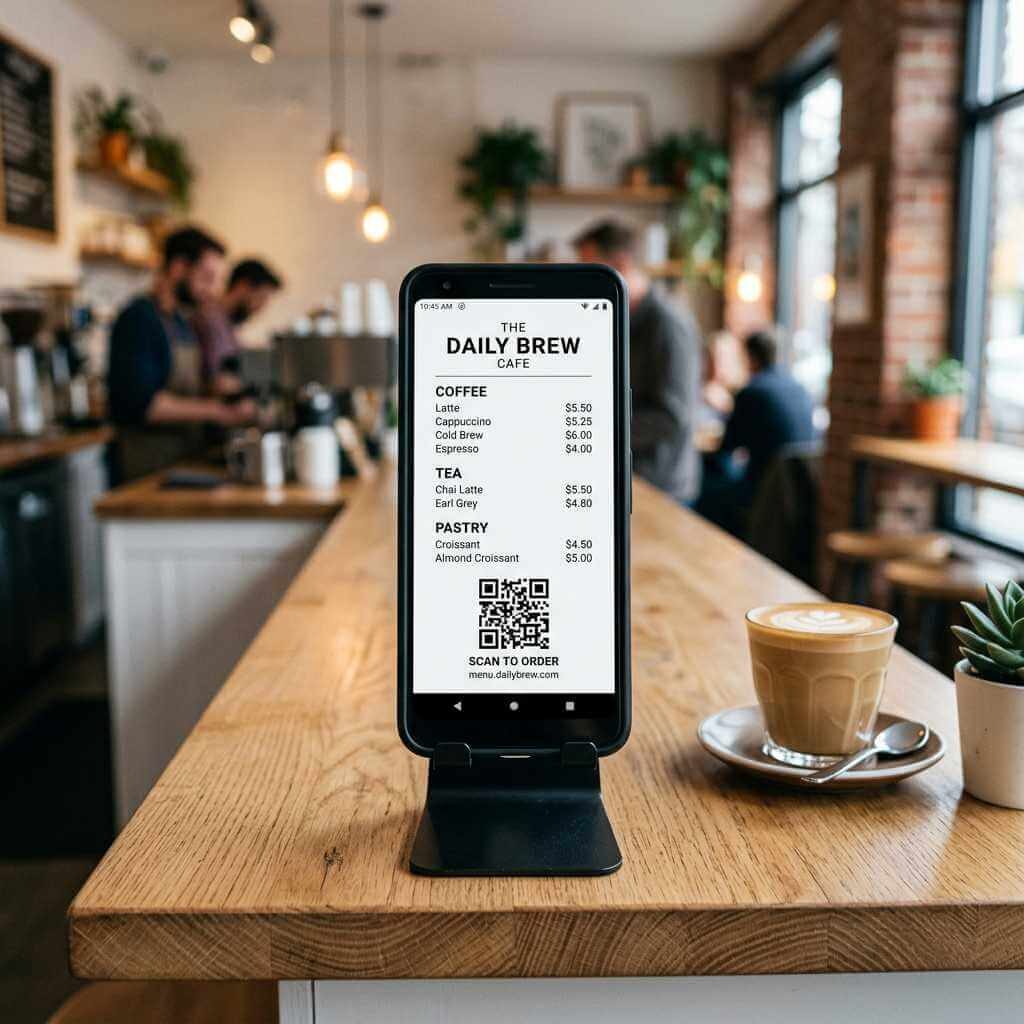
- For small business use, a coffee shop counter display is a strong real-world example since a phone-sized screen can show a daily special, price, and QR code clearly.
- Keep the layout simple: large text, strong contrast, and short messages work better than busy designs on a phone-sized display.
- Reliable charging, low heat, and regular checks are key if the phone will stay on for long hours.
- If you want remote updates and easy content changes, use a cloud signage platform instead of editing everything directly on the phone.
Introduction
A lot of smartphone fans have a drawer full of retired devices. Some still boot fine, the screen still looks sharp, and the battery still holds enough charge for light work. That old handset may not feel great as a daily driver anymore, yet it can still earn its place on a desk, shelf, or counter.
That is why I like old Android phone signage as a reuse project. A spare phone can show a coffee shop menu, a retail promo, a family calendar, a desk schedule, a QR code, or a simple announcement board without asking for a big budget or a pile of new gear.
I like this topic for another reason. I have always had a soft spot for old phones. I hate seeing a device with a good panel and decent Wi-Fi end up unused when a small practical job can give it a second life. A while ago, I turned an older Android phone into a small digital menu display for a coffee shop counter. That project started as a weekend test and ended up becoming a neat little screen for daily specials, pastry promos, and a QR code for mobile payments.
How many old phones do you already own that could handle this job today?
That real-world use case is where old Android phone starts to feel useful, not just clever. A phone is compact, easy to place, cheap to replace, and simple to update from a web dashboard or app. If you already enjoy tinkering with phones, launchers, stands, chargers, and display settings, this is one of the most satisfying reuse projects you can try.
Why Old Android Phone Signage Makes Sense
A retired phone still has the right parts
A spare Android phone already gives you a bright screen, Wi-Fi, app support, storage, speakers, and a built-in battery. That mix is enough for a simple signage job in a café, salon, reception area, home office, or workshop. Android-friendly signage tools such as Rise Vision, ScreenCloud, and OptiSigns all support Android as a signage platform, which lowers the barrier for a reuse setup.
Small displays fit plenty of real jobs
A phone-sized display will not replace a big menu board mounted above a counter. Still, it is a strong fit for mini signage tasks: a checkout promo, a table tent replacement, a waiting-room notice, a front-desk message, a QR code stand, or a compact product label. That is exactly why my coffee shop test worked. I did not need a giant screen. I needed a clean, visible display near the till where people were already looking.
Cost matters
A new commercial screen, media player, mount, and signage subscription can add up fast. Old Android phone trims that bill down to a reused handset, a charger, a stand, and an app. Rise Vision says Android supports a wide range of hardware, from tablets to media players to Android displays, and pitches the route as cost-effective for signage setups. OptiSigns markets its Android app as a way to turn a screen into a digital sign and manage content remotely, which is exactly the kind of lean setup that suits an unused phone.
Smartphone fans already know the hardware
This is my favorite part. Smartphone enthusiasts already know how to reset a phone, tweak screen timeout, manage Wi-Fi, install apps, and fix little annoyances. That familiarity cuts setup time. You are not learning a whole new device class. You are repurposing a device class you already understand.
What You Need for Repurposing Your Android Phone
You do not need a long shopping list. Most of the time, phone signage starts with four basics:
Hardware checklist
| Item | Why it matters |
|---|---|
| Old Android phone | The screen is your display, and Wi-Fi plus app support handle the signage task. |
| Constant charger | A signage screen should stay on for long stretches. |
| Stand, clamp, or wall mount | Placement decides whether people notice the screen. |
| Stable Wi-Fi | Cloud signage apps need a reliable connection for updates. |
I also suggest a right-angle charging cable if the phone will sit in portrait mode on a counter. A clean cable route makes a reused phone look less like a forgotten handset and more like a tidy mini display.
App options for old Android phone signage
Here are three practical app routes for phone signage:
| App | Best fit | Why it stands out |
|---|---|---|
| Rise Vision Player | Small business, schools, simple managed signage | The app setup is built around installing the player on Android and connecting it with a display ID. |
| ScreenCloud | Teams that want a broader Android signage platform | ScreenCloud says its player is available for Android devices, and its Android signage guide focuses on Android as a popular signage OS. |
| OptiSigns | Quick signage projects and easy remote updates | OptiSigns says its Android app can turn a screen into a digital sign, remotely update content, run playlists, and schedule content |
I would start simple. Pick a tool with an easy pairing flow and a clean dashboard. A small phone screen does not need a fancy design stack. It needs clear text, strong contrast, and a layout that is easy to read from a short distance.
Old Phone Signage vs. Alternatives
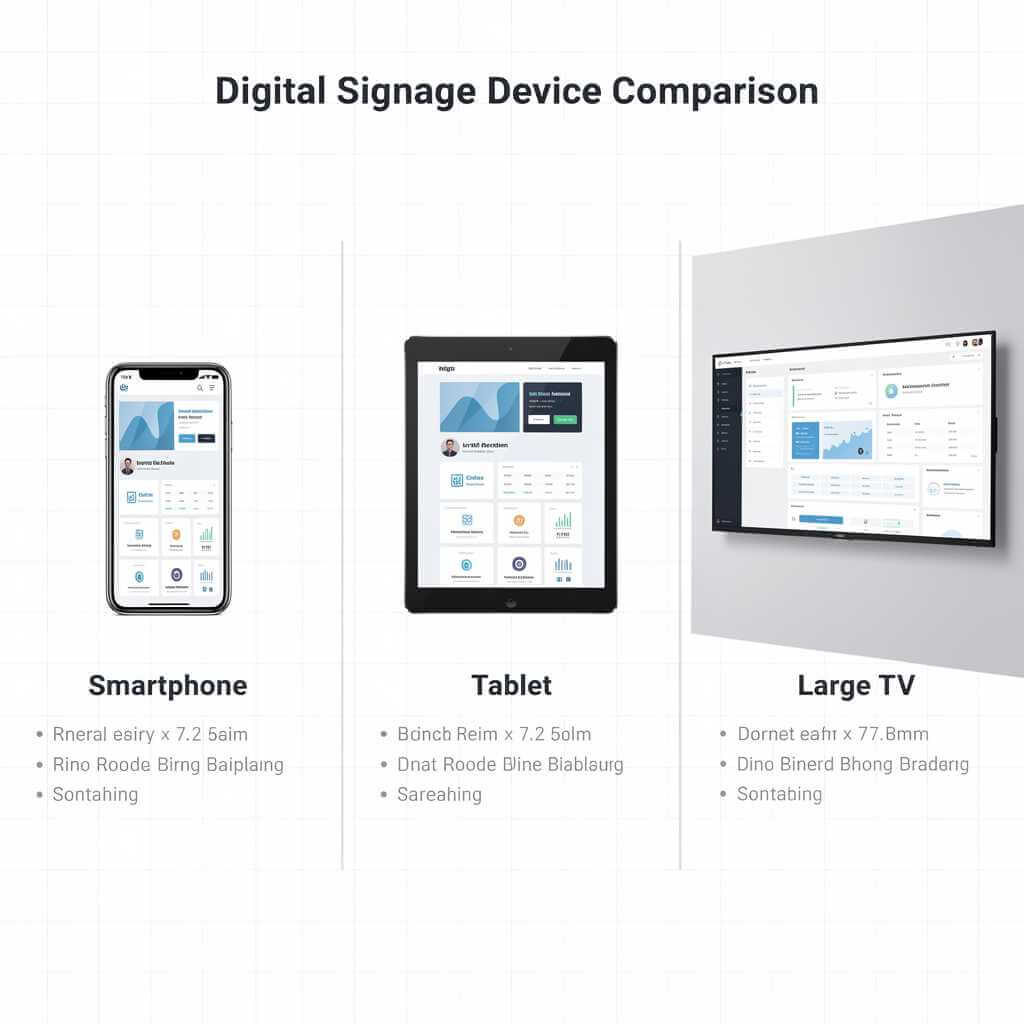
Old Phone vs. Smart TV Signage
| Feature | Old Phone Signage | Smart TV Signage |
|---|---|---|
| Cost | Very low — you already own the phone | Medium — $200–$500 for a budget TV |
| Screen size | Small (5–7 inches), good for counters or desks | Large (32–55 inches), good for walls or lobbies |
| Setup time | Fast — reset, app install, pair in 15 minutes | Longer — mount, connect player, app setup |
| Power needs | Charger or power bank, easy to unplug | Wall outlet, harder to move |
| Content management | Web dashboard or app updates | Web dashboard or app updates |
| Best for | Menus, QR codes, small promos | Full menus, video ads, room-wide info |
| Drawback | Limited viewing distance | Higher upfront cost, bulkier |
An old phone wins for quick, cheap setups where a small screen fits the job, such as a coffee shop counter or reception QR display. A smart TV is better if you need a big screen visible across a room.
Old Phone vs. Tablet Signage
| Feature | Old Phone Signage | Tablet Signage |
|---|---|---|
| Cost | Lowest — free if you have a spare phone | Low — $50–$150 for a used tablet |
| Screen size | 5–7 inches, compact | 8–10 inches, good middle ground |
| Battery life | Short, needs constant charging | Longer, but still needs power |
| App support | Full Android app access | Full Android app access |
| Portability | Easy to move around | Slightly heavier, still portable |
| Brightness | Decent for indoor use | Often brighter, better for stores |
| Best for | Tiny displays, single-purpose screens | Medium displays, rotating content |
A phone is ideal if you want the smallest, cheapest option for a fixed spot like a menu stand. A tablet gives more screen real estate for the same app ecosystem, which suits busier displays.
When to choose old phone signage
Use an old phone when the display is small, the budget is tight, and the job is simple, such as a counter menu or QR station. Switch to a TV or tablet if the screen needs to be larger or more visible from afar.
Best phone traits
Not every old phone is a good signage phone. I look for:
- A decent LCD or OLED panel with no heavy burn-in.
- Stable Wi-Fi.
- Enough battery health to survive brief power dips.
- A charging port that still works without fuss.
- Android software new enough to run the signage app smoothly.
A cracked back is fine. A slightly weak camera is irrelevant. A screen with poor brightness is a bigger problem than cosmetic damage.
Step 1: Prep Your Android Phone As Signage Device
Start with a clean reset
For old Android phone signage, I prefer a fresh start. Back up anything you care about, then factory reset the phone. That clears old accounts, stale apps, random notifications, and years of clutter. A clean device is easier to secure and easier to manage.
Once the reset is done, update Android as far as the device will go. Install only what the signage setup needs. Fewer background apps means fewer pop-ups, lower heat, and less chance of weird behavior in the middle of a workday.
Strip out daily-phone behavior
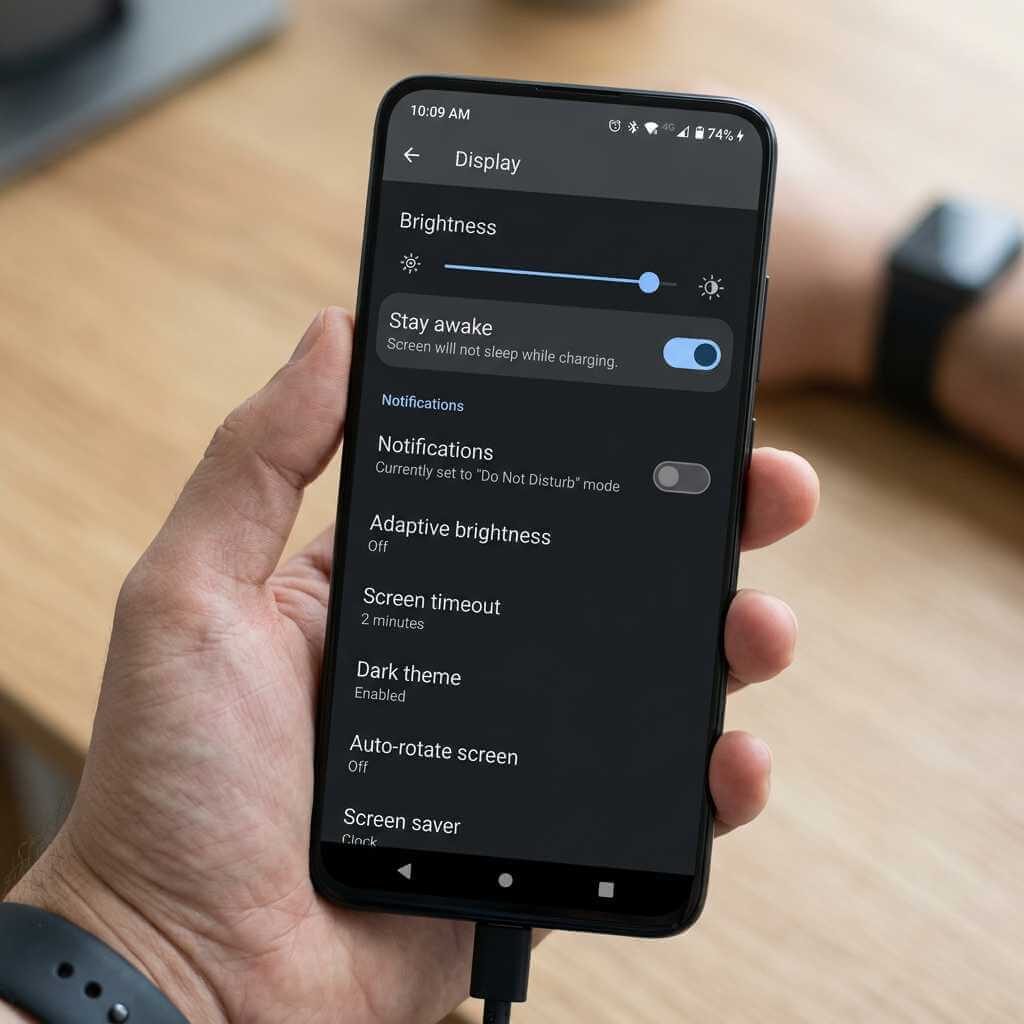
This matters more than people think. An unused phone still acts like a personal phone until you tame it. I turn off:
- Lock screen notifications.
- App badges.
- Auto app installs.
- Gesture shortcuts that open random panels.
- Sounds and vibration.
- Battery saver modes that may stop the signage app.
I then set the display to stay awake while charging, raise brightness to a useful level, and switch to a clean wallpaper or black background for any moments outside the signage app.
Install your signage app
Rise Vision’s Android flow is very direct: install the player on the Android device, connect it with a display ID, and then show templates on the screen. Rise Vision also says you can pair existing Android displays and hardware with its APK or Google Play Store app, which fits the reuse idea well. If you want alternatives, ScreenCloud offers an Android player route, and OptiSigns supports Android devices with remote updates and scheduling.
For my coffee shop test, I cared about two things: fast pairing and easy menu updates. I wanted to change prices or swap a pastry card without touching the phone much once it was mounted. That is why cloud-managed apps are handy for old Android phone signage. The phone stays in place. The content changes elsewhere.
Before you install a signage app, check your old phone’s battery, charging port, and screen brightness so the setup runs smoothly.
Step 2: Set Up, Mount, and Run Signage on Your Android Phone
Pair the display
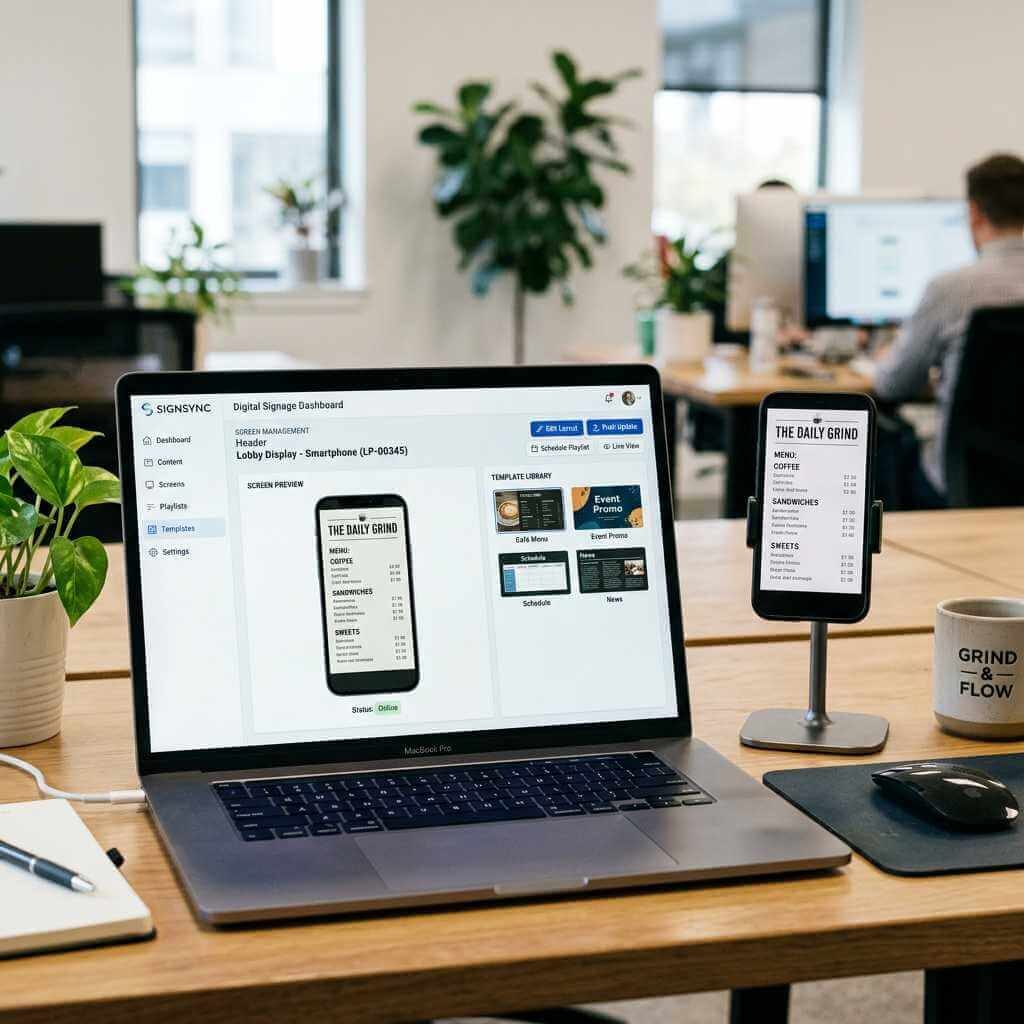
After app install, follow the pairing steps in your chosen platform. Rise Vision tells Android users to install the player, connect the device with a display ID, and then load templates onto the display. That display-ID method is helpful for a reused phone, since it avoids messy manual content loading on the device itself.
At this stage, name the screen clearly in your dashboard. Do not leave it as “Device 1.” Use names such as “Counter Menu Phone,” “Reception Promo Phone,” or “Table QR Screen.” That sounds minor. It saves time later.
Mount the phone like a real sign
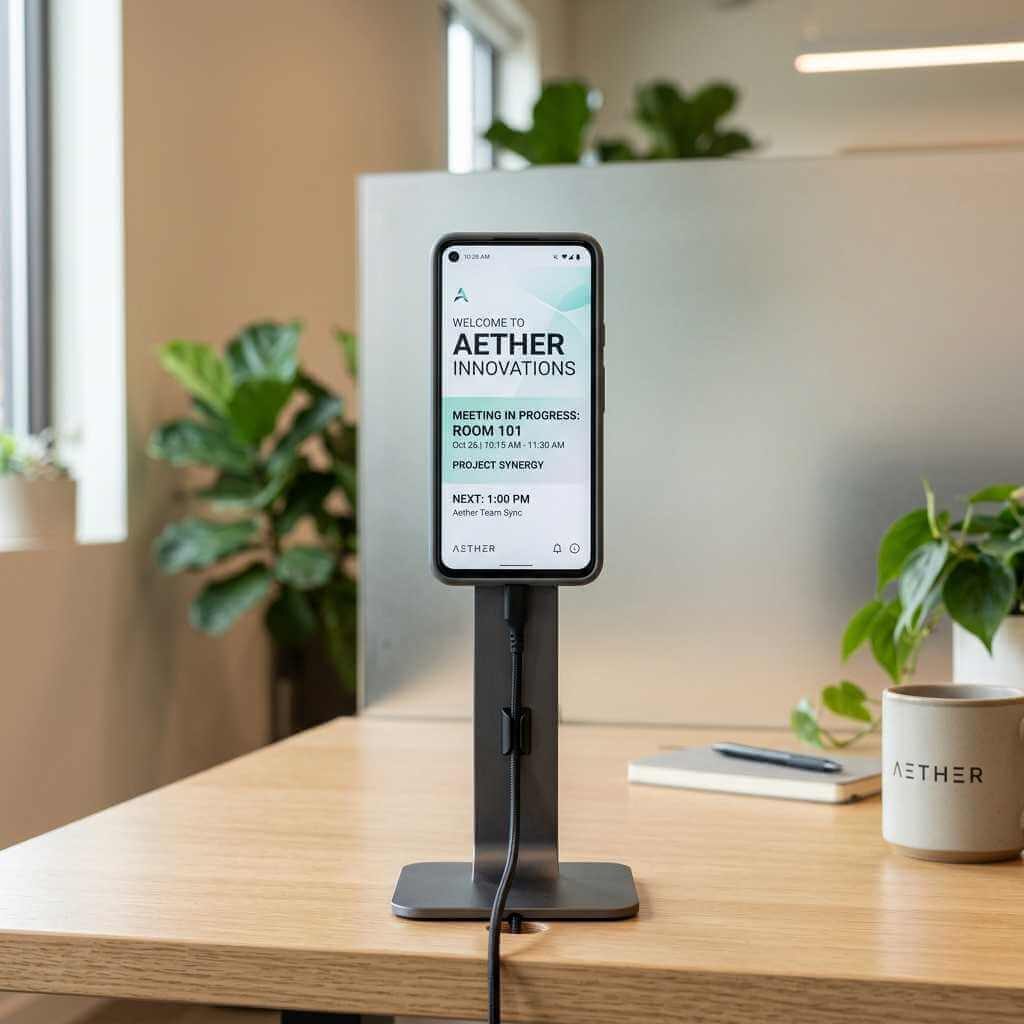
Placement can ruin a good setup. A phone tossed on a counter looks temporary. A phone on a clean stand looks intentional. For my coffee shop menu display, I used a sturdy portrait stand near the register. Portrait mode suited menu text, a small special-offer block, and a QR code at the bottom.
Here are good mounting ideas for old Android phone signage:
- Counter stand for menus, promos, and QR codes.
- Shelf clamp for small retail callouts.
- Wall mount near a desk or entrance.
- Acrylic holder for event check-in or room notices.
A matte screen protector can help under harsh lighting. If glare is bad, change the angle first before spending money.
Keep the device alive all day
A signage phone needs stable power. I use a reliable charger, avoid cheap frayed cables, and keep the phone ventilated. Heat is the enemy in long-running phone projects. If the phone sits near a sunny window or espresso machine, move it. A cool phone is a happier phone.
I also set a weekly routine: wipe the screen, check Wi-Fi, confirm the charger is snug, and restart the device if the app has been running for days. That little habit keeps old Android phone from turning into a “set and forget until it fails” project.
Step 3: Build Content People Can Read Fast
Design for a glance, not a stare
A phone display is small. That means your content must be blunt and readable. I keep each screen to three simple layers:
- Big headline.
- Short supporting line.
- Strong visual or QR code.
That is enough for a menu special, a shop offer, a pickup notice, or a Wi-Fi code. Rise Vision says its platform includes 600-plus templates for display content, which can save time when you do not want to build every layout from scratch. Template-based design is handy for old Android phone signage, since small screens benefit from clean structure.
Coffee shop menu example
My own coffee shop screen used a simple layout:
- Top: “Today’s Special”
- Middle: drink name and price
- Bottom: pastry add-on and QR code
I learned a quick lesson on day one. Fancy design loses to legibility. A plain high-contrast menu with large text got more attention than my first version with tiny icons and too many color blocks.
More Content Ideas
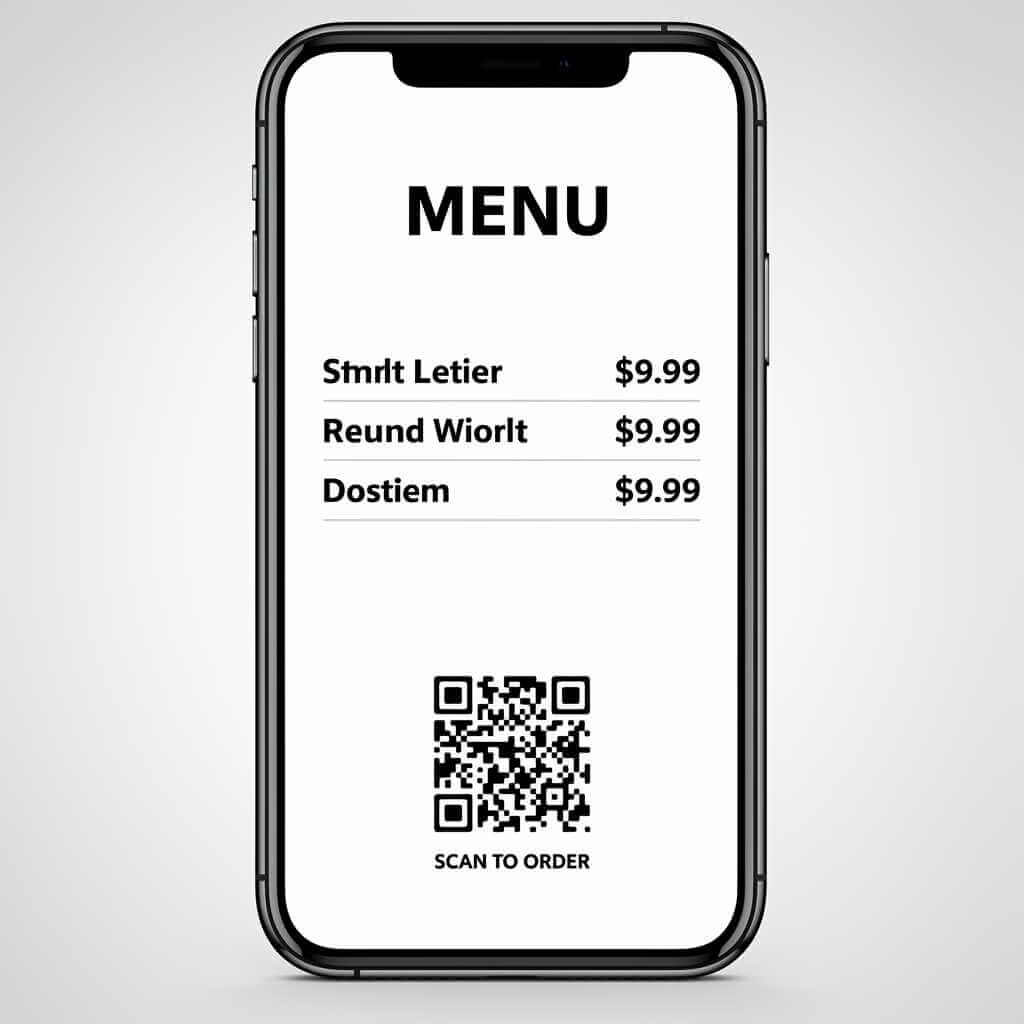
Good fits for a reused phone:
- Daily specials
- Promo codes
- Opening hours
- Pickup counter names
- Event schedules
- Desk reminders
- Product spotlights
- Guest Wi-Fi info
- QR links to payment or ordering
OptiSigns says its Android app can display images, videos, and documents, create playlists, and schedule content. That mix is useful if you want the phone to rotate between a menu, a promo slide, and a QR screen at different times of day.
Keep updates simple
I prefer updating content from a laptop or my main phone, not from the old signage device itself. That is where remote management matters. OptiSigns highlights remote screen management and scheduled content, and Rise Vision frames Android signage as centrally managed communication across displays. If the whole point is reusing an old phone, you do not want to babysit it every afternoon.
Pro Tips
Use a phone that is “good enough,” not precious
Do not waste your nicest spare flagship on a signage. A mid-range model with a decent panel is plenty. Save your better device for backup or resale.
Lock down distractions
Turn off incoming calls, app alerts, update nags, and personal accounts. A menu board should not light up with a random message preview. A clean, single-purpose setup feels professional.
Test portrait and landscape
Menus, QR screens, and notices usually look better in portrait on a phone. Product slides or video loops may work better in landscape. Run both for a day. View them from customer distance, not arm’s length.
Keep copy short
A phone screen is not a poster. If a customer needs ten seconds to read a slide, the layout is too busy. Think short phrases, not paragraphs.
Accept the limits
A reused phone is brilliant for compact signage. It is not a substitute for a bright commercial display visible across a large room. Keep the project matched to the job. Countertop menu, yes. Big café wall board, no.
FAQ
Q1: What is old Android phone signage?
Old Android phone signage means using a spare Android phone as a small digital display to show menus, promos, announcements, QR codes, or notices.
Q2: Can any Android phone work for signage?
Most Android phones with a good screen, stable Wi-Fi, and a working charger can handle signage work. A mid-range model with decent brightness and battery health is enough for a small display.
Q3: What apps are best for Android phone signage?
Rise Vision Player, ScreenCloud, and OptiSigns are solid choices for Android signage. Rise Vision Player supports Android devices with a simple display ID pairing.
Q4: Do I need new hardware?
No, you can start with an old phone, a charger, Wi-Fi, and a stand. A compact mount or clamp makes the phone look neat on a counter or desk.
Q5: How do I set up the phone?
Factory reset the phone, install the signage app, connect it to Wi-Fi, and pair it with a display ID from your app account.
Q6: Can the phone run 24/7?
A phone can stay on for hours if you use a reliable charger and keep it cool. Check battery health and restart it weekly to avoid issues.
Q7: What content works best on a phone screen?
Short menus, daily specials, promos, QR codes, and simple notices read well on a small screen. Use large text and high contrast.
Q8: How do I update content remotely?
Cloud signage apps let you change content from a web dashboard or another phone. OptiSigns and Rise Vision both support remote updates and playlists.
Q9: Is this good for a coffee shop or small business?
Yes, a phone works well for counter menus, promo cards, or QR payment screens. It is cheap and easy to place near a register or till.
Q10: What if the phone overheats or battery fails?
Use a charger that fits the phone, keep it out of direct sun, and monitor battery health. A power bank or constant wall charger helps for longer runs.
Final thoughts
Old phones do not need to sit in a drawer until the battery swells and the charger goes missing. A spare device can still handle a tidy, useful job, and old Android phone signage is one of the easiest ways to give that hardware a second run.
My coffee shop menu setup started as a small experiment with a retired Android phone and a simple stand. It ended up proving a point that many phone fans already suspect: older devices still have value when the job fits the hardware. Pick a stable phone, install a signage app, mount it neatly, keep the message clear, and put that unused screen back to work.
Start with a single display this week. A menu board, a QR screen, or a promo sign is enough to prove the idea. Once that first old Android phone signage setup runs smoothly, you may start seeing every unused handset in your drawer as a small screen waiting for a new job.