Table of Contents
TL;DR
Unlock productivity on your phone with a Smartphone AI Chatbot—here’s how it works and what to do:
- Internals: Tokens → embeddings → Transformer attention → next-token prediction; uses SLMs + quantization for on-device speed.
- Hybrid smarts: On-device for privacy/speed (see Gemini Nano docs), cloud for heavy reasoning (see Apple Private Cloud Compute).
- Workflows: Zero-inbox email triage, meeting extraction, PDF synthesis—use exact prompts like “Summarize in 5 bullets + 3 actions.”
- Privacy: On-device first for sensitive data; save 3 prompts and run daily.
Smartphone AI Chatbot on Flagship Phones
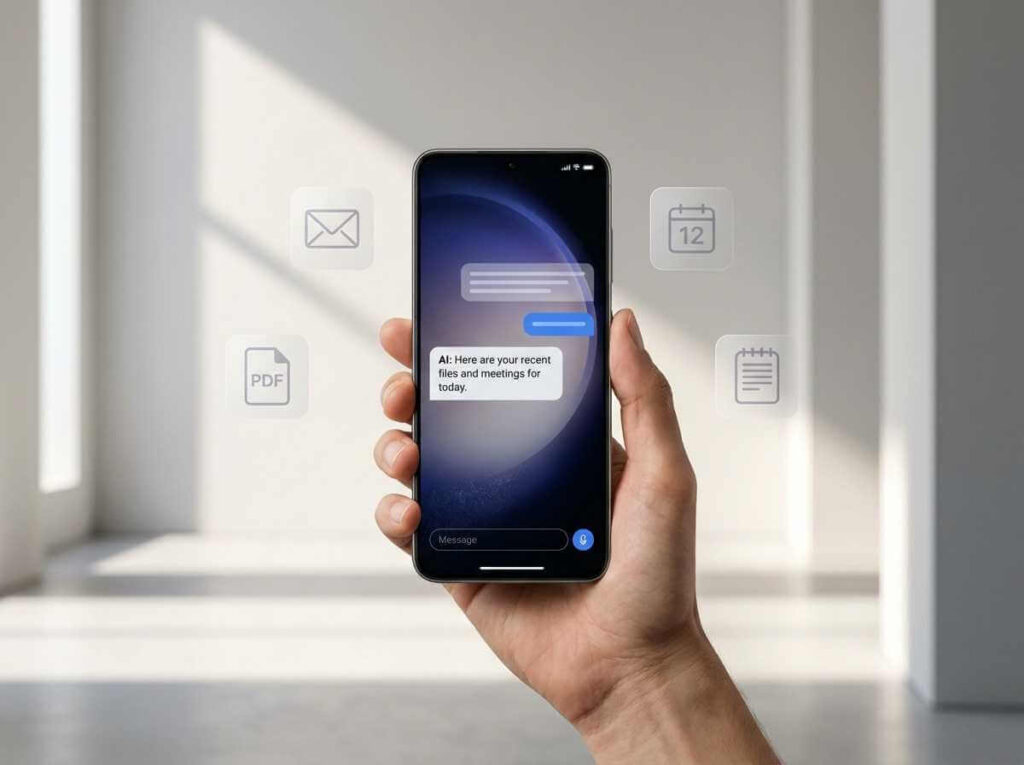
A Smartphone AI Chatbot on a modern flagship phone isn’t just “a chat app”—it’s a language model plus a device-level system that decides what to run locally versus what to send to the cloud for heavier reasoning. When used intentionally, an AI Chatbot can convert everyday mobile moments—emails, meeting notes, and long reading—into structured outputs you can act on immediately.
Why Chatbots Feel Smarter Now
Today’s flagship phones increasingly use hybrid AI: some requests are processed on-device for speed and privacy, while harder requests are routed to the cloud for stronger reasoning and generation. The biggest user-facing improvements come from better routing, deeper OS integration, and context awareness—rather than only “bigger models.”
Two official sources support these points particularly well: Android’s developer documentation for Gemini Nano (on-device capability) and Apple’s security write-up on Private Cloud Compute (privacy-oriented cloud processing).
How a Smartphone AI Chatbot Works
Most AI assistant experiences rely on Transformer-based Large Language Models (LLMs), but phones must operate under strict constraints like battery, thermal limits, and limited memory compared with servers. Under the hood, each interaction follows a consistent pipeline that transforms your input into model-friendly representations and then back into readable text.
The core pipeline: from your prompt to a response
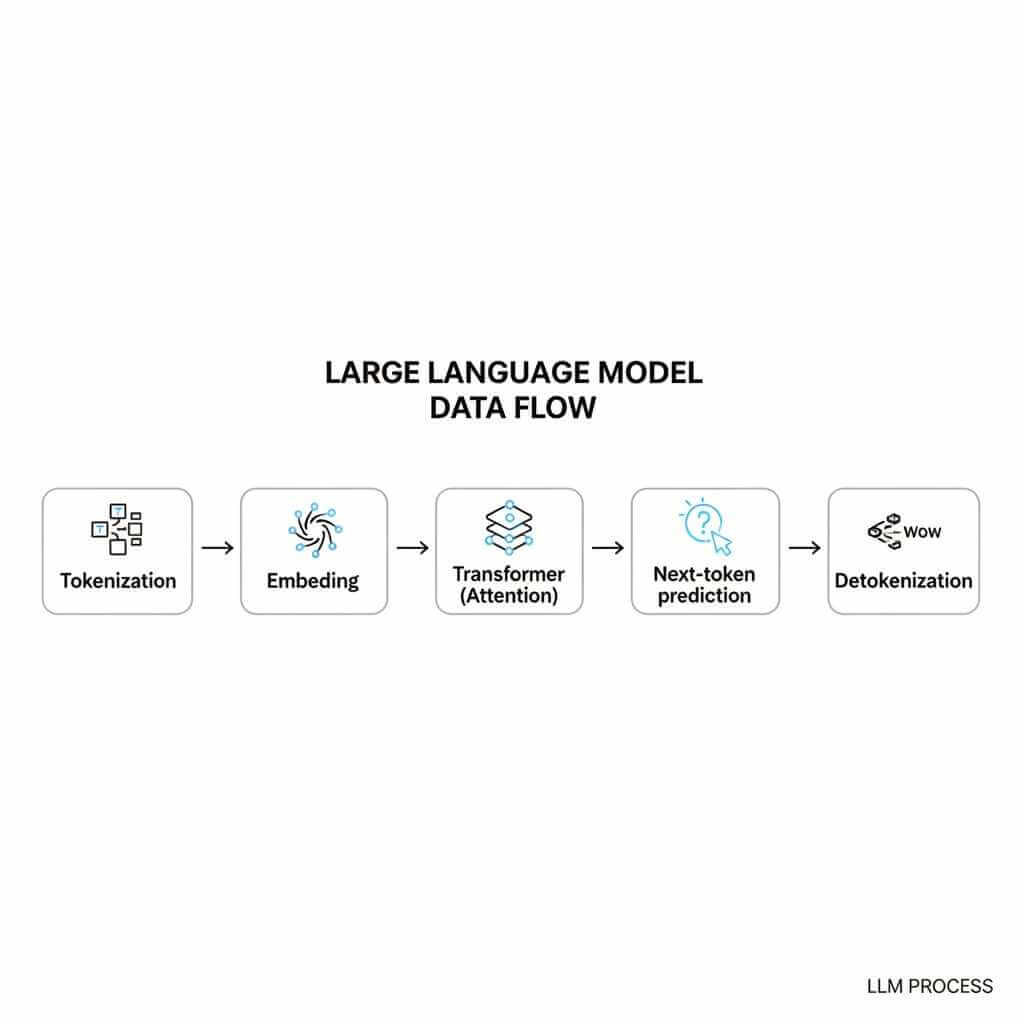
- Tokenization: Your message is split into tokens (chunks of characters rather than words), which are the basic units the model processes.
- Embedding: Tokens are converted into high-dimensional vectors so the model can represent relationships between concepts.
- Inference (“thinking”): The Transformer uses attention to weigh context, then generates output via next-token prediction over the context window.
- Detokenization: Predicted tokens are converted back into human-readable text.
From personal experience, a Smartphone AI Chatbot performs best when prompts read like a mini-brief—goal, constraints, and output format—because that reduces ambiguity and increases “task-ready” answers. When results feel confident but not useful, the missing piece is usually real-world constraints like audience, length, tone, deadline, or what’s already been decided.
Why phones use smaller models (SLMs) and quantization
Smartphones commonly rely on Small Language Models (SLMs) (often described in the ~1B–3B parameter range) because cloud-scale models won’t fit or run efficiently on-device. To make on-device inference practical, deployments often use compression techniques like quantization, including low-bit formats such as INT4 to reduce memory footprint while keeping output quality usable.
On-device vs cloud vs hybrid: What your Smartphone AI Chatbot is deciding
A strong Smartphone AI Chatbot experience often comes down to routing: “Is this fast and private enough to run locally, or does it need cloud compute?” Hybrid routing matters because it shapes latency, privacy exposure, and capability at the same time.
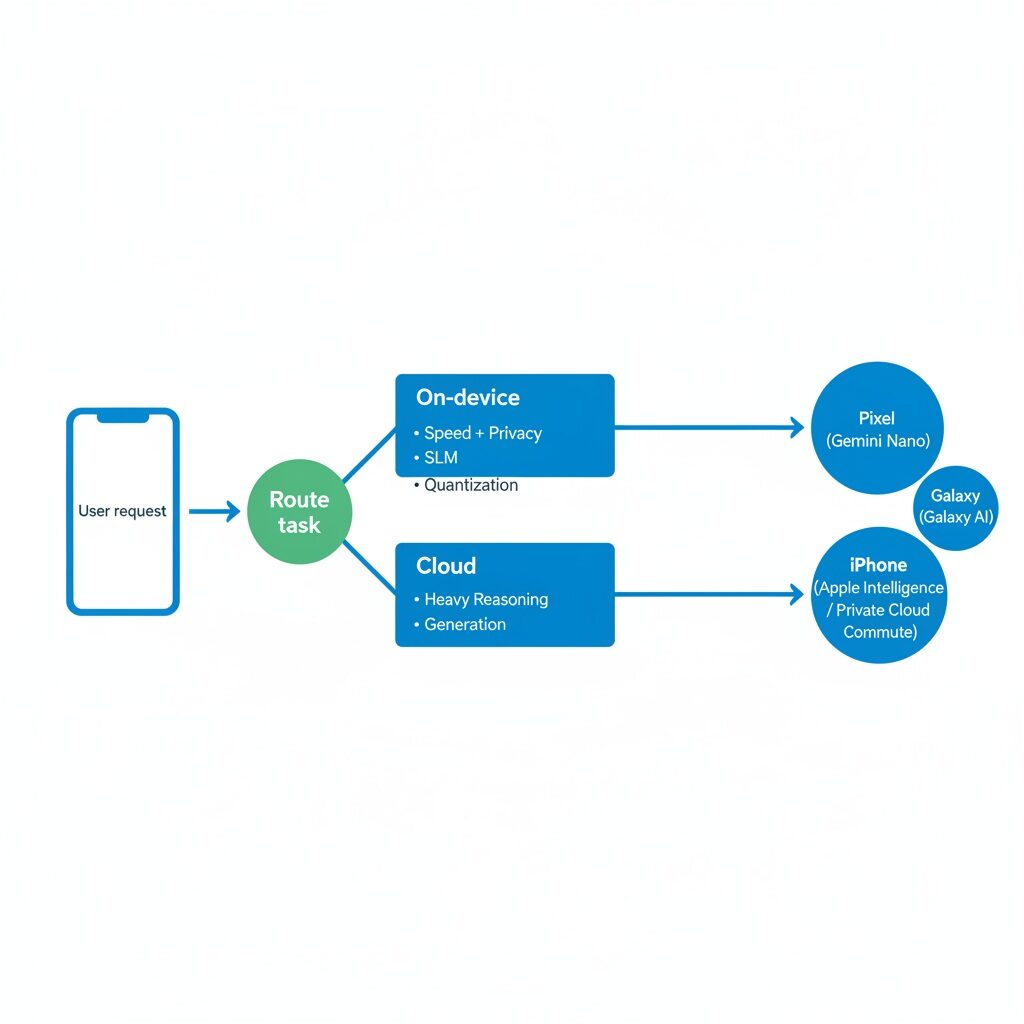
Pixel vs Galaxy vs iPhone: on-device vs cloud (examples)
Google Pixel (Gemini Nano)
Pixel phones use Gemini Nano for certain on-device features, with Google highlighting “Summarize in Recorder” as an on-device capability that can work even without a network connection.
A second concrete example is Call Notes in the Google Phone app, where Google says Gemini Nano can transcribe calls and generate summaries (important points + next steps), and that call contents are stored on the device and “aren’t shared with Google.”
Latency/privacy expectation: when a task runs fully on-device (like these examples), it should feel consistently fast and work even with weak connectivity, while also keeping more sensitive data local; cloud-routed tasks will depend on network speed and may introduce extra delay.
Samsung Galaxy (Galaxy AI)
Samsung describes Galaxy AI as a hybrid approach where some features have on-device capabilities but may also “tap into cloud-based AI as needed,” with Generative Edit given as an example that can do both.
Samsung also says users can control processing choices in “Advanced Intelligence settings”, including the option to disable online processing for AI features.
Latency/privacy expectation: features that fall back to cloud compute can be slower on poor networks, while enabling on-device-only processing generally reduces what gets sent off the phone (but may limit some processing-intensive features).
iPhone (Apple Intelligence + Private Cloud Compute)
Apple states that when on-device computation is possible, the privacy and security advantages are clear because users control their devices and Apple “retains no privileged access” to user devices.
For requests that require more compute, Apple says Private Cloud Compute is designed so that personal user data sent to PCC “isn’t accessible to anyone other than the user — not even to Apple,” and that PCC deletes user data after fulfilling the request with no retention after the response is returned.
Latency/privacy expectation: on-device requests tend to feel more immediate, while Private Cloud Compute (or any cloud handoff) can add a small wait—yet Apple positions PCC specifically as a privacy-focused way to handle heavier requests.
Quick “where it runs” examples
| Phone / AI stack | Runs locally (examples) | May use cloud (examples) | What users should expect |
|---|---|---|---|
| Google Pixel + Gemini Nano | Recorder “Summarize” can work without network. Call Notes stores content on-device and isn’t shared with Google. | Some more complex prompts may be routed online depending on the app/assistant. | Lowest latency + best offline reliability when local; strongest privacy when sensitive content stays on-device. |
| Samsung Galaxy + Galaxy AI | Some Galaxy AI features offer on-device capabilities. | Generative Edit can also tap cloud-based AI as needed. | Cloud can improve heavy edits but adds network dependency; privacy controls matter if online processing is disabled. |
| iPhone + Apple Intelligence | On-device processing when possible, leveraging device security model. | Private Cloud Compute for heavier requests, with “not even Apple” access claims and deletion after response. | On-device feels fastest; PCC is positioned as a privacy-preserving way to scale up for complex requests. |
Official Android reference: On-device AI (Gemini Nano)
Android’s official documentation for Gemini Nano is a strong authority source when explaining on-device generative AI capabilities on supported devices. This fits naturally when describing why some on-device AI features can be low-latency and more privacy-friendly when they run locally.
Official Apple reference: Privacy-aware cloud processing (Private Cloud Compute)
Apple’s security post on Private Cloud Compute is a strong authority source when explaining how privacy-oriented cloud processing can work when an on-device model isn’t sufficient. This fits naturally when describing cloud handoff and why platforms try to reduce risk when server-side AI is needed.
Quick decision table: What to run where
| Task type | Best mode (typical) | Why it’s a fit |
|---|---|---|
| Summarizing a private email thread | On-device or hybrid (prefer on-device if available). | Sensitive content is often better kept local when possible. |
| Creative writing / long-form rewriting | Hybrid or cloud. | Complex generation can benefit from cloud-scale capability. |
| Translation and live assist | Often on-device. | Real-time utilities are commonly optimized to run locally for speed/privacy. |
| Deep reasoning or multi-step planning | Cloud or hybrid. | Phone-sized models and compute can be constrained, so harder tasks may be offloaded. |
AI Assistant productivity workflows (mobile-first and repeatable)
The fastest way to make a Smartphone AI Chatbot genuinely useful is to treat it like a processor that converts clutter into structure: summaries, action items, decisions, checklists, and drafts. These workflows are designed for short sessions, because smartphone productivity usually happens in minutes, not hours.
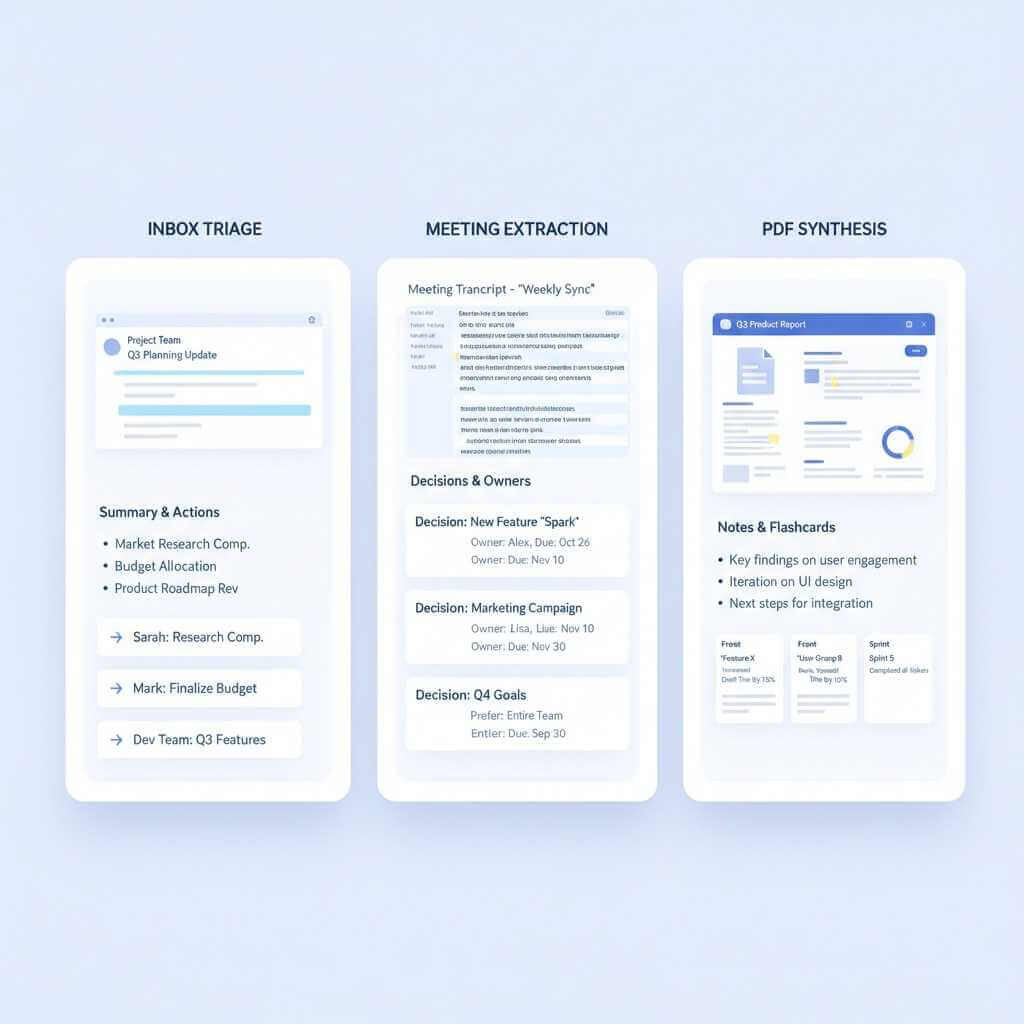
Workflow A: “Zero-inbox” triage (email → tasks → reply)
This workflow works because it turns a long thread into a short, prioritized action list you can execute. It also reduces the mental load of figuring out what you actually need to do while reading email on a small screen.
Copy/paste prompts:
- “Summarize this thread in 5 bullets, then list the 3 actions I must take (each starting with a verb).”
- “Draft a reply confirming action #1, asking one clarifying question about #2, and proposing a deadline for #3. Keep it professional and brief.”
Personal experience: forcing “exactly three actions” prevents the Smartphone AI Chatbot from generating an unrealistic checklist that never gets done. The real win is pasting the action list into your tasks or notes immediately while the context is still on screen.
Workflow B: “Meeting amnesia cure” (record → transcript → decisions)
Recording and transcription are helpful, but the biggest gain comes from targeted extraction—owners, deadlines, and decisions. After a summary, asking focused questions like “what deadlines were mentioned?” turns passive notes into an execution plan.
Prompts:
- “Summarize this meeting in 8 bullets, grouped by topic.”
- “List decisions made, with the owner for each; if none were explicit, say so.”
- “Extract every date, deadline, metric, and named owner into a table.”
If you want to go beyond meeting summaries and actually turn voice notes into content, this 3-step workflow (record → transcribe → polish with AI) shows the fastest way to publish clean drafts from your raw audio.
Workflow C: “Knowledge synthesis” (PDF/article → notes → learning)
Reading long PDFs on a phone is slow, so a better approach is interrogation: pull structure out of the document and convert it into notes you’ll reuse. This is especially effective for technical topics because you can ask for counterarguments, simplified explanations, and flashcards in one pass.
Prompts:
- “Explain the key idea in simple terms, then give me 3 ‘check your understanding’ questions.”
- “What are the 3 opposing arguments presented here, and what evidence supports each?”
- “Turn this into notes: headings + bullets + 5 flashcards I can paste into my notes app.”
A phone-friendly prompt pack
| Use case | Prompt | What to do next |
|---|---|---|
| Quick clarity | “Summarize in 5 bullets, then give me 2 recommended next steps.” | Paste next steps into tasks immediately. |
| Cleaner writing | “Rewrite this to be shorter and clearer; keep my tone friendly and confident.” | Use as a send-ready message. |
| Better decisions | “List 3 options with pros/cons; recommend one based on time, cost, and risk.” | Ask for a 10-minute first step. |
| Faster learning | “Teach this simply, then quiz me with 5 questions.” | Answer from memory to lock it in. |
For longer-form writing, pair these prompts with a repeatable voice notes to content workflow—capture the idea on your phone, transcribe it, then let AI structure it into a publish-ready draft.
Privacy and trust: using a Smartphone AI Chatbot safely
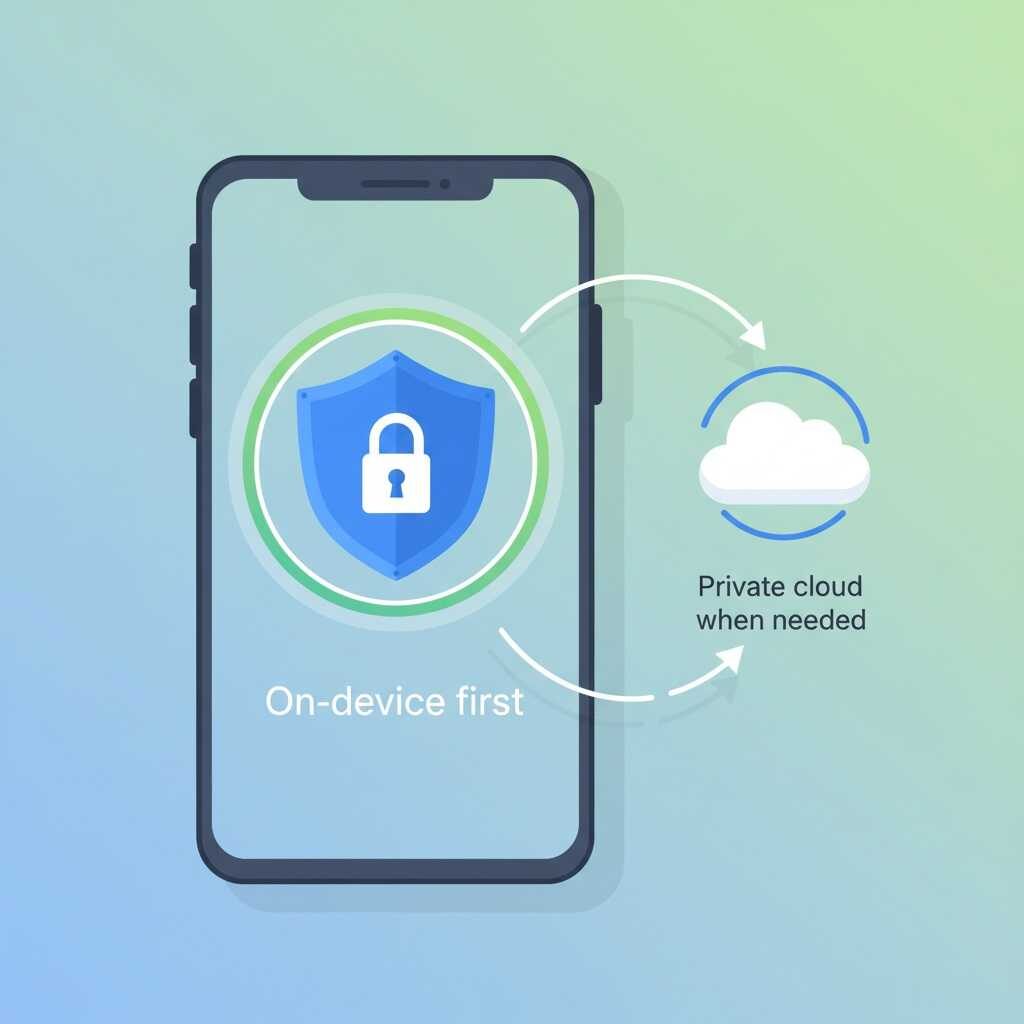
For sensitive personal or work content, on-device processing is typically the safer default when available, while cloud processing can be reserved for general knowledge tasks or heavier generation when you’re comfortable with the tradeoff. Apple’s Private Cloud Compute write-up is a strong fit for explaining privacy-oriented cloud processing design at a high level. Android’s Gemini Nano developer documentation is a strong fit for supporting statements about on-device generative AI capability on supported Android devices.
FAQ
Q1: What is a Smartphone AI Chatbot?
A Smartphone AI Chatbot is a chatbot experience on your phone powered by a language model and phone-level software that can answer questions, summarize, draft, and transform content. On flagship devices, it often uses a hybrid setup that can process some requests on-device and send harder ones to the cloud.
Q2: How does a Smartphone AI Chatbot generate answers?
Most systems follow a pipeline: tokenization → embeddings → inference (attention + next-token prediction) → detokenization back into text. The “response” is generated token-by-token based on your prompt and the available conversation context.
Q3: Why do some tasks run on-device while others go to the cloud?
Phones typically run smaller models (SLMs) and use optimizations like quantization, which makes on-device responses fast and efficient but not always as capable as cloud-scale models. Hybrid routing is used to balance privacy/speed (local) with deeper reasoning (cloud).
Q4: Does Android support on-device chatbot features?
Android provides an on-device option via Gemini Nano on supported devices and setups, as described in the Android Developers documentation. This is commonly positioned for low-latency use cases where keeping processing closer to the device can be beneficial.
Q5: How does Apple handle privacy when a request needs the cloud?
Apple describes Private Cloud Compute as an approach for handling requests that require server-side compute while focusing on privacy and security properties. It’s a useful reference point for understanding what “cloud handoff” can look like when an on-device model isn’t sufficient.
Q6: What are the best productivity uses on a phone (not just “fun chat”)?
High-impact mobile workflows include inbox triage (summarize + extract action items), meeting follow-ups (summarize + extract owners/deadlines), and knowledge synthesis for PDFs/articles. These work well on smartphones because they turn long, messy inputs into short, structured outputs you can immediately paste into tasks or notes.
Q7: What prompts work best for Smartphone AI Chatbot productivity?
Prompts that specify a clear output format (bullets, table, checklist) and constraints (length, tone, number of actions) tend to produce more usable results on a small screen. Examples include “Summarize in 5 bullets” and “List exactly 3 action items starting with a verb.”
Q8: Is it safe to paste sensitive information into a Smartphone AI Chatbot?
For sensitive content, it’s generally safer to rely on on-device capabilities when available and to be cautious with cloud-based “deep research” or heavy generation tasks that may transmit prompts to servers. Hybrid assistants vary, so it helps to understand when the system is using cloud compute and what privacy guarantees the platform claims.
Q9: Are AI Chatbots the same as Siri/Google Assistant-style assistants?
They can look similar in the UI, but modern smartphone chatbot experiences are increasingly centered on LLM/Transformer-style generation plus context and routing logic (on-device vs cloud). The main practical difference is that they can transform and draft content (summaries, rewrites, structured action lists) rather than only triggering commands.
Conclusion: Make your smartphone AI Chatbot earn its spot
A Smartphone AI Chatbot becomes a productivity tool when it reliably turns messy inputs into clean outputs you can act on in seconds. Start with one workflow (inbox triage, meeting extraction, or knowledge synthesis), save 3–5 prompts as shortcuts, and run them daily until it becomes automatic.
If you share which device you’re targeting most (iPhone, Pixel, or Galaxy) and the biggest productivity pain point (email, meetings, studying, planning), the workflows can be tightened into a more device-specific version.