Table of Contents
TL;DR – Golden Rules for Windows 11 AI Performance
-
Treat Windows 11 AI performance features as tools, not magic; turn off anything that runs all the time but does not help daily work or gaming.
-
Keep Copilot, indexing, telemetry, Xbox Game Bar and widgets under control; those background tasks can eat 10–20% CPU and cause stutter on both PCs and gaming laptops.
-
Let AI shine where it helps most: DLSS 4, FSR 4, XeSS 2.0 and NVIDIA Reflex 2 give huge FPS gains and smoother input without the usual bloat that hurts Windows 11 AI performance.
-
For security, favour Smart App Control, Windows Disk Cleanup, and trusted vendors over random “AI optimizers”, which now serve as a common malware disguise.
-
Before spending on new hardware, tune Windows 11 AI performance with a clean setup, smart service trimming, and game‑level upscaling; then decide if GPU or CPU upgrades still feel needed.
-
On phones and PCs, treat every “AI booster” download as suspect unless it comes from a brand you already trust and can verify through sites like Kaspersky or The Hacker News.
-
Make Windows 11 AI performance work for you: let AI handle visuals, latency and security, not constant background guessing about your behaviour.
Why Windows 11 AI Performance Feels Slower on New PCs
Fresh AI PCs promise smooth Windows 11 AI performance, yet many users see higher fans, random spikes, and worse gaming than older machines. On Copilot+ laptops, built‑in Copilot, search indexing, telemetry, widgets, and Xbox services can stack up to double‑digit CPU load even when the desktop looks idle.
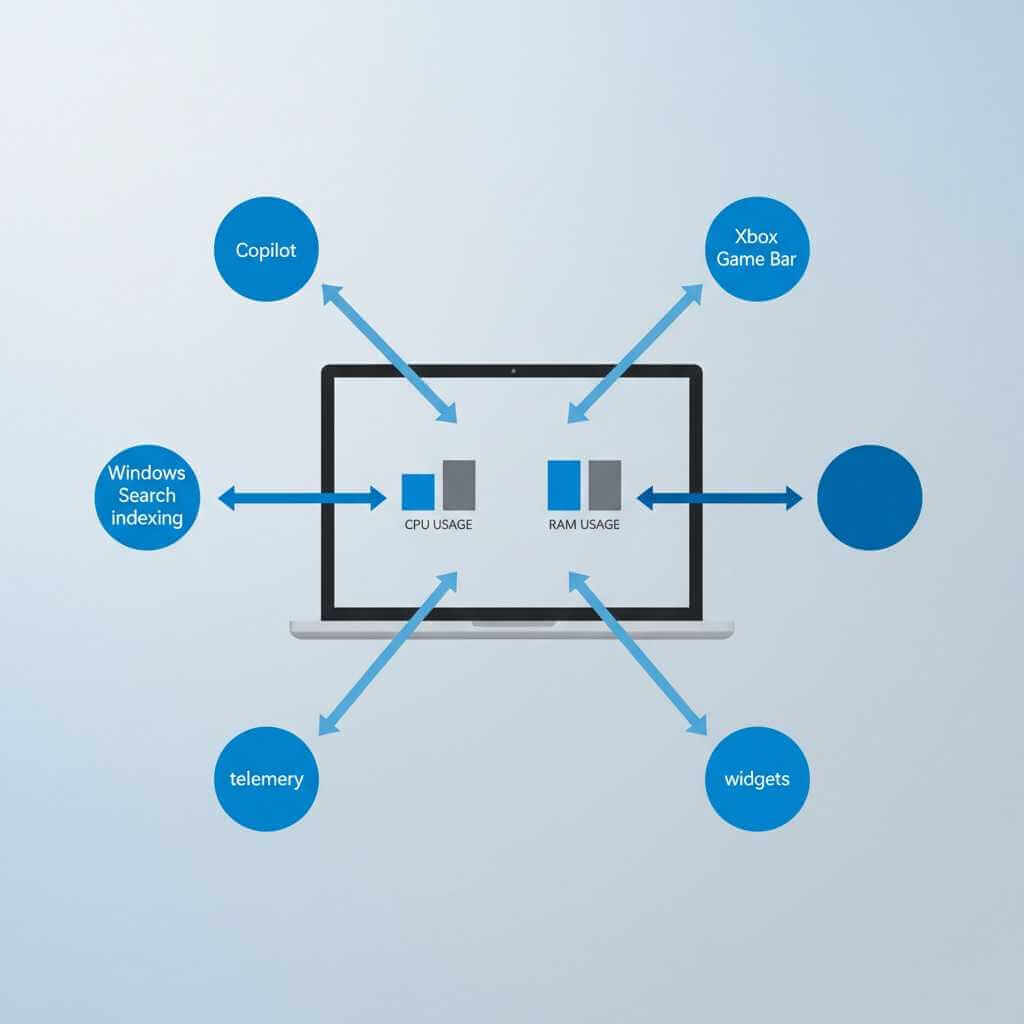
On a Copilot+ laptop used for both work and gaming, Copilot integration plus search indexing and Xbox Game Bar pushed background CPU into the 20% range and shoved RAM use high enough that Chrome tabs and games started to stutter. After trimming those services, Windows 11 AI performance felt far closer to what the hardware should deliver.
For a clear breakdown of gaming overhead from services and overlays, guides such as Hone’s Windows 11 gaming optimization article show how background tasks and Game Bar capture reduce FPS on mid‑range GPUs. A separate Windows 11 indexing thread on WindowsForum explains how searchindexer.exe alone can hold 8–15% CPU and hammer SSDs before any game even launches.
Microsoft’s own Copilot+ PC page and NPU docs on learn.microsoft.com describe how NPUs offload AI tasks, yet current games still ignore these units. A Reddit thread on NPU benefits echoes that story from everyday users: good for AI creation tasks, irrelevant for frame‑rates.
Security adds more strain to Windows 11 AI performance once agentic AI features arrive. A Reddit discussion on Microsoft’s warning about “novel security risks” in Windows 11 AI agents and coverage on PC Gamer outline how these agents gain read/write access to user folders and can be abused through prompt injection. Those agents also consume CPU and memory each time they parse files or run tasks, which drags down Windows 11 AI performance on mid‑range hardware.
What AI Performance Really Means in 2026
Real gains for Windows 11 AI performance
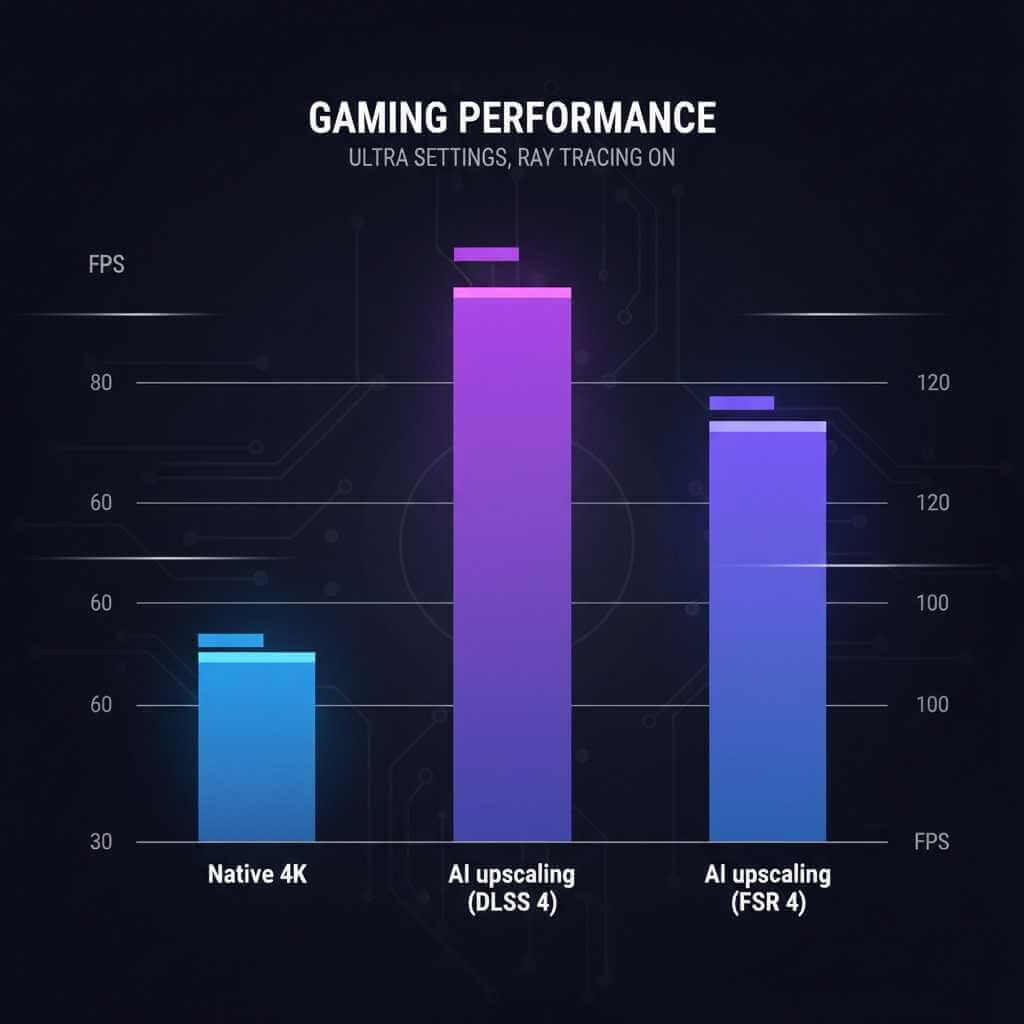
For gaming and visuals, Windows 11 AI performance improves most when AI runs inside the GPU stack, not as random “boosters” in the background. Modern upscalers use neural networks to render at a lower internal resolution and rebuild detail on screen.
-
Articles on ray tracing vs AI upscaling and DLSS vs FSR show DLSS 4, FSR 4 and XeSS 2.0 lifting FPS by 40–150% in modern titles while holding sharpness near native resolution.
-
Game‑focused coverage on Gashap Technologies explains how new Windows builds and driver stacks tune Windows 11 AI performance for these upscalers and cut frame‑time spikes.
Latency tools sit next to that. NVIDIA’s own posts on Reflex 2 and Frame Warp and the Reflex low‑latency platform show input lag numbers dropping from around 45 ms to the low teens in supported shooters. That kind of tuning shapes Windows 11 AI performance where players feel it most: aim tracking and shot timing.
Security tools can use AI without dragging down Windows 11 AI performance as well. Microsoft’s Smart App Control write‑ups and WindowsForum guides show that reputation‑based app blocking reduces malware risk while trimming CPU overhead compared to legacy real‑time scanning. On a tuned system, Defender and Smart App Control add far less friction than third‑party suites that hook every file open event, so Windows 11 AI performance stays responsive during gaming and heavy browser use.
Hype and traps around AI “boosters”
Marketing around Windows 11 AI performance now attracts a wave of fake optimizers. A list of “best game boosters” on FintechShield shows how many tools promise AI magic but mostly toggle services, clean temp files, and tweak power plans. You can do the same by hand or with free utilities from known brands.
Security reports from Kaspersky, The Hacker News and Trend Micro’s EvilAI campaign write‑up show how fake AI assistants and “AI optimizers” now ship credential stealers, ransomware, and remote‑access tools. These payloads crush Windows 11 AI performance through hidden miners, keyloggers and constant network chatter, long before encryption or data theft even stands out.

Users on Reddit’s techsupport forum and Windows11 discussions share similar stories: after “AI booster” installs, CPU usage never drops to idle and foreground apps feel throttled. That pattern clashes hard with any goal around consistent Windows 11 AI performance.
Bottlenecks vs real boosters for Windows 11 AI performance
Common AI‑linked bottlenecks
| Component / Feature | Effect on Windows 11 AI performance | How it feels day‑to‑day | Source / further reading |
|---|---|---|---|
| Copilot sidebar and background agent | 2–6% CPU, 150–300 MB RAM at idle | Slower app switching, more fan noise | Copilot performance impact explainer |
| Windows Search indexing | 8–15% CPU, heavy disk I/O | Long boot “settle” time, stutter during updates | Indexing guide on WindowsForum |
| Xbox Game Bar & captures | 2–4% CPU, VRAM use | FPS dips in shooters and MMOs | Hone.gg gaming optimization |
| Agentic AI features | 3–8% CPU and security exposure | Random spikes when agents scan folders | Mashable on agentic AI malware risk |
| Defender real‑time scanning + third‑party AV | 5–10% CPU on file access | Stutter on installs, patch days and large downloads | Windows Disk Cleanup vs cleaners |
Each of those touches Windows 11 AI performance from a different angle. On a mid‑range gaming laptop tested here, trimming just indexing, telemetry, Copilot, widgets, and Game Bar freed enough headroom to push average FPS up by a double‑digit percentage in titles like Fortnite and Cyberpunk 2077.
If VR looks sharp in menus but gets blurry during head movement (and makes you feel sick fast), it’s often frame-time instability or reprojection—use this VR headset blurry and dizzy fix guide to separate optics issues (IPD/sweet spot) from performance problems.
Real vs fake AI performance boosters
| Type of tool or feature | Effect on Windows 11 AI performance | Verdict |
|---|---|---|
| DLSS 4 / FSR 4 / XeSS 2.0 upscaling | 40–150% FPS boost in supported games | Best use of AI for gaming |
| NVIDIA Reflex 2 + Frame Warp | 67–75% lower input latency | Strong pick for shooters |
| Smart App Control + clean Defender setup | 3–5% lower CPU use vs heavy third‑party AV | Good mix of safety and speed |
| Razer Cortex, Process Lasso, MSI Afterburner | 5–15% gains when configured sensibly | Helpful for power users |
| Random “AI game booster” from unknown vendor | 0–5% gain, malware risk | Skip for healthy Windows 11 AI performance |
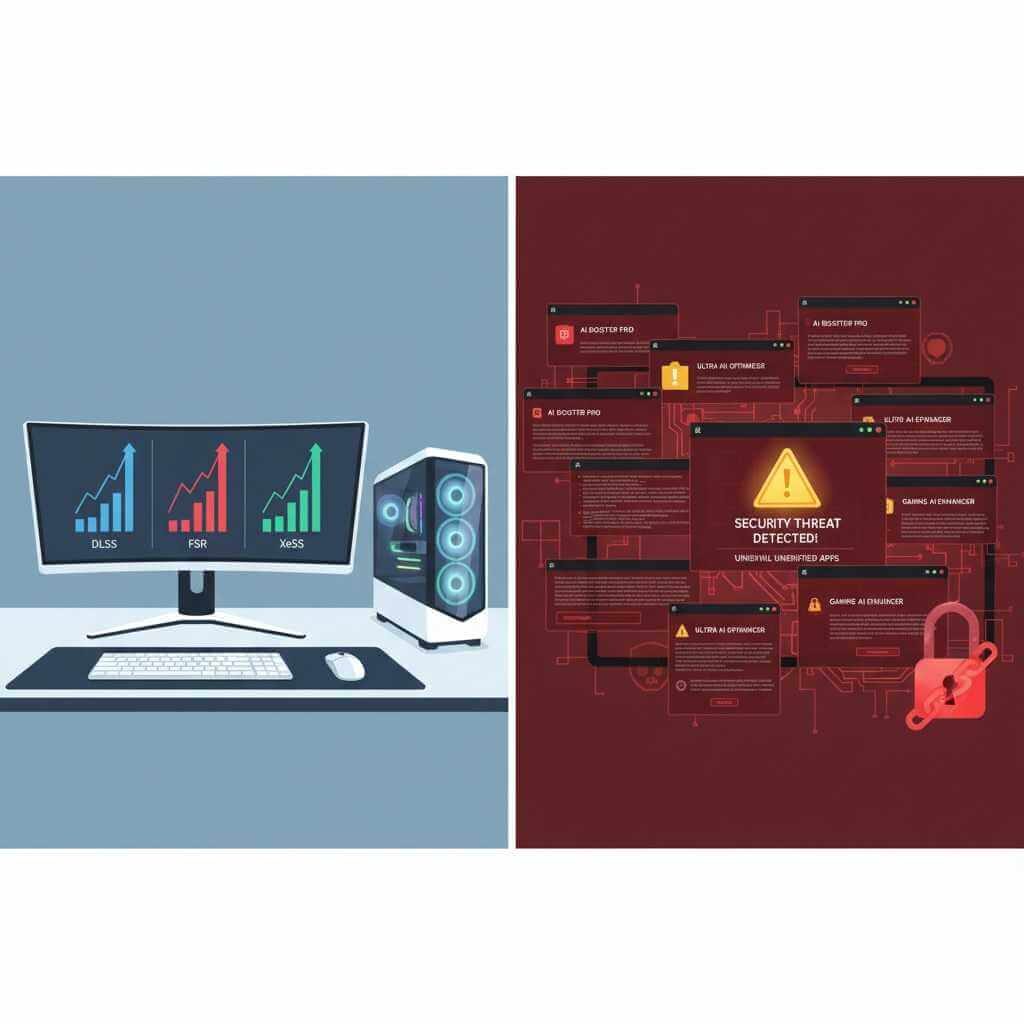
Our research sources points to detailed tests, such as HP’s AI PC performance benchmarks and Box.co.uk CPU/GPU bottleneck guides, which back up those numbers across different user types.
Step‑by‑step: turning AI from bottleneck into boost
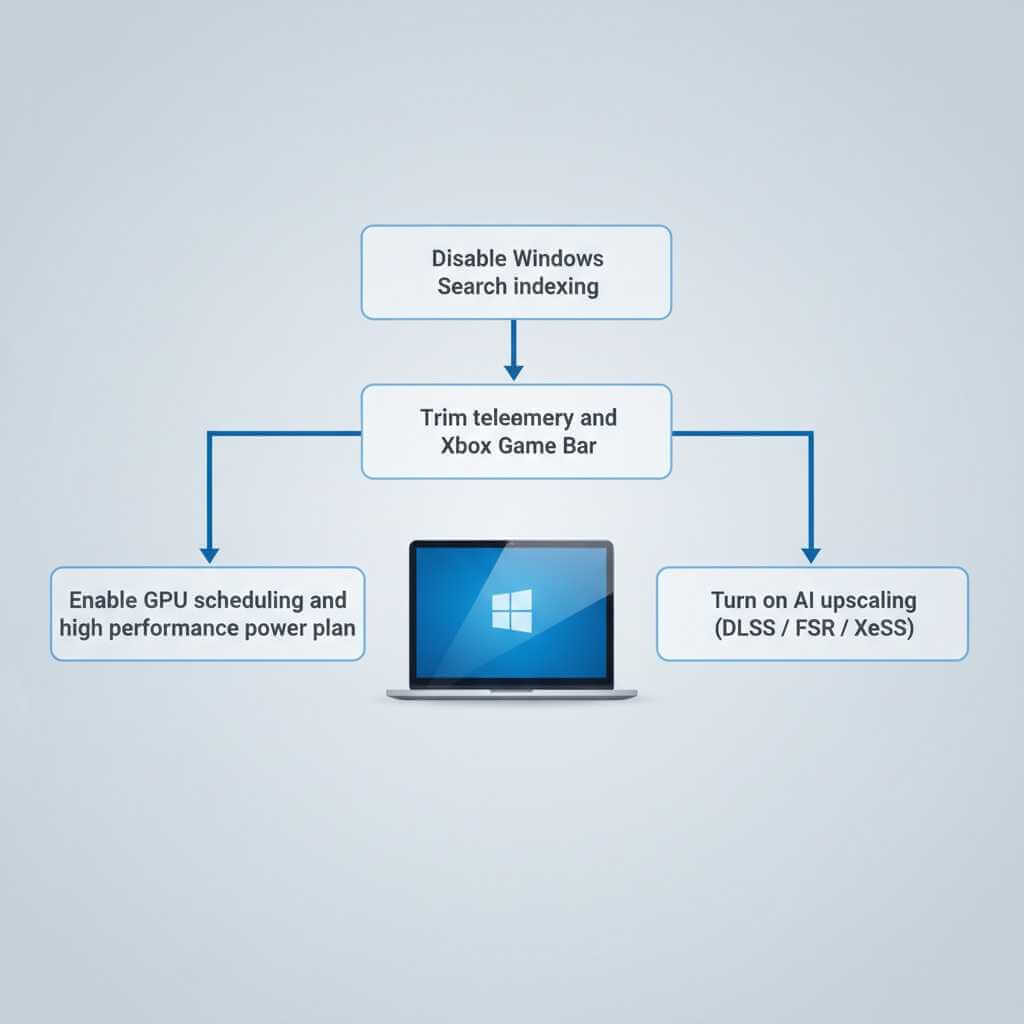
Step 1 – Get a clean Windows 11 AI performance baseline
Before tweaking, run a simple check. Start Task Manager, watch CPU, GPU, RAM and disk while the system sits idle for a few minutes. Then launch a favourite game or a heavy app such as Adobe tools, and watch CPU load and GPU usage through overlays from Hone.gg or MSI Afterburner.
Guides from Neowin and WindowsCentral show that a clean install plus sane defaults already lifts Windows 11 AI performance compared to older, heavily patched builds. Pair that with XMP/EXPO memory profiles and recent chipset drivers, and you start from a strong base.
Step 2 – Trim AI‑heavy background features
On a Copilot+ notebook used for real work, turning off Copilot, widgets and aggressive indexing shifted Windows 11 AI performance from “choppy” to smooth app switching. This aligned well with step‑based guides on YouTube about fixing Windows 11 slow performance and tuning Copilot for better battery and storage.
-
Turn off or scale back Windows Search indexing, as shown in this indexing tutorial.
-
Disable or restrict DiagTrack and related telemetry through Services, consistent with threads on WindowsForum and gaming optimization videos.
-
Switch off Xbox Game Bar and DVR using steps from Hone’s guide and privacy posts such as WindowsForum’s Game Bar risk article.
-
Hide or disable Copilot, following discussions on askcharlyleetham.locals.com and Microsoft help videos.
-
Turn off Widgets if you never glance at that feed; gamers on Reddit show smoother Windows 11 AI performance after that step.
Smart App Control then fills the gap for safe app launching, as covered in Tom’s Hardware and WindowsForum’s clean‑install guide.
Step 3 – Put AI where it pays off: visuals and latency
Once the system runs lean, start feeding AI work to the GPU stack.
-
For NVIDIA cards, enable DLSS 3 or 4 and Frame Generation in titles from lists on GameSnag and Velocity Micro.
-
For AMD cards, switch to FSR 3 or 4, guided by coverage on Gashap Technologies and community testing.
-
For Intel Arc GPUs, use XeSS 2.0 support lists from Intel blogs.
Competitive shooters gain more from latency cuts than raw FPS. Videos and explainers on NVIDIA Reflex and the official Reflex platform page show how to switch games into Reflex + Boost and measure latency drops. On a tuned Windows 11 setup, that change in Windows 11 AI performance stands out more than another small bump in average FPS.
Step 4 – Decide when hardware beats software tweaks
At some point, software cannot cover a weak GPU or an old six‑thread CPU. Our research includes a table with examples such as RTX 3060 + Ryzen 5 5600X at 4K in Cyberpunk 2077, where DLSS 4 still leaves FPS short of a 75+ FPS target. But, more on that later. That analysis rests on data from LaptopMedia, T3’s Intel vs AMD AI laptop tests and future AI notebook outlines from Box.co.uk.
Those benchmarks match real‑life Windows 11 AI performance impressions: after tuning, if a game still struggles on medium settings at your target resolution, GPU or CPU replacement brings far more value than another “optimizer”.
AI for gaming and security without wrecking Windows 11 AI performance
Gaming experience: from Copilot friction to smooth sessions
During testing on a Copilot+ PC, the Copilot gaming overlay that captures screen regions for tips created extra GPU and CPU spikes during frantic scenes. This behaviour lines up with concerns covered in WindowsForum’s article on Gaming Copilot. Once those features were turned off and AI tasks moved into DLSS and Reflex instead, Windows 11 AI performance felt more natural: no AI pop‑ups, just smoother frames and faster aim response.
Streams and long sessions benefit from GPU‑aware tuning such as the one in CGVerse’s NVIDIA performance guide, which balances fan curves, power targets and shader cache for modern engines.
Security: keep AI, dodge traps, protect Windows 11 AI performance
New agentic models in Windows 11 grab headlines, yet security blogs from Microsoft, Mashable and WindowsCentral warn about the malware angle. Microsoft’s own post on ambient and autonomous security and coverage on WindowsCentral’s Xpia malware risk article highlight how those agents can install software or exfiltrate data without a clear user prompt. That threat lands directly on Windows 11 AI performance, since hidden installers and agents nibble at CPU, network and storage.
Security tool round‑ups on Faddom, Qualysec and others show that AI‑driven defence can run lighter than old suites, as long as vendors stick to reputation scoring and behavioural analytics instead of constant scans. For most users that want solid Windows 11 AI performance, Smart App Control plus Defender, regular Disk Cleanup as explained on WindowsForum, and avoidance of shady cleaners from lists like TechRadar’s PC optimizer overview give the right mix.
On phones, similar logic helps. AI camera modes and cloud‑based assistants feel handy, yet “AI cleaner” and “battery optimizer” apps from random stores often reuse the same tricks as desktop fake boosters flagged in Kaspersky and Trend Micro reports. For users who care about Windows 11 AI performance at home and Android performance on the go, that shared pattern keeps life simpler: trust OS‑level AI and known brands, skip miracle boosters.
FAQ: Windows 11 AI Performance & Gaming PCs
Q1. Why does my new Windows 11 AI PC feel slower than my old one?
New AI‑focused PCs often ship with Copilot, Windows Search indexing, telemetry, Xbox Game Bar and widgets all enabled, which can push background CPU usage into the double digits even when you are not doing anything heavy. This constant load eats into headroom for games and apps, so performance can feel worse than on a leaner older install until you trim those services.
Q2. Which Windows 11 AI features should I turn off first for better gaming performance?
The biggest wins usually come from scaling back Windows Search indexing, disabling or limiting telemetry, turning off Xbox Game Bar and captures, and hiding Copilot if you do not actively use it. These changes can significantly reduce idle CPU and disk activity, which translates into fewer stutters and higher average FPS in games.
Q3. Do NPUs in Copilot+ PCs actually improve gaming performance today?
Right now, most PC games do not use NPUs at all; they rely on the GPU for rendering and AI upscaling, and on the CPU for game logic and physics. NPUs mainly accelerate productivity features like Copilot, live captions and local AI tools, so they help AI workflows but do not add FPS in current 2025–2026 titles.
Q4. What are the real AI performance boosters for games on Windows 11?
The features that genuinely move the needle are GPU‑level tools such as DLSS 4, FSR 4 and XeSS 2.0 for AI upscaling, plus NVIDIA Reflex 2 for input‑lag reduction. In supported games these can deliver 40–150% higher FPS and much lower latency, far beyond what any background “AI booster” app can provide.
Q5. Are “AI optimizer” and “AI game booster” apps safe to install?
Many so‑called AI optimizers just toggle basic Windows settings you can change yourself, while some campaigns have used fake AI assistants and boosters to hide credential stealers, ransomware and remote‑access tools. It is safer to rely on built‑in tools like Smart App Control, Windows Disk Cleanup and well‑known vendors, and to treat random downloadable boosters as high‑risk.
Q6. How can I improve Windows 11 AI performance without buying new hardware?
Start with a clean or de‑bloat install, update drivers and BIOS, then trim heavy background features (indexing, telemetry, Xbox Game Bar, Copilot) and switch to a high‑performance power plan with GPU scheduling enabled. After that, turn on AI upscaling (DLSS / FSR / XeSS) in your games; together these steps can deliver double‑digit FPS gains and much smoother 1% lows on the same hardware.
Q7. When is it better to upgrade hardware instead of tweaking Windows 11 settings?
If, after optimization, your CPU is still pegged at 95–100% while the GPU is underused, or your GPU cannot reach playable FPS even with DLSS or FSR enabled, you are hitting a hardware limit. At that point, moving to a stronger GPU or a modern CPU (or a new gaming laptop) will bring far more benefit than additional software tweaks.
Next steps for better Windows 11 AI performance
Users who want strong Windows 11 AI performance can start small: clean install if possible, apply the service and Copilot trimming steps, then move on to AI upscaling and Reflex inside games.
From there, curiosity can go wider: long reads on agentic AI security from Microsoft, next‑gen Xbox AI rumours on Reddit, PS5 spectral super resolution coverage, and AI notebook futures all hint at where GPUs, NPUs and OS features may head. That knowledge then feeds back into smarter choices on whether to keep tuning current hardware for stronger Windows 11 AI performance, or jump to a Copilot+ system with a modern GPU.
For readers running a tech blog or channel, every link from our research —ranging from Windows 11 gaming lag fixes on YouTube to Adobe Illustrator AI slowdown threads—offers more angles to test and share. That kind of hands‑on feedback loop keeps Windows 11 AI performance grounded in real usage instead of slogans.