A gaming PC should deliver smooth movement, responsive controls and dependable performance when the action gets busy. Yet even a capable system can struggle with sudden frame drops, distracting hitches or an FPS counter that looks better than the game feels.
Improving that experience starts with understanding how Windows, background applications, graphics settings and the game itself use your hardware. Adjusting the right areas can help increase FPS and improve consistency without immediately replacing your CPU or graphics card.
HD OPTI brings several of those adjustments into one application. For players exploring PC optimisation, it offers a practical way to approach system configuration alongside game settings and performance testing.
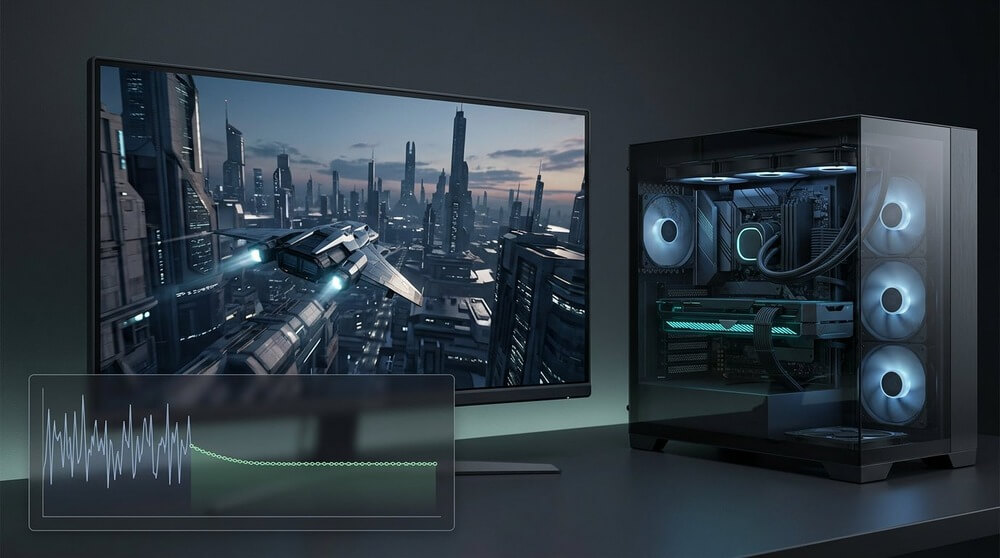
Table of Contents
Identify What Is Limiting Your FPS
Before applying changes, establish where performance falls short. Does the game slow down during crowded fights, when entering new areas or after the PC has been running for an hour? Each pattern provides a useful clue.
Sustained high GPU utilisation often indicates that graphics rendering is the main constraint. Reducing resolution or demanding effects can help test that possibility. If performance barely changes, another limitation may deserve attention.
A CPU limitation can be less obvious. Overall processor usage may look modest while an important game thread is heavily loaded. Background software and settings affecting simulation or draw distance can matter here.
Check temperatures and clock speeds too. Performance that declines as the system heats up needs a cooling investigation alongside software adjustments. Monitoring several measurements together gives you a stronger starting point than assuming every FPS drop has the same cause.
Understand Frame Times and Slower Frames
Average FPS describes overall rendering speed, but it can hide brief interruptions. A game may report a healthy average while individual frames take noticeably longer to finish, producing the hitch you feel during movement or aiming.
At a steady 120 FPS, each frame takes approximately 8.3 milliseconds. A frame taking 40 milliseconds interrupts that rhythm even if surrounding frames arrive quickly. Watching a frame time graph helps reveal these delays.
Lower percentile measurements, commonly called 1% lows, also help describe slower moments. Their calculation varies between tools, so compare results using the same software and settings throughout your tests.
Look for improvements in the situations that bothered you originally. Smoother camera movement through a demanding area can be more useful than a higher peak reading while standing still. Average FPS, slower frames and visible consistency belong in the same assessment.
Reduce Unnecessary Windows Background Activity
Games share system resources with everything else running on the PC. Browser tabs, launchers, cloud synchronisation, recording tools and hardware utilities can consume CPU time, memory or storage bandwidth while you play.
Start with applications you recognise. Close software you do not need for the session, pause large downloads and review programs configured to launch with Windows. Keep the voice chat, accessibility tools and other features you actually use.
HD OPTI includes Windows optimisation tools within its wider performance workflow. Players can explore these through HD OPTI’s FPS booster and PC optimisation software, which also brings GPU configuration and supported game settings into the application.
The useful target is reducing avoidable competition for resources. A smaller process count alone does not establish better performance. Measure whether your changes improve frame delivery while keeping essential services and everyday features working properly.
Overlays deserve an individual comparison, particularly if several applications display performance counters or capture gameplay simultaneously. Disable one optional overlay, repeat your test and check the result. If it makes no measurable difference, there may be little reason to sacrifice a feature you enjoy.
Configure Your GPU Around Your Games
Graphics driver options influence how your PC handles rendering, synchronisation and frame limiting. Review them alongside the settings inside each game so you understand which layer controls a particular feature.
HD OPTI provides GPU optimisation for NVIDIA and AMD graphics cards. Having GPU and Windows tools together can simplify preparation for players who would otherwise work through several separate settings menus.
Keep image quality in the comparison. Lower rendering resolution can increase performance when GPU workload is the constraint, but the resulting picture may lose detail. Upscaling introduces another balance between clarity and rendering cost.
Frame caps can also be useful when a game repeatedly exceeds what your system can sustain. Test a limit around a comfortable performance level and watch the frame time graph. The best choice depends on your game, display and priorities rather than a universal number.
Choose Game Settings With a Clear Purpose
Large graphics presets are convenient, but individual options often have very different costs. Shadows, reflections, volumetric effects and ray tracing can demand substantial GPU resources. Crowd density, simulation settings and view distance may also increase CPU work, depending on the engine.
Adjust the options most closely connected to your limitation. Lowering every setting can reduce visual quality unnecessarily, particularly when the game is constrained elsewhere. Texture settings deserve attention when available video memory becomes a concern.
HD OPTI offers configurations for supported games, with options for popular competitive titles such as Fortnite, Valorant, Counter-Strike 2 and Call of Duty. These provide a starting point for competitive settings.
Try the configuration in the modes you normally play. Check visibility, image quality and performance during busy scenes. You can then raise selected settings gradually if your hardware has room and you prefer a richer presentation.
Also confirm that Windows is using your display’s intended refresh rate. A monitor configured below its supported refresh rate limits how frequently it updates, even when the game renders faster. Check this separately from optimisation so you can identify what improved the experience.
Use HD OPTI Game Mode Before Launching
HD OPTI Game Mode adds a repeatable step before playing supported games. It monitors launches and applies CPU optimisation after detecting a supported process. This is a separate feature from Windows Game Mode.
Open HD OPTI and enable Game Mode before starting the game. Leave the application running while detection takes place, then wait for confirmation. The detected game should appear under Active Detected Processes.
After application, the optimisation remains in place for that game session even if HD OPTI closes. Switching monitoring off stops detection of future launches; it does not remove the applied settings from an already detected game. Those session changes end when the process closes.
This routine makes activation easier to confirm. Compare results on your own processor and games, since the benefit depends on the original configuration, background workload and how the game uses available CPU resources.
Investigate Stuttering Beyond Raw FPS
Some interruptions need a different response from lowering graphics settings. Shader compilation can cause delays when a game encounters effects for the first time. Asset streaming can create hitches while moving through an environment, especially when storage or memory resources are under pressure.
Let a game’s shader preparation finish where that option exists. Note whether a hitch occurs only on the first run or repeats at the same location. These observations help distinguish temporary preparation from a persistent issue.
Driver changes and game updates can also alter behaviour. If a problem begins immediately after an update, record the version and investigate that connection before changing unrelated settings. Some engine issues ultimately require a developer patch.
HD OPTI Lab includes supporting tools such as PC Specs, a Controller Latency Test and a USB Port Analyzer. Choose the tool that matches the symptom you are investigating.
Keep Network Performance Separate From Rendering
Online responsiveness involves more than FPS. Ping measures network round trip time, while packet loss and jitter describe other connection problems. Your PC can render smoothly while communication with the server remains inconsistent.
HD OPTI includes network optimisation, but evaluate connection behaviour separately from graphics performance. Watch the game’s network indicators and compare similar sessions. Local configuration cannot remove physical distance to a server or resolve an outage affecting the service.
Benchmark Changes and Keep Useful Results
Record a baseline before applying optimisations. Use a built in benchmark or a repeatable gameplay route, then repeat it several times with the same resolution, graphics settings and measurement tool. Allow comparable warmup time so initial shader preparation does not distort the comparison.
Apply changes in stages and record what you adjusted. When testing Windows or GPU configuration, keep game settings fixed. When testing a new game profile, record the visual differences separately. Compare average FPS, 1% lows and frame times across runs.
Use ordinary sessions as a final check. A benchmark improvement should remain useful with your usual voice chat and peripherals connected, through the maps and situations you regularly encounter during everyday play.
HD OPTI brings Windows optimisation, NVIDIA and AMD GPU settings, Game Mode and supported game configurations together to help boost FPS and reduce stuttering. Its tools make improving gaming performance easier to manage from one application.
For players looking for an FPS booster, HD OPTI offers a straightforward way to optimise their PC for higher frame rates, smoother gameplay and more responsive gaming.