Most people think of a competitive CS2 setup as a PC, a high refresh rate monitor, a good mouse, and a headset. The phone sitting next to the keyboard rarely makes the list. Yet when a match lags, a teammate goes missing, or your rating drops after a rough night, that phone is usually the fastest tool you have. Used properly, your smartphone can handle team comms, diagnose your network, track your rank, and protect your account without adding a single task to your PC.
Table of Contents
Why Your Phone Belongs in Your CS2 Setup
Your PC should do one job during a match: run CS2 as smoothly as possible. Every extra app you open on it, from a browser full of stat pages to a second voice client, competes for CPU time, memory, and attention.
A phone takes that load off. It sits outside the game, it has its own connection options, and it already runs the apps most CS2 players use anyway. The trick is setting it up with intent, so it helps between rounds and stays quiet during them.
1. Team Comms and Squad Coordination
In-game voice works for calls during a round, but most of the real coordination in CS2 happens outside the match. Five-stacks get organized in Discord servers and group chats long before anyone clicks “Accept”. Having those conversations on your phone keeps your PC free for the game itself.
Discord’s mobile app is the obvious starting point. You can check who is online, set a start time, share a line-up video, and settle the map veto plan while your PC is still booting. Once the match starts, mute the server or set notifications to mentions only, so a stray meme doesn’t light up your screen mid-clutch.
Some players also move voice chat to the phone during long sessions. This works best if the phone runs on mobile data rather than home Wi-Fi, because voice is two-way traffic. Many home plans offer far less upload capacity than download, so pushing voice onto cellular leaves more of your home upload for the game.
Those same chats are where squads talk about how to climb. Players compare coaching options, organize VOD reviews, look for duo partners with similar ratings, and sometimes discuss services like CS2 Boosting when a season deadline is close. Keeping one pinned channel for goals, schedules, and demo links stops that information from getting buried under hundreds of messages.
A few habits keep phone comms useful:
- Create a separate channel for match planning, so stats don’t get lost in general chat.
- Pin your team’s map pool and default setups.
- Use push-to-talk on mobile if you run voice from the phone, since phone mics pick up more background noise.
- Turn on Do Not Disturb for everything except your squad during matches.
2. Network Testing Before You Queue
Nothing tilts a team faster than a player who spikes to 150 ping on every retake. Your phone is one of the easiest ways to find out whether the problem is your connection, your Wi-Fi, or the game server.
Start with a simple comparison. Run a speed test on your phone while connected to your home Wi-Fi, then switch to mobile data and test again. If mobile data shows lower, steadier latency than your Wi-Fi, the issue is probably inside your home network, not with your provider or Valve’s servers.
Raw download speed is rarely the bottleneck, since CS2 sends small amounts of data that almost any modern connection can handle. What actually hurts is latency, jitter, and packet loss. Cloudflare’s explainer on what network latency is breaks down the usual causes, including physical distance to the server, the number of network hops, and congestion, and that last one is the cause you can actually control at home.
That is where a phone helps most. Use it to open your router’s admin app and see what else is using the connection. Smart TVs, consoles downloading patches, and cloud backups all eat into bandwidth, and most households have more of them than they realize. Before blaming the game for your lag, it’s worth knowing how many devices are connected to your home network. A quick device check can show whether something else is using your connection.
A quick pre-queue network routine looks like this:
- Run a speed test on your phone over Wi-Fi and note ping and jitter.
- Open your router app and pause or limit heavy downloads.
- Use a Wi-Fi analyzer app to check whether your channel is crowded if your PC runs wireless.
- Launch CS2 and turn on the telemetry overlay in the game settings to watch live ping and packet loss.
- If numbers still look bad, test your phone on mobile data to rule out a provider outage.
Your phone is also a solid backup plan. If your home internet drops completely, a mobile hotspot won’t make you competitive for a Premier match, but it can keep you connected long enough to avoid an abandon penalty or tell your team what happened.
3. Rank Tracking and Performance Review
CS2’s Premier mode uses a visible CS Rating instead of badges. You only get that number after winning 10 Premier matches, not just playing them, and it then moves up or down after every game. Community trackers group ratings into color bands, from grey below 5,000 up to gold at 30,000 and above.
Checking that number on your phone between sessions is more useful than it sounds. Stat sites like Leetify and csstats.gg works in a mobile browser, and the FACEIT app covers players who also grind third-party matchmaking. Reviewing a match on your phone after you log off keeps the analysis separate from the next queue, which helps you avoid chasing losses.
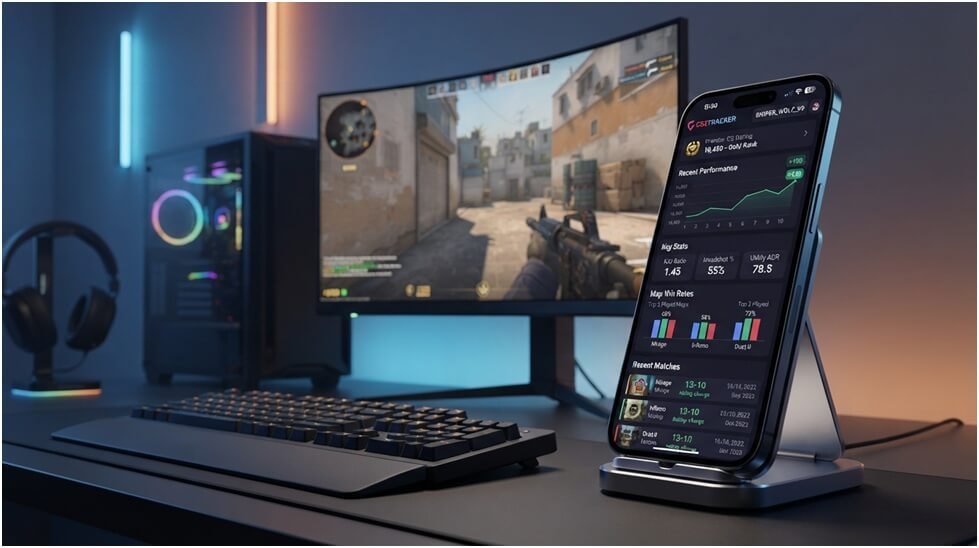
Focus on trends rather than single games. A few numbers worth watching:
| Metric | What it tells you | What to do if it drops |
| Win rate over last 20 matches | Whether your rating movement is a streak or a pattern | Look at which maps and teammates the losses share |
| Opening duel success | How often you win the first fight of a round | Review positioning on your worst map |
| Utility damage and flash assists | How much you help the team beyond kills | Practice a few reliable lineups per map |
| Trade kill rate | Whether your team plays together or dies alone | Talk spacing and support roles in team chat |
| Rating change per session | Whether long sessions help or hurt you | Set a stop rule, such as two losses in a row |
Many players keep a simple note on their phone for each session: time played, maps, rating before and after, and one thing to fix. After a couple of weeks, it becomes obvious whether late-night sessions, solo queue, or one bad map is dragging the rating down.
4. Account Security With Steam Guard
A competitive setup means nothing if someone takes over your Steam account. CS2 players are frequent phishing targets because of skin inventories and ranked accounts, and fake trade links or “vote for my team” pages still circulate in Discord servers.
Your phone is the best defense here. Valve’s Steam Guard Mobile Authenticator runs inside the Steam Mobile App and lets you approve sign-ins with a tap or a QR code scan. Even if someone gets your password, they still need your phone to log in.
Set it up once and follow a few basic rules:
- Save your backup codes somewhere offline, in case you lose or replace your phone.
- Never approve a login request you didn’t start, no matter who asks.
- Treat any unfamiliar site that asks you to sign in with Steam as a red flag.
- Check the Steam Mobile App for trade confirmations before accepting anything.
For players who travel or play from different rooms, laptops have become a realistic option, and the current crop of gaming laptops for 2026 can hold high frame rates in esports titles like CS2. Pair one with a wired connection and your phone as the comms and diagnostics hub, and you have a portable setup that still takes ranked play seriously.
6. Phone Habits That Quietly Hurt Your Game
Your phone can also be the problem. A few common habits cost players rounds without them noticing:
- Background uploads on the same Wi-Fi. Photo backups and app updates can kick in while you play, so set them to run only while charging overnight.
- Notifications on the desk. A buzzing phone next to your mouse pulls attention during clutches. On an iPhone, you can allow or silence notifications for a Focus so only your squad’s Discord gets through, and Android’s Do Not Disturb mode offers similar app exceptions.
- Checking stats mid-session. Watching your rating drop between matches feeds tilt, so save the review until after you log off.
- Scrolling during warmups. Deathmatch or aim training before Premier works better with full focus than with a video playing on the side.
The goal is simple: the phone should support the session, not compete with it.
Frequently Asked Questions
Q1: Can I use my phone for Discord voice while playing CS2 on PC?
Yes, and many players do. Running voice on your phone keeps that app off your PC entirely. If you can, use mobile data for the call so voice traffic doesn’t share your home upload with the game.
Q2: How do I check my ping in CS2?
Open the game settings and enable the telemetry options, which show live ping and packet loss on screen. The scoreboard also shows each player’s ping. For testing before you queue, a speed test app on your phone gives a quick read on your connection.
Q3: What is a good ping for competitive CS2?
Lower is always better, and anything under about 50 ms usually feels responsive. Consistency matters as much as the number itself. A steady 40 ms plays better than a connection that jumps between 20 and 90 ms.
Q4: Does Wi-Fi or mobile data give better ping?
A wired home connection is usually best, followed by a strong home Wi-Fi signal. Mobile data tends to have higher and less stable latency, though 5G in good coverage can come close. Mobile data is most useful as a comparison test and a backup.
Q5: How many wins do I need to get a CS Rating in Premier?
You need to win 10 Premier matches to receive a CS Rating. Losses and draws don’t count towards that total. After placement, your rating changes after every match based on results and opponent strength.
Q6: What do the CS2 Premier rating colors mean?
The colors show rating bands. Grey covers ratings below 5,000, followed by light blue, blue, purple, pink, and red in 5,000-point steps. Gold starts at 30,000 and belongs to a small group of top players.
Q7: Is there an official CS2 app for phones?
There is no mobile version of CS2 itself. The Steam Mobile App covers the essentials, including friends, chat, trade confirmations, and Steam Guard sign-in approvals. Stat tracking relies on third-party sites and apps.
Q8: Why is Steam Guard Mobile Authenticator important for CS2 players?
It stops anyone without your phone from logging into your Steam account, even if they have your password. CS2 accounts are common phishing targets because of skins and ranked progress. The authenticator is one of the simplest ways to protect both.
Q9: Can a phone hotspot run CS2 matches?
It can, but it isn’t ideal for ranked play. Hotspot latency is usually higher and less stable than home broadband, and data usage adds up over long sessions. It works best as an emergency backup to finish a match or avoid a penalty.
Q10: How can I reduce lag caused by other devices at home?
Check your router app for devices using heavy bandwidth and pause large downloads while you play. Schedule phone backups and console updates for overnight. If lag continues, a wired Ethernet connection to your PC removes most Wi-Fi interference.
Competitve CS2 Setup: Final Thoughts
A competitive CS2 setup isn’t only about what sits on the desk in front of the monitor. Your smartphone can organize the team, test your connection before a bad match happens, track whether your rating is actually improving, and keep your Steam account locked down. Give it a clear role for each job, keep it silent during rounds, and it becomes one of your most useful pieces of gear.